How to edit a vehicle
Who this is for
Staff correcting a plate, VIN, or year, make, and model. Technicians and accountants do not edit vehicles. A manager is required to delete one.
Before you start
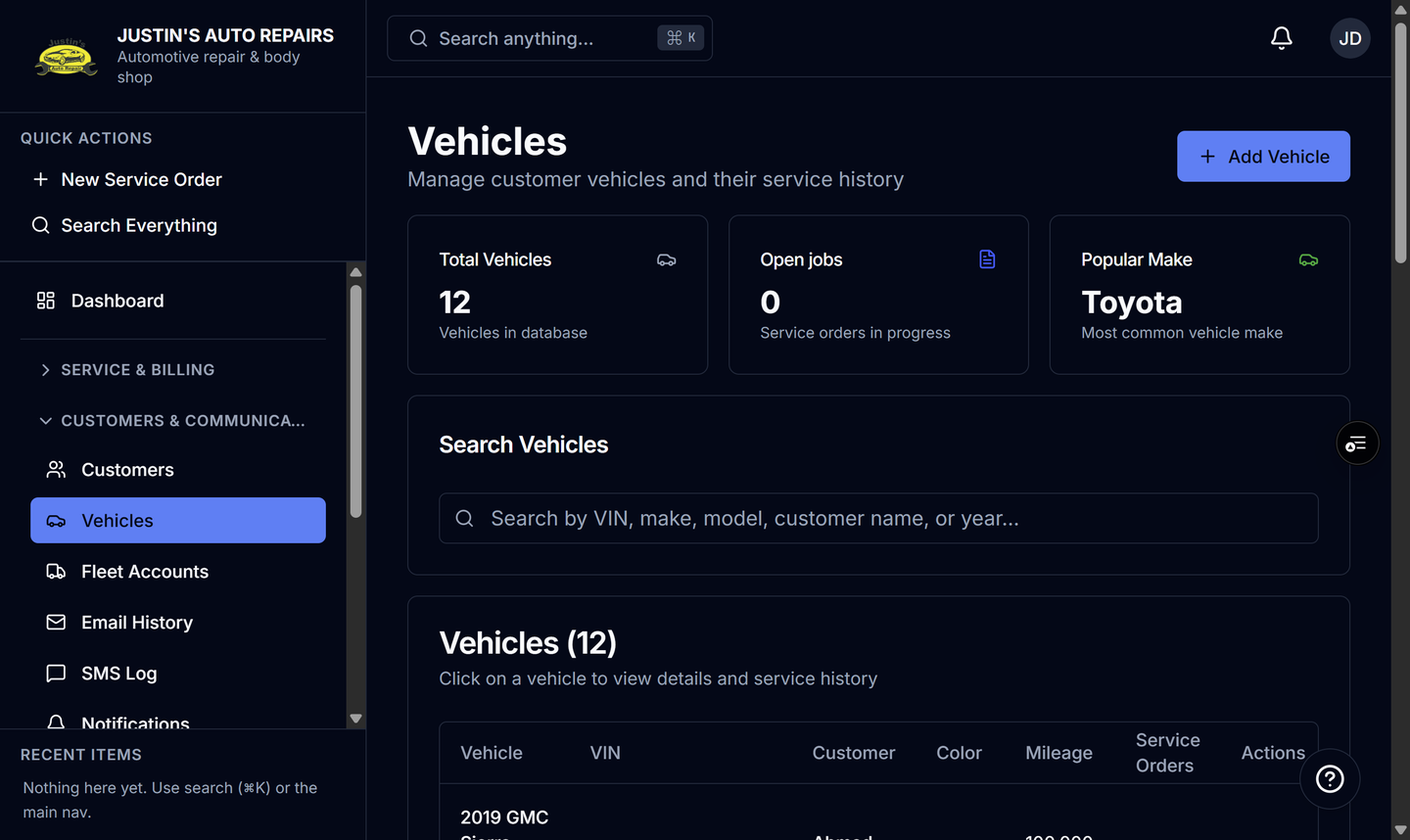
- Open Customers & Communications and choose Vehicles.
- Search by VIN, make, model, customer name, or year if the list is long.
Steps
- On the vehicle’s row, open the actions and choose Edit Vehicle.
- Correct the VIN, year, make, model, plate, or other fields in the dialog.
- Leave a field alone when the stored value is already right. A later VIN decode does not overwrite a value that is already saved.
- Choose Update Vehicle.
How you know it worked
The dialog closes and the Vehicles row shows the updated plate or description. Open the vehicle to see specifications on the overview when a decode has stored them.
Common snags
- Entering a valid 17-character VIN can fill empty year, make, model, and trim fields. It will not replace corrections you already saved.
- The odometer on a service order is a snapshot of that visit. Editing the vehicle does not rewrite odometers already stored on old orders.
- A reading saved on a service order updates this vehicle only when it is higher than the current mileage, or when the vehicle had no mileage yet.