How to set up a maintenance schedule
Who this is for
Front counter staff putting a vehicle on a repeating service, such as an oil change by days or kilometres. Technicians and accountants can view schedules when the module is on. They do not apply templates or create schedules.
Before you start
- Maintenance is on for the shop. If the page says Maintenance Is Not Available, a platform administrator has to enable it.
- The vehicle already exists. See How to add a vehicle. Owners and managers maintain the library under Maint. Templates.
Steps
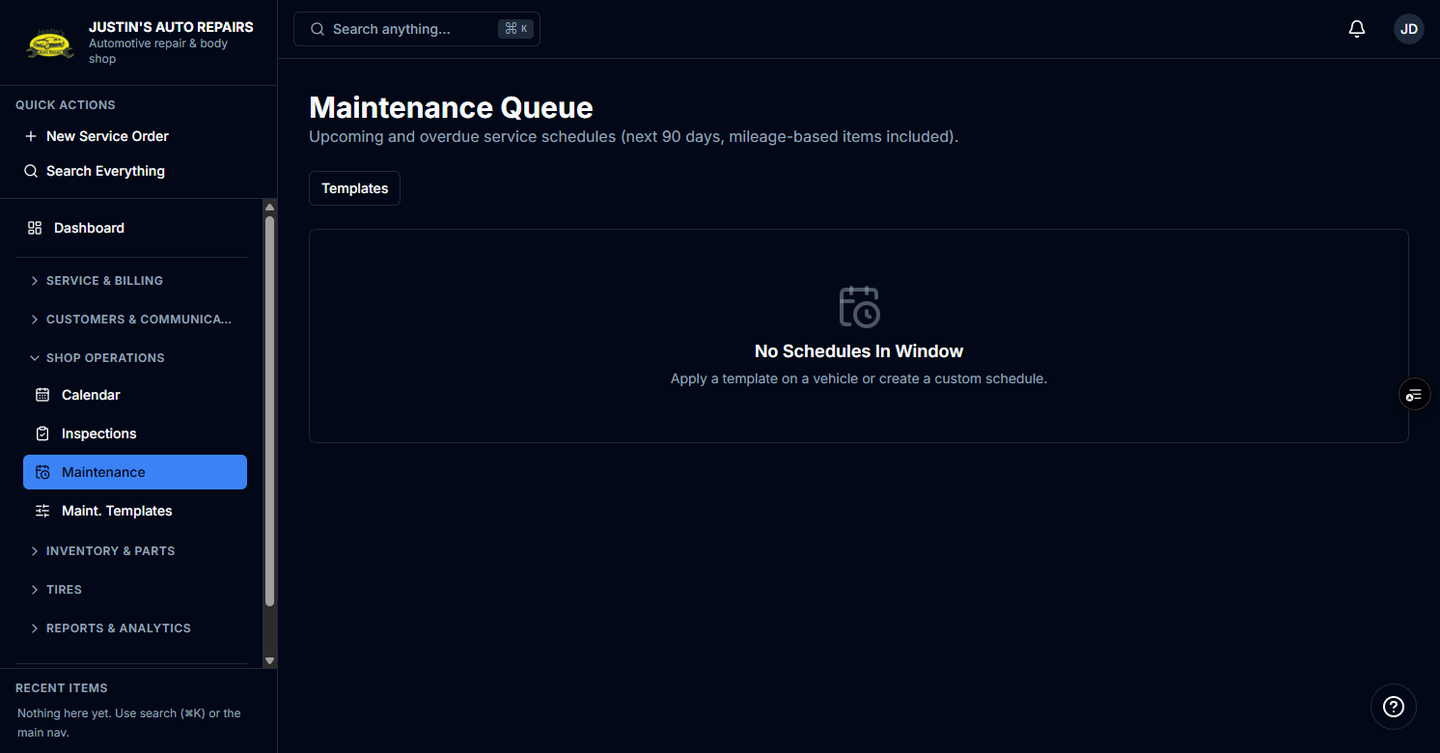
- Open Shop Operations and choose Maintenance.
- Choose Vehicle on a row to open that vehicle’s Maintenance tab, or open the vehicle and choose Maintenance.
- Under Apply template, choose a template and choose Apply.
- Or choose Custom schedule, enter the service name and an interval in days or distance, and choose Create.
- Return to Maintenance. The queue lists schedules due in the window, including mileage-based items.
How you know it worked
Active schedules on the vehicle shows the service and a next due date or mileage. The Maintenance queue lists that vehicle when the due date or mileage falls in the window. An empty queue says No Schedules In Window.
Common snags
- Apply stays disabled until you choose a template. If the template list is empty, an owner or manager adds one under Templates.
- Remind sends a manual notice and bypasses the usual wait between automatic reminders. Pause takes that row off Active schedules.
- Finishing the job can recalculate the next due date from the odometer on that order. You do not retype the interval for that.