How to add a vehicle
Who this is for
Staff adding a vehicle to a customer. You can also add one from the customer (New Vehicle) or from New Service Order (Add new vehicle). Technicians and accountants do not add vehicles.
Before you start
- The customer already exists. See How to add a customer.
- A 17-character VIN fills year, make, model, and trim. Without a VIN, year, make, and model are required. See How to decode a VIN.
Steps
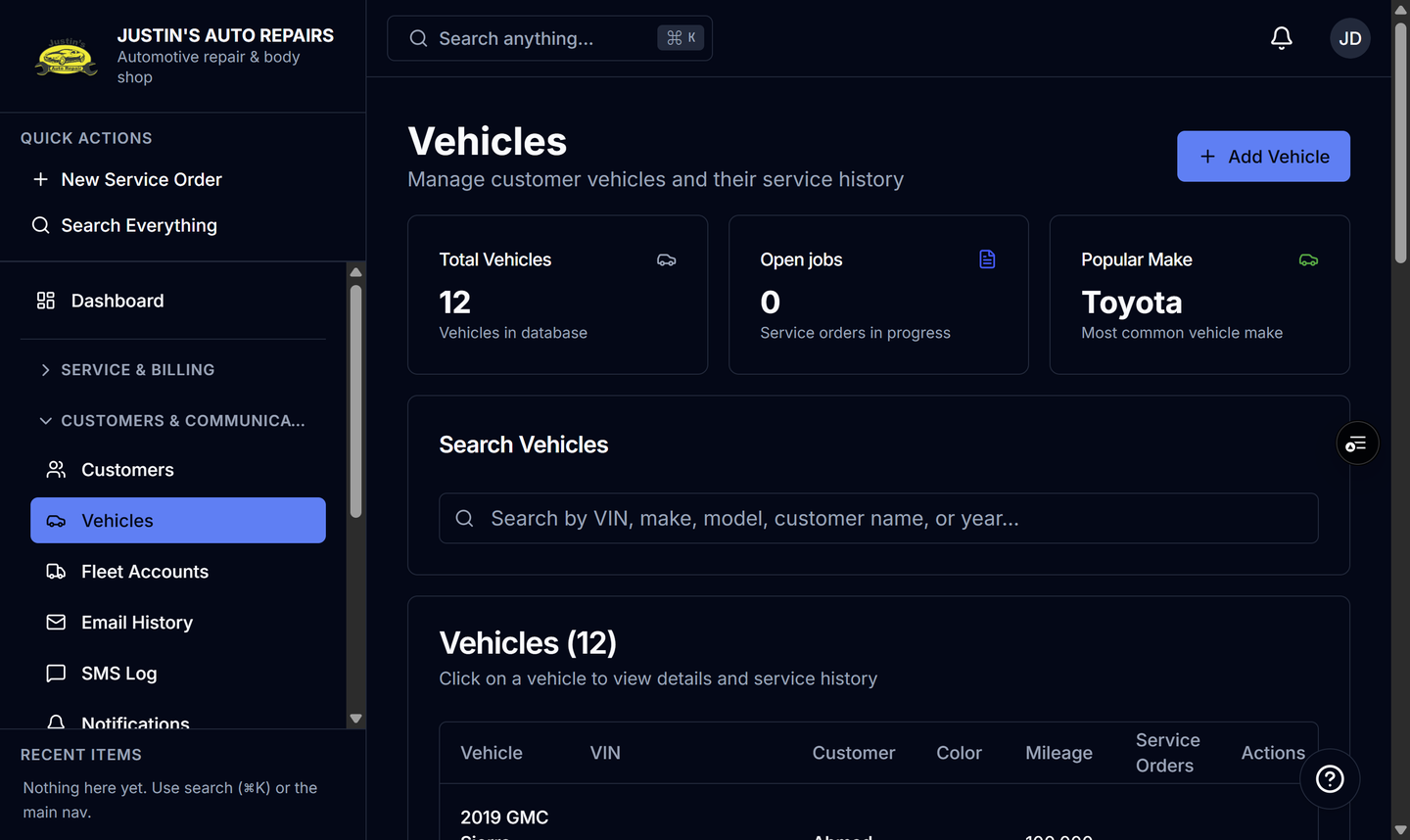
- Open Customers & Communications and choose Vehicles.
- Choose Add Vehicle.
- Choose the customer. If you started from New Vehicle on the customer, the customer is already selected and locked.
- Enter the VIN, or leave it blank and enter year, make, and model.
- Enter the plate and other details you have.
- Choose Add Vehicle.
How you know it worked
The vehicle appears on the Vehicles list and on the customer’s vehicles. Opening it shows the overview, including specifications when a VIN decode stored them.
Common snags
- Saving without a VIN is allowed. Year, make, and model are required in that case, and parts fitment may be less precise.
- The dialog title is Add New Vehicle. The button you press to save is Add Vehicle.
- Decode unknown plate appears on the service-order vehicle add only when plate lookup is turned on. A plate already in your shop is found with Find customer, which stays inside your records.