How to edit a customer
Who this is for
Staff correcting a name, phone, email, address, or consent. Technicians and accountants do not edit customers.
Before you start
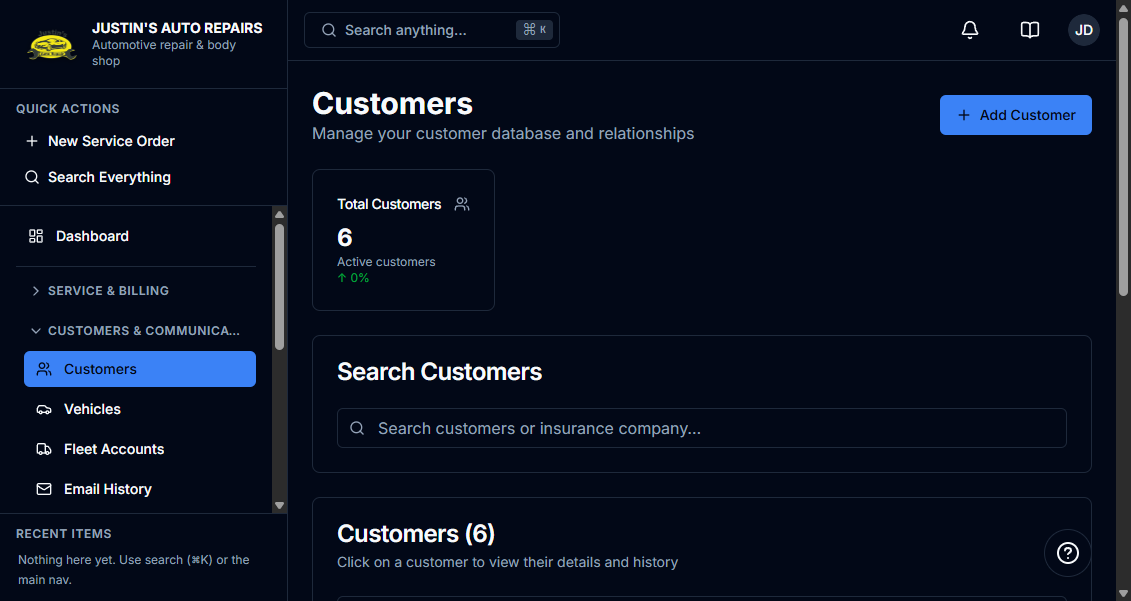
- Open Customers and click the customer’s row. See How to add a customer.
- Edit Customer is on the customer header and in the row actions. It opens in place.
Steps
- On the customer, choose Edit Customer.
- Change Customer Name, phone, email, address, or SMS notifications consent.
- When Customer type is shown, change Walk-in, Insurance, or Warranty only if the billing type itself changed.
- Choose Update Customer.
How you know it worked
The dialog closes and the customer page shows the new name or contact. Lifetime value on the edit form is a running total of what this customer has been billed. It is not an editable field.
Common snags
- Phone or email is still required. Clearing both blocks the save.
- Turning SMS notifications consent off stops transactional texts, including estimate and invoice texts, until you turn it on again.
- An email unsubscribe from review messages is separate. Turning Send review requests back on does not clear that unsubscribe.