How to create a fleet service order
Who this is for
You write an estimate for a vehicle that belongs to a commercial fleet account.
Before you start
- The vehicle's customer is linked to the fleet account, and the vehicle can have a unit number such as Unit 42.
- Job type stays Walk-in unless the repair is insurance or warranty. Fleet is the account, not a separate job type.
- Set rates first if this account has a discount. See Set fleet pricing.
Steps
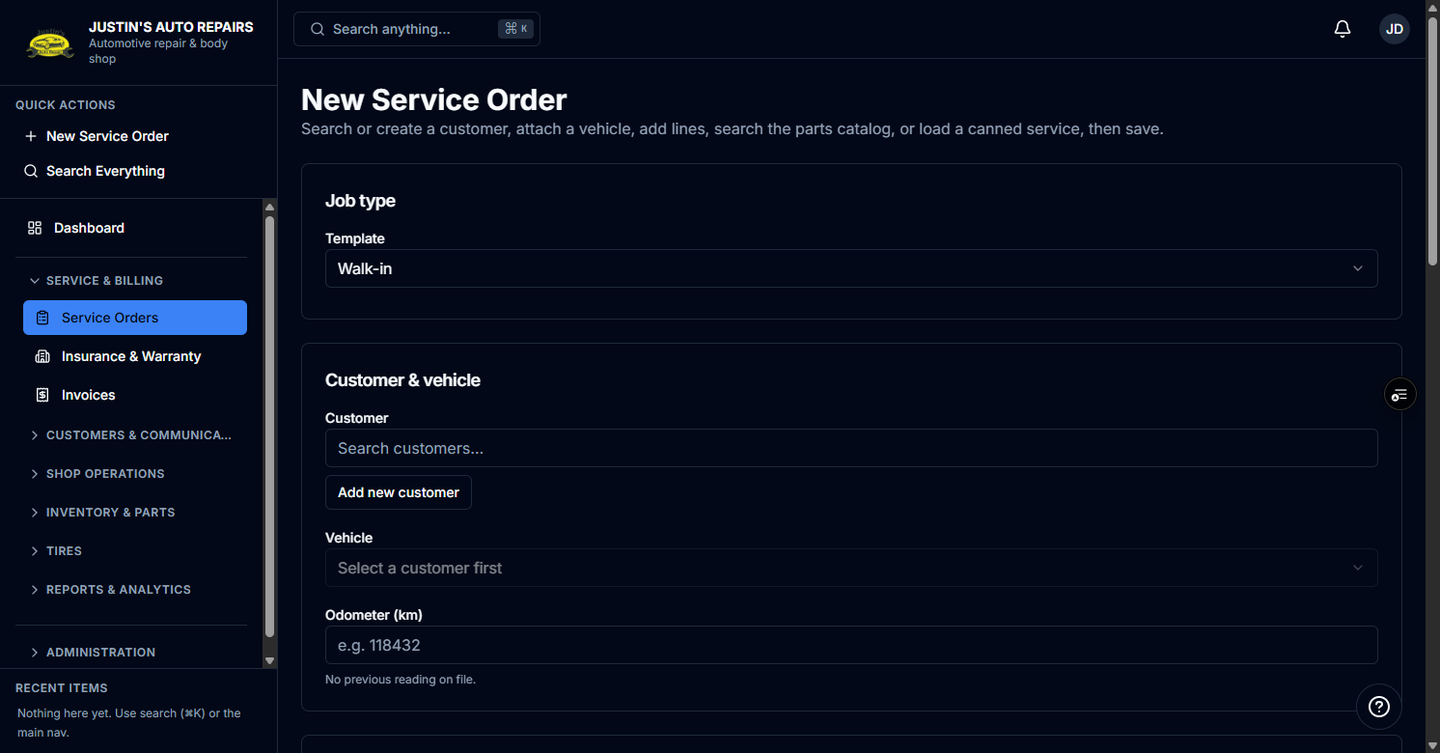
- Open Service Orders and start a new service order.
- Choose the customer linked to the fleet account.
- Choose that customer's vehicle.
- Leave Job type on Walk-in for a customer-pay fleet repair.
- Add the labor and parts lines.
- Read the fleet pricing badge beside the totals.
- Choose Create service order.
How you know it worked
The order shows the fleet company and the discounted lines. If the total is at or under the account's pre-authorization threshold, the job is already approved and has no customer approval link. Above the threshold, the approval request goes to the fleet approval contact.
Common snags
- A customer with no fleet account gets normal pricing. Link the customer or vehicle on the fleet account first.
- Portal booking needs the Scheduling module. This screen is the in-shop order, not the public portal.
- Technicians and accountants cannot create the order.