How to share the driver portal
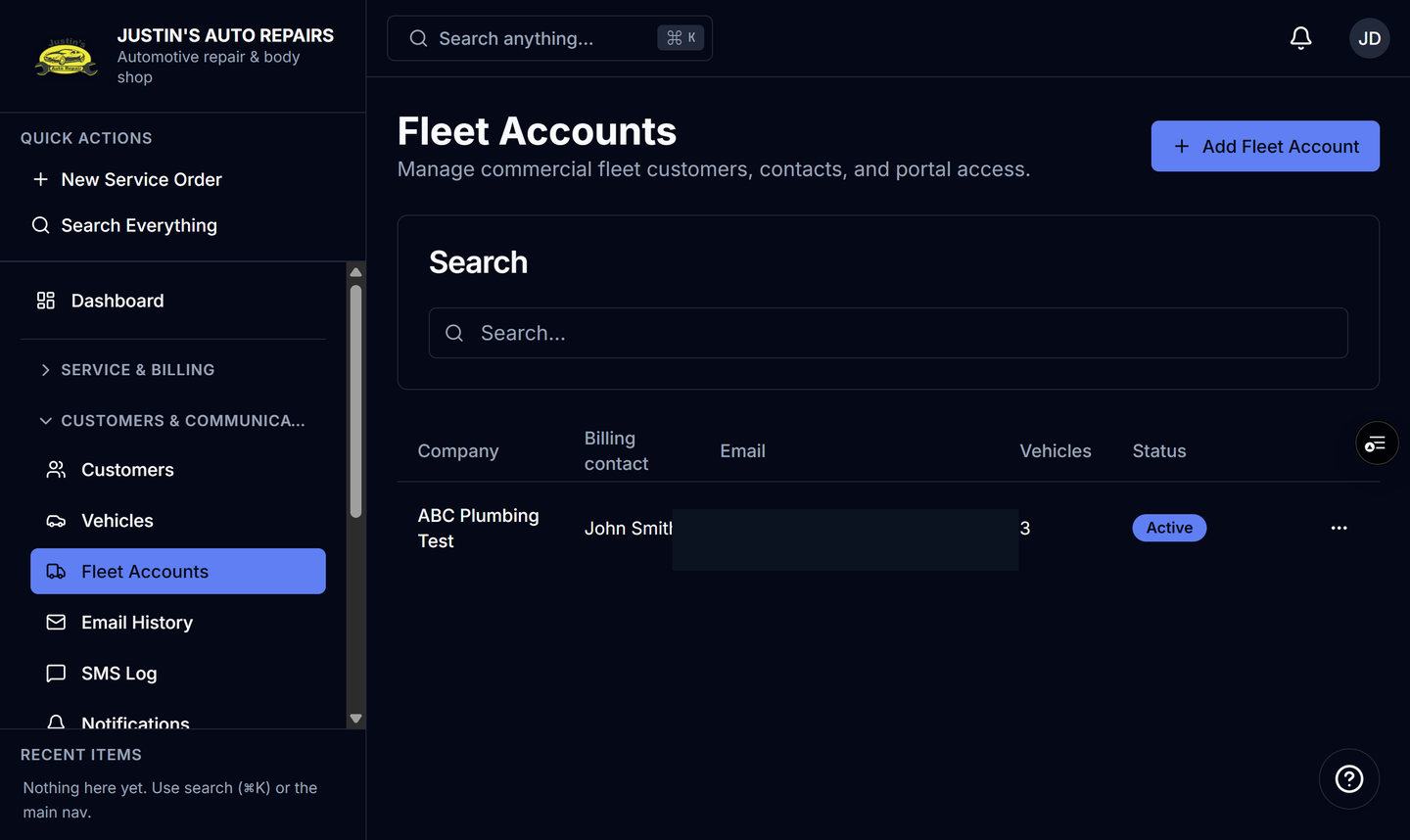
Who this is for
You send a private link so a fleet manager sees every unit, or a driver sees one vehicle.
Before you start
- The account exists, and the vehicle is linked if you are sharing a single unit.
- Booking from the portal also needs the Scheduling module. Without it, the link still opens the portal, but booking is unavailable.
- Anyone with the link can open it. There is no separate login.
Steps
- Open Fleet Accounts.
- Open the company.
- On Fleet portal link, choose Copy.
- Send that link to the person who should see every unit.
- Open the Vehicles tab.
- On the unit row, choose Copy beside Driver link.
- Send that link only to the driver of that vehicle.
How you know it worked
The account link lists the account's vehicles. The driver link opens one unit. If scheduling is on, that driver can book service with the vehicle already selected.
Common snags
- Regenerating the account token replaces the account link. Old copies of that link stop working. Driver links are separate.
- Do not post the link publicly. The token is the password.
- Maintenance due dates and bulk reminders need the Maintenance module. They are not part of sharing the link.