How to create an estimate from an inspection
Who this is for
You turn failed and caution items into estimate lines the advisor still has to price.
Before you start
- The inspection is completed or shared.
- You can create estimates. Technicians and accountants cannot.
- Red points start selected. Yellow points are optional. Green points are not offered.
Steps
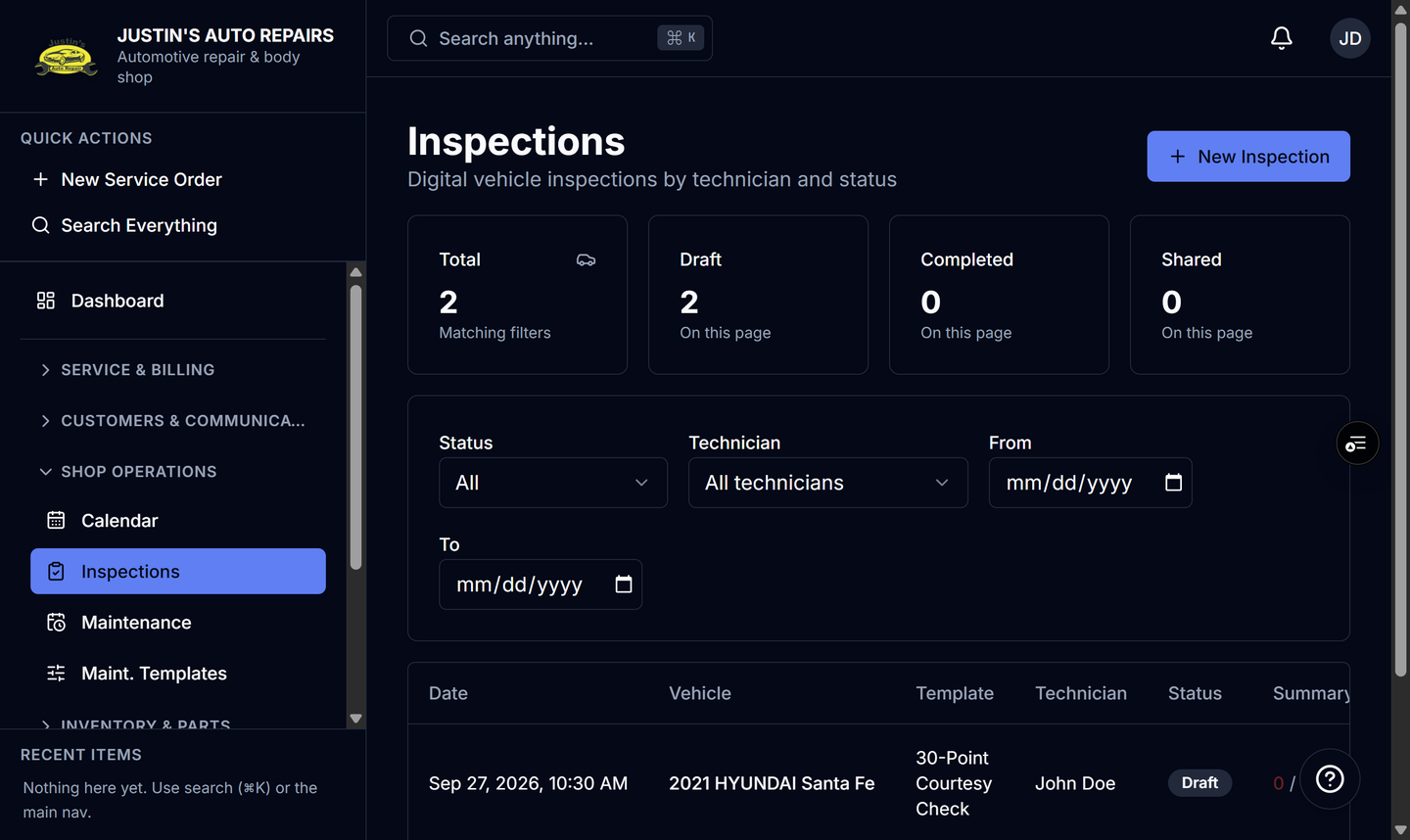
- Open Inspections and open the completed or shared inspection.
- In Create estimate, leave the red items selected.
- Select any yellow items you want on the estimate.
- Choose Create estimate.
- Open the service order it names and enter prices. The checklist does not price the lines.
How you know it worked
If the linked repair order is still an estimate, the selected items are added to that order and the totals update. Points already on the order are skipped. If the order was approved by the customer, is further along, or there is no matching order, a new walk-in estimate is created and the inspection points at it.
Common snags
- If the shop already authorized the linked order, create estimate is refused until you undo authorization on that service order and try again.
- Declined lines that came from an inspection show on the vehicle as declined inspection work.
- Photos from the inspection appear on the customer approval page only after the inspection is completed or shared.