How to use an inspection template
Who this is for
You pick the checklist that matches the visit, instead of inventing points on the vehicle.
Before you start
- Templates load when you start an inspection. A shop with none gets four: 30-Point Courtesy Check, 60-Point Inspection, Pre-Purchase Inspection, and Seasonal Check-Up.
- That fill-in happens once. If every template was deactivated, they are not created again.
- There is no separate template editor on the Inspections screen. You choose a template when you start.
Steps
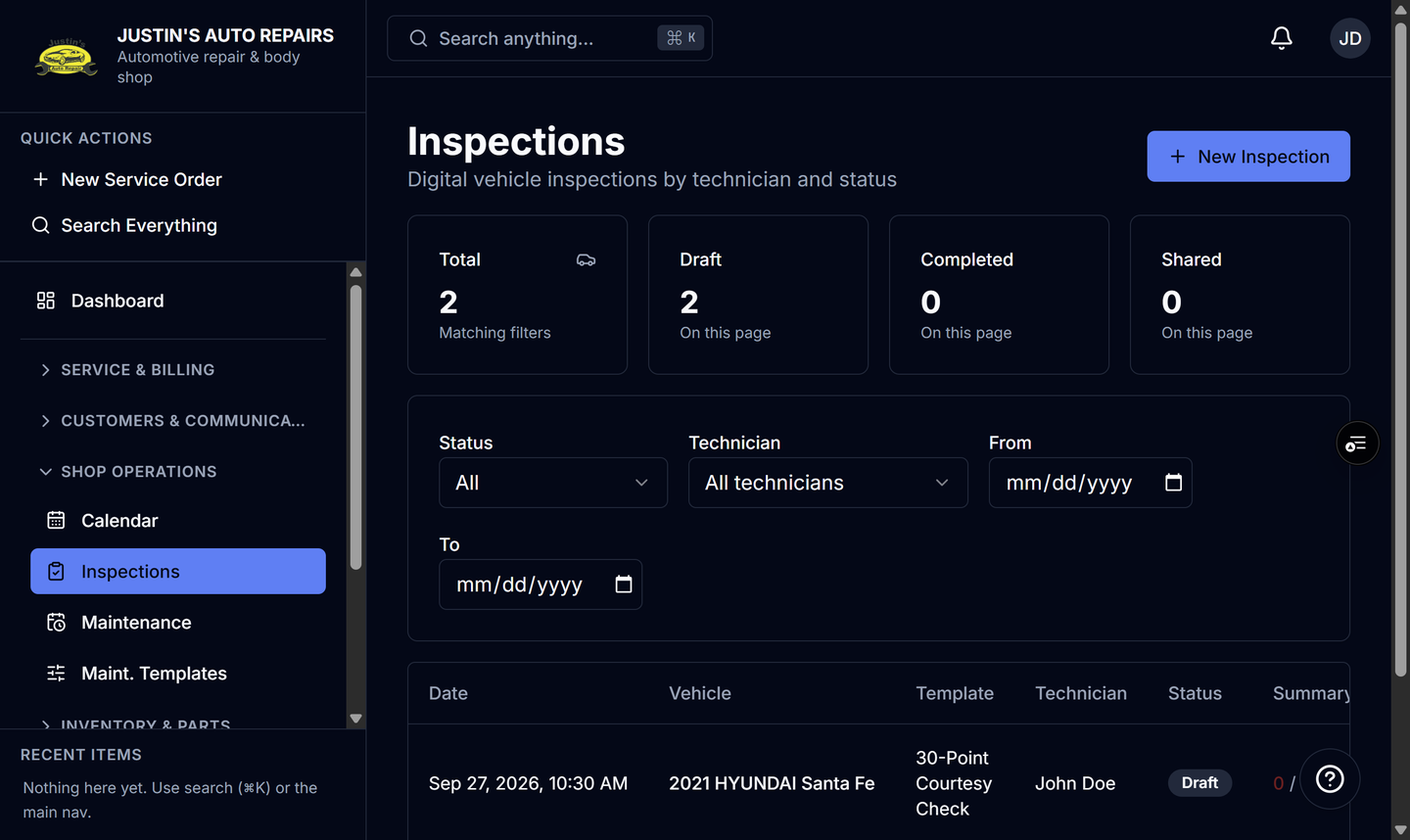
- Open Inspections.
- Start a new inspection.
- Open the template list under Vehicle & template.
- Choose the checklist for this visit. The first one is already selected.
- Choose the vehicle if it is empty.
- Choose Start inspection.
- Mark the points on that checklist. See Mark inspection points.
How you know it worked
The inspection shows the template name you chose, and the points on the page are that checklist.
Common snags
- The list can look empty when every template is inactive. Ask a manager before you expect the four defaults to return. They will not.
- The inspection does not show a control to change the template after you start. Start a new inspection if you chose the wrong checklist.