How to start an inspection
Who this is for
You start a checklist on a vehicle, on its own or from a repair order.
Before you start
- Digital vehicle inspections is on. Inspections is hidden while it is off.
- A checklist template exists. A new shop gets four defaults the first time templates load. See Use an inspection template.
- Accountants do not perform inspections.
Steps
- Open Inspections.
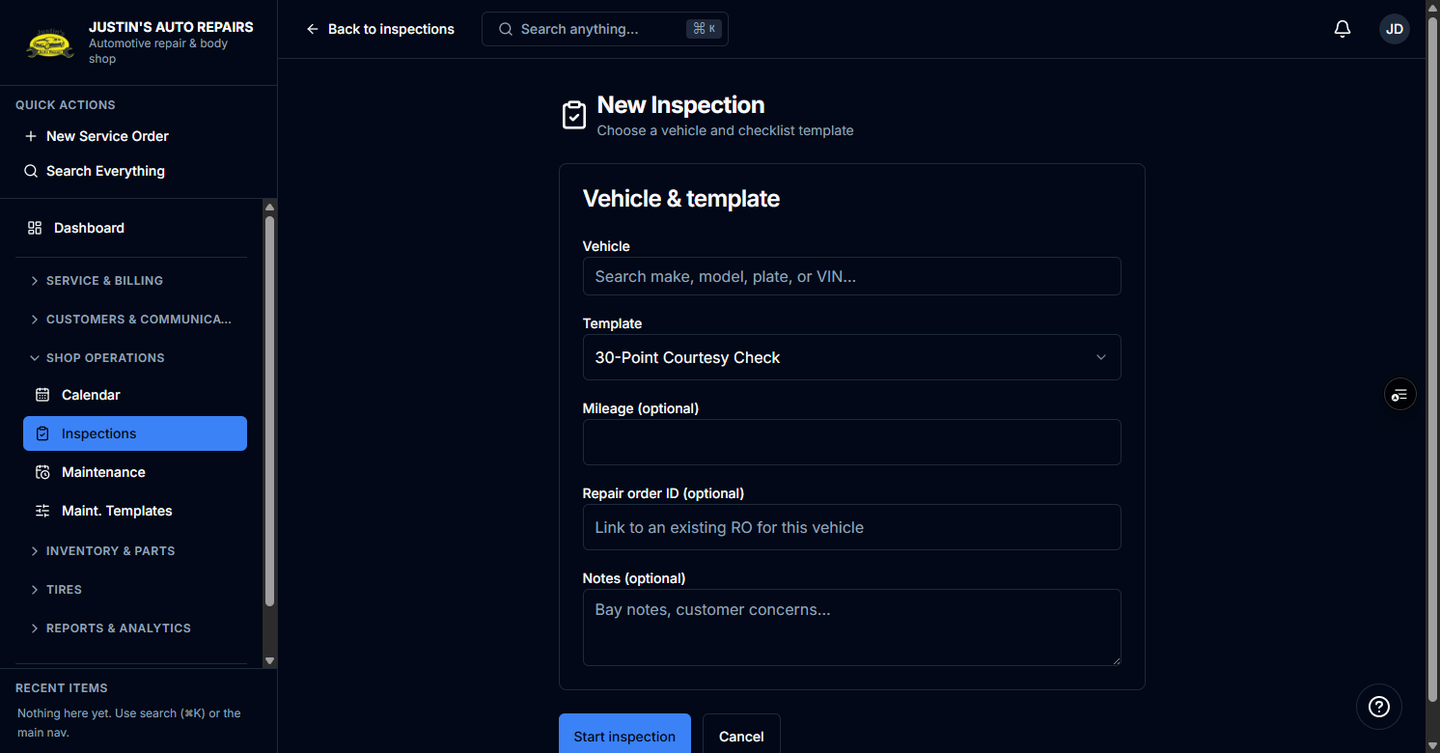
- Start a new inspection. From a service order you can choose Start inspection, which fills in the vehicle and the repair order.
- Choose the vehicle if it is not already filled in.
- Choose the template. The first template is selected for you.
- Choose Start inspection.
How you know it worked
The inspection opens so you can mark each point. Status starts as a draft. If you started from a repair order, the inspection links back to that order.
Common snags
- Start inspection stays disabled until a vehicle and a template are selected.
- If the template list says no active checklist templates are available, every template was deactivated. Deactivated templates are not added back automatically.
- The public customer link does not work until you share the inspection.