How to share an inspection
Who this is for
You send the customer a link to the finished inspection report.
Before you start
- The inspection is completed. See Mark inspection points.
- Technicians can perform the inspection but cannot share it. Accountants cannot share it.
- Sharing marks the report shared and queues a customer email or text when the shop can reach them.
Steps
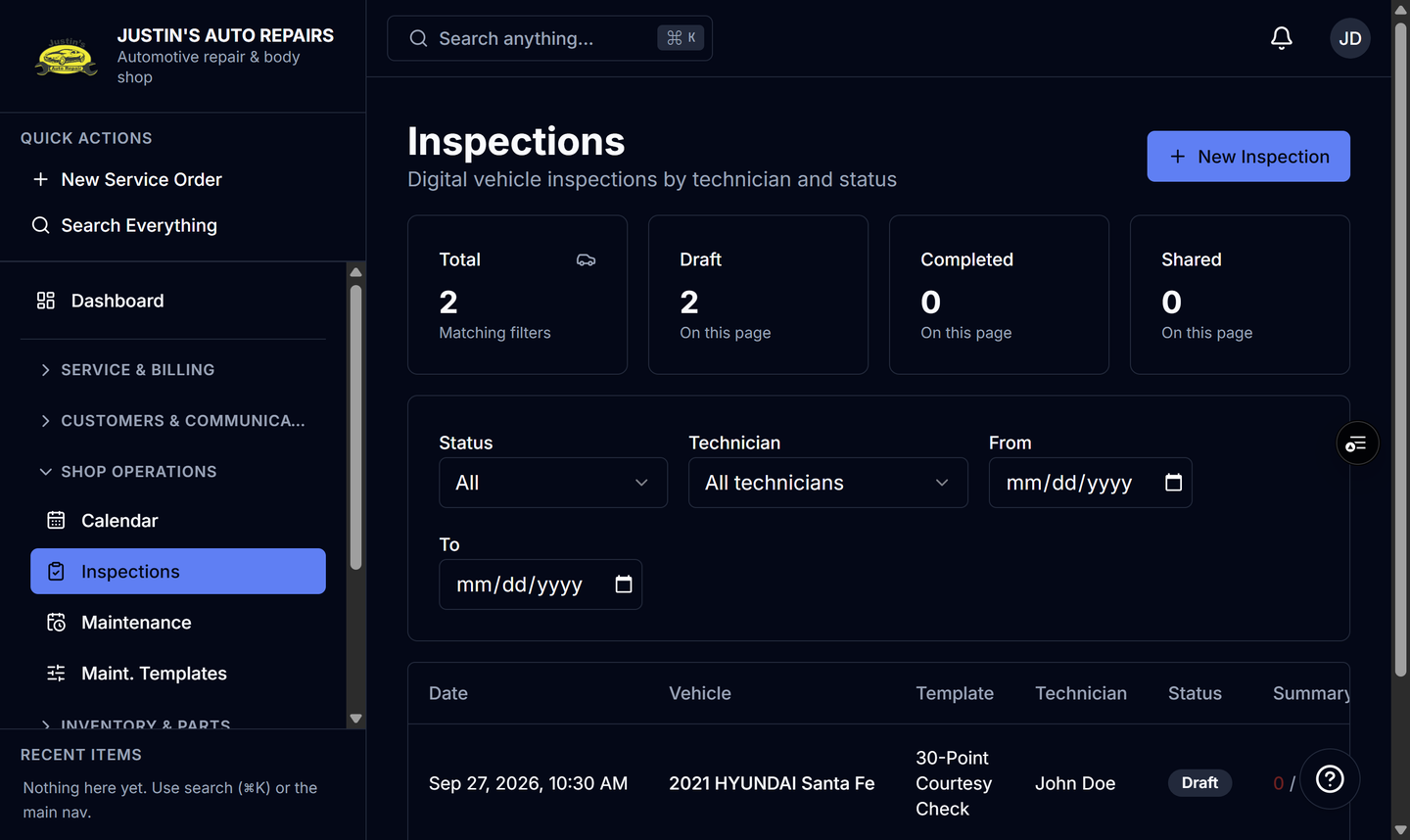
- Open Inspections.
- Open the completed inspection.
- Choose Share with customer.
- Wait until sharing finishes.
How you know it worked
The status badge is Shared. The customer link opens the report. A draft or a completed inspection that was never shared does not open on that public link.
Common snags
- Share with customer is hidden until the inspection is completed, and it is disabled once the status is already Shared.
- Sharing locks the points. You cannot keep editing after it is shared.
- If the inspections module is turned off later, a link you already shared still opens. New inspections do not.
- The repair-status tracker includes the inspection only after it is shared.