How to intake a tire set
Who this is for
You record a customer's wheels when the shop is storing them for the season.
Before you start
- Tire storage is a Professional module. Tire Storage is hidden while it is off.
- Know the customer, the vehicle, and the tire size. Tread is entered in millimetres.
- A location is optional at intake. You can assign one later. See Assign a storage location.
Steps
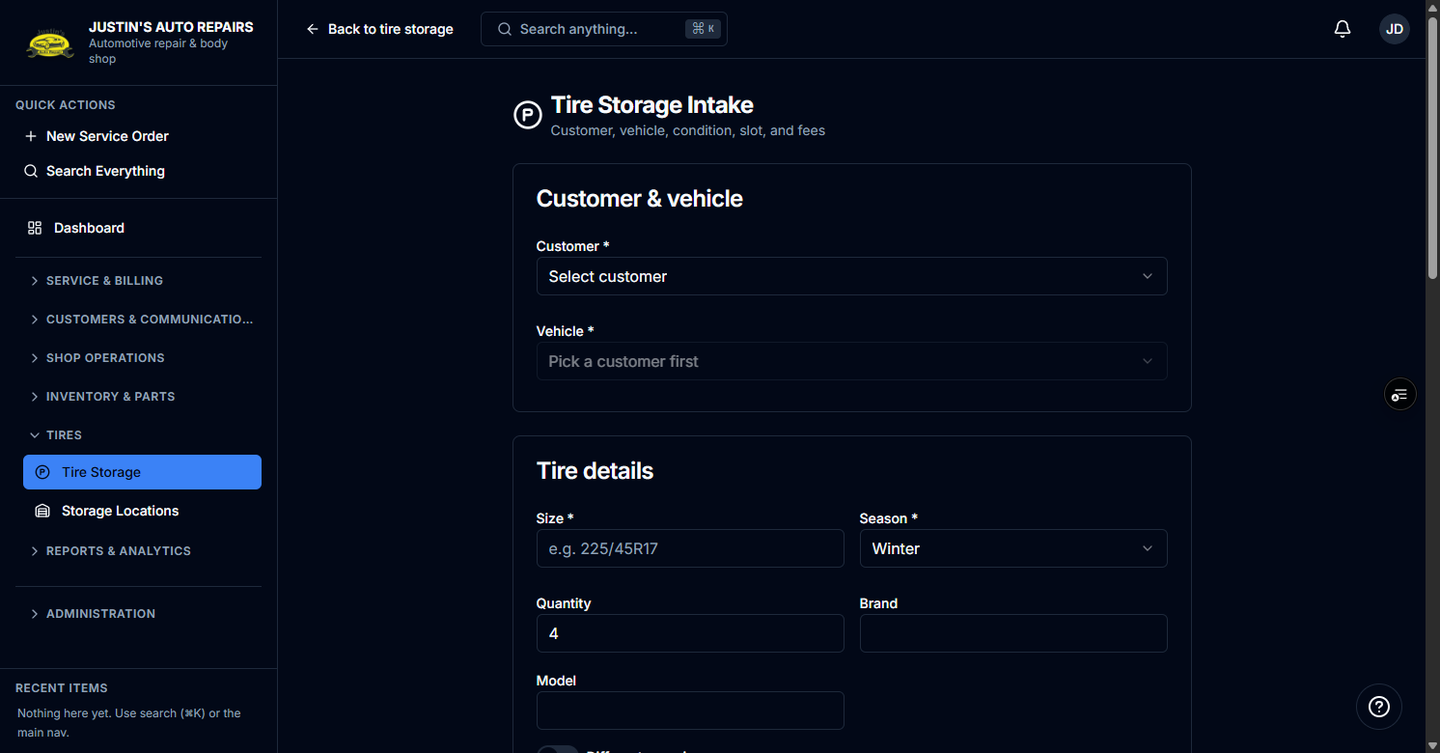
- Open Tire Storage.
- Choose New Intake.
- Choose the customer and the vehicle.
- Enter the season, size, and brand.
- Enter tread for each corner in millimetres: Tread depth FL (mm), Tread FR (mm), Tread RL (mm), and Tread RR (mm).
- Choose a storage location if you already know the rack.
- Add condition photos or paste an https link to a photo if you have them.
- Choose Save intake.
How you know it worked
The set appears on Tire Storage for that customer and vehicle. The DOT field shows the oldest manufacture week as you type. If the customer can receive texts, an intake confirmation can go out.
Common snags
- A full tire is about 10 mm. Under 4 mm shows amber and under 2 mm shows red after you save. See Read tread depth.
- Staff detail shows a banner when the oldest DOT code is 6 years or older, and red at 10 years. The customer page does not show that banner.
- From a tire line on a service order, Store this set opens this form with the customer, vehicle, and size already filled in. That shortcut needs both tire storage and a tire line.