How to handle a swap request
Who this is for
You follow up when a customer asks, from their tire link, to have the stored set swapped on.
Before you start
- The customer opens the public tire page and chooses Notify shop — request swap. They do not need a staff login.
- Booking the visit needs the Scheduling module. Without it, you still see the request and contact them yourself.
- A second request while one is already open tells the customer the shop will follow up. It does not create a second request.
Steps
- Open Tire Storage.
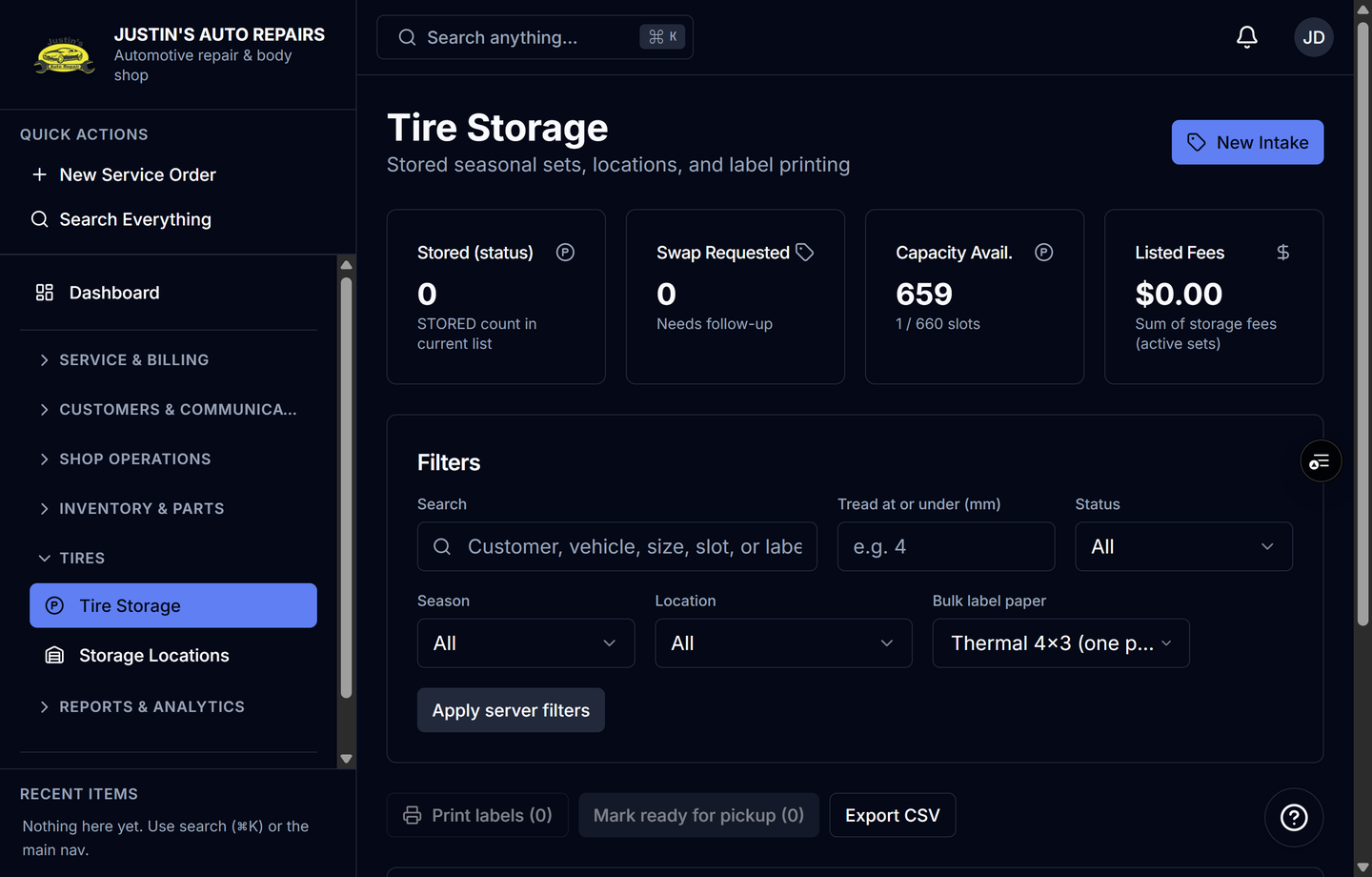
- Use the Swap Requested summary to find sets waiting on you.
- Open the set.
- Read the status. It says the customer requested a swap from the self-service page.
- Open Calendar and book the swap if scheduling is on, using the shop's bookable service.
- When the tires are ready to leave storage, continue with Mark tires picked up.
How you know it worked
The status badge reads SWAP REQUESTED until you move the set forward. The Swap Requested card on the list counts these sets. The customer page can also offer a booking link to the public booking page when scheduling is on.
Common snags
- There is no separate Approve swap button. The request is the status. You book or call from here.
- Seasonal reminder texts are a different message, sent before the shop's fall or spring swap date. They are not this request.
- The customer page does not show the DOT age banner. You see that on the staff record.