How to mark tires picked up
Who this is for
You close a stored set when the customer takes the tires, and you can mark them ready before that.
Before you start
- Ready for pickup and picked up can each text the customer once, when those messages are on and the customer has SMS consent.
- Saving the same status again does not send another text.
Steps
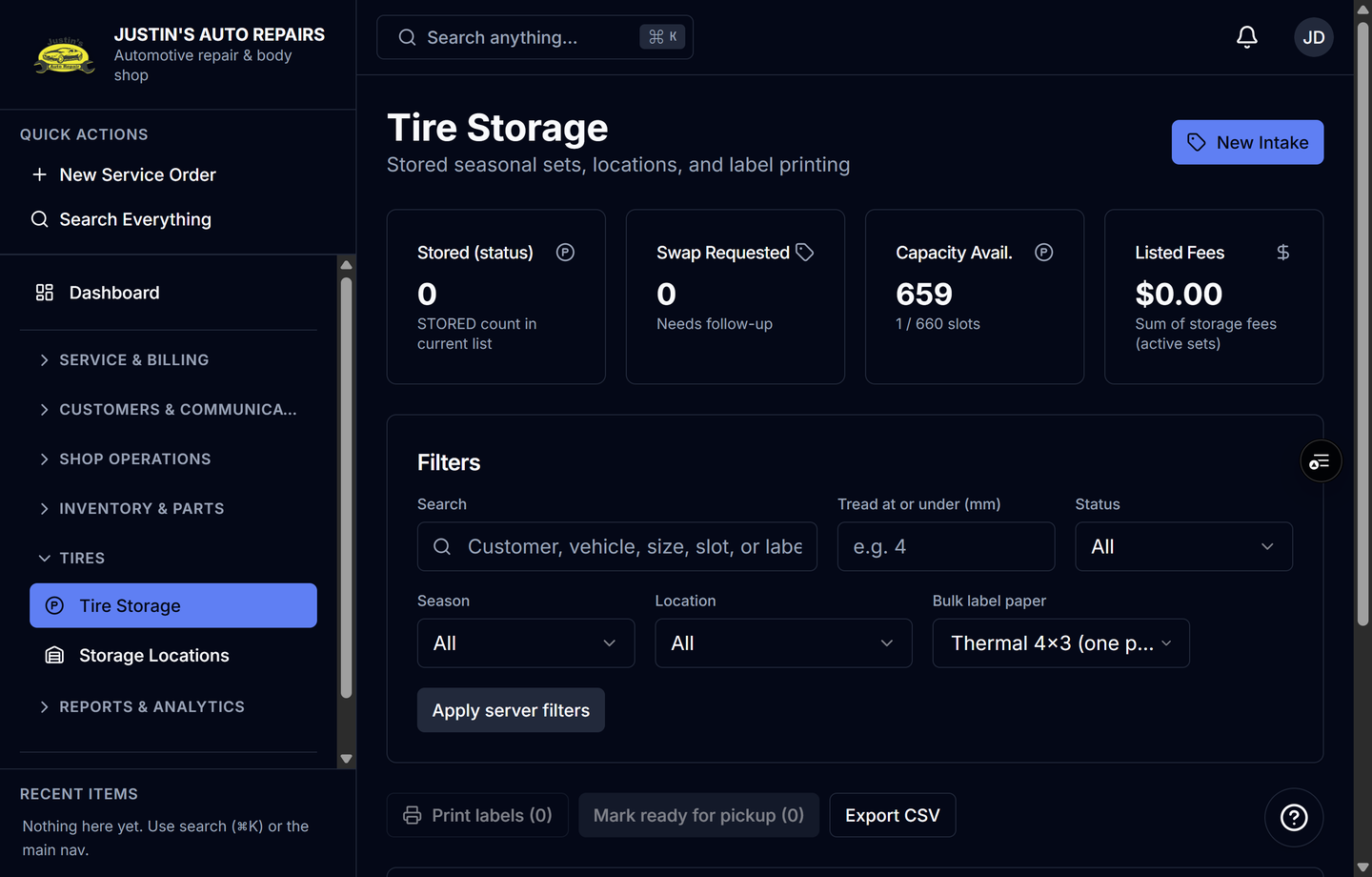
- Open Tire Storage.
- Open the set.
- Choose Mark ready for pickup when the set is pulled and waiting.
- When the customer takes the tires, choose Record pickup.
- Enter Pickup service order # only if a service order should be linked. Leave it blank if you do not have one.
- Choose Confirm pickup.
How you know it worked
The status badge reads PICKED UP, and move location is no longer offered. A picked-up text goes out only on that change, when SMS and consent allow it.
Common snags
- Mark ready for pickup is disabled once the set is already ready. Record pickup is what closes it.
- Disposed and picked up are both finished statuses. You do not mark a disposed set picked up from this flow.
- The text is skipped with no error when the customer has no consent or the SMS module is off. Check SMS Log only for texts that were actually attempted.