How to print a tire label
Who this is for
You print a tag the customer or the shop can scan to open that tire set.
Before you start
- The set is already in Tire Storage. See Intake a tire set.
- The default label is a QR code of the public page. An owner can switch the shop to a barcode of the storage token under Settings → Company Settings → Tire storage.
Steps
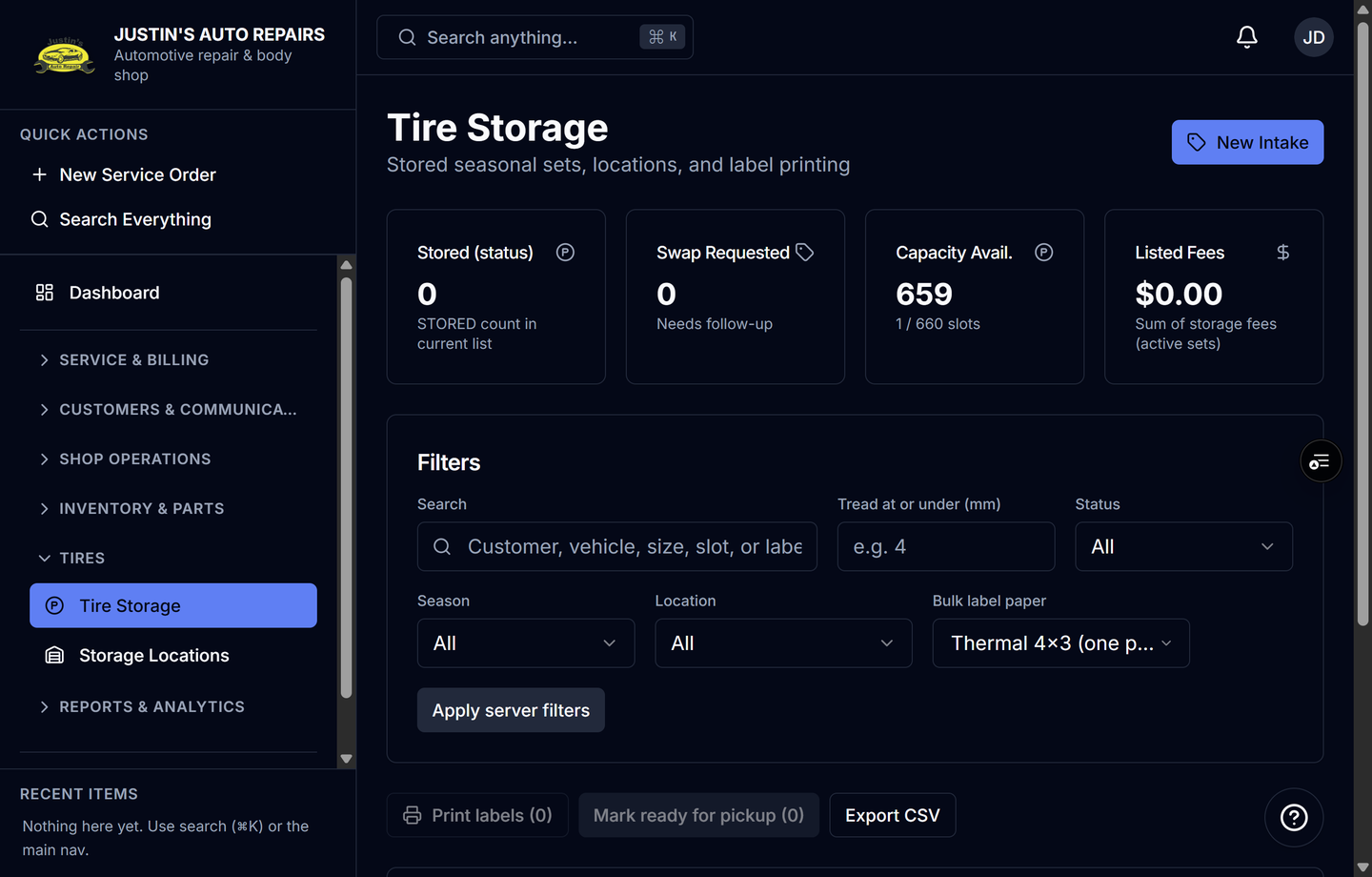
- Open Tire Storage.
- Open the set.
- Choose Thermal 4×3 or Letter 4-up.
- Choose Print label.
- To print several sets, select them on the Tire Storage list.
- Choose Print labels.
How you know it worked
The label prints with the vehicle and size. A QR label encodes the public tire page. Scanning or pasting that address into Tire Storage search opens the set. A signed-in staff member who opens the public link sees Open staff record.
Common snags
- Letter 4-up puts up to four labels on one page. One label on that layout still uses the four-up sheet.
- The customer page shows year, make, and model only. It does not show the VIN.
- The barcode format is the owner's tire-storage setting. Changing it does not reprint labels you already printed.