How to create a service order
Who this is for
The person writing up a visit. Technicians and accountants do not create estimates. A warranty customer type pre-selects the Warranty template when that module is on.
Before you start
- The customer and vehicle should already exist, or you can add the vehicle on this form. See How to add a customer.
- When Insurance & warranty is on, Template offers Walk-in, Insurance, and Warranty. Claim fields are on this job, not on the customer. See How to create an insurance job and How to create a warranty job.
Steps
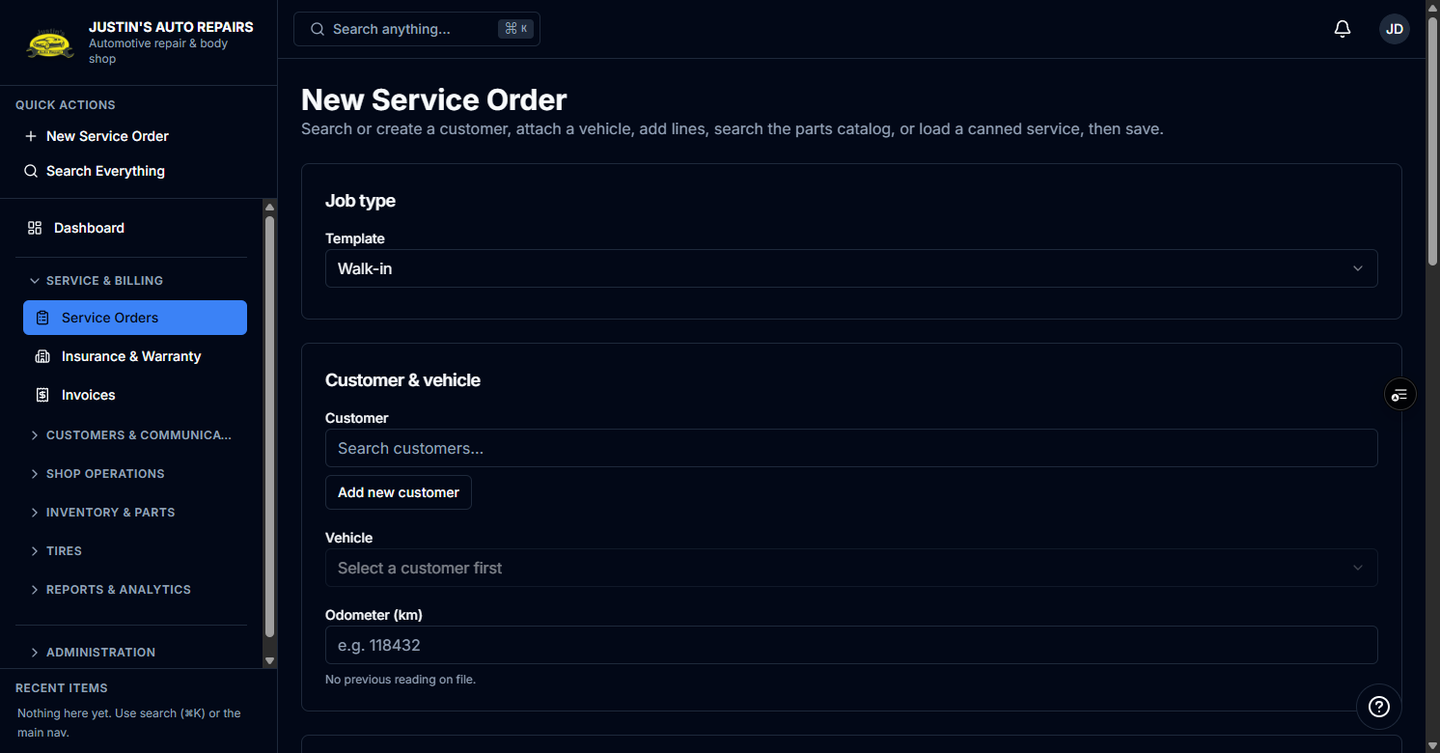
- Choose New Service Order.
- If Template is shown, choose Walk-in, Insurance, or Warranty.
- Search for the customer and select them.
- Choose a vehicle, or choose Add new vehicle and save it.
- Check Odometer (km). It prefills from the vehicle. Clear it if this visit has no reading.
- Choose Create service order.
How you know it worked
The order opens with status Estimate. The vehicle card shows Odometer and the kilometres when you saved a reading. A blank odometer stays unrecorded.
Common snags
- There is no status picker here. Change status later from the order or the board.
- Save & invoice now is a separate button. It creates a completed order and an invoice together, and only when your role can invoice.
- A higher odometer than the vehicle’s current reading updates the vehicle. An equal or lower reading does not.