How to look up a customer conversation
Who this is for
Front counter staff finding the texts and emails already stored for one customer. Technicians and accountants do not open this history. The Conversation card appears only when the SMS module is on.
Before you start
- You can open Customers. If the menu is missing, see How to see why a menu is missing.
- Reading and replying is How to read the customer conversation.
Steps
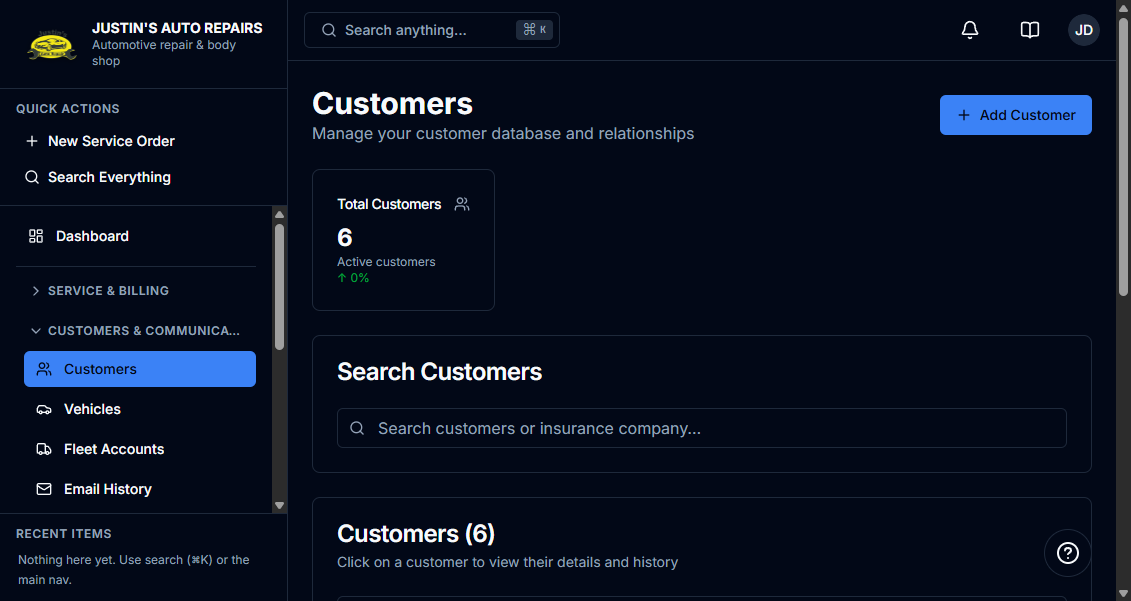
- Open Customers & Communications and choose Customers.
- Search for the customer.
- Click the row to open the customer.
- Scroll to the Conversation card, under SMS consent.
How you know it worked
The card title is Conversation, and the description says SMS and email history. Messages are listed newest first, or the card says No messages yet.
Common snags
- With the SMS module off, the Conversation card is not on the customer. Email History and SMS Log are separate menus when those items are shown.
- Older messages can still appear when they match the customer’s phone or email, even if they were logged before the customer was linked.
- A technician assigned to the job does not get this card. Customer phone and email stay hidden on their service orders.