How to complete a service order
Who this is for
The person marking the work finished so it can be invoiced. Technicians use the status card on an assigned order. Dragging the card is limited to owner, manager, and receptionist.
Before you start
- The job is in the shop pipeline (Scheduled through Quality check), or it is Authorized and you are skipping ahead.
- The status card says the stepper is a guide. You can choose Completed before every earlier step.
Steps
- Open the service order from List or Board.
- On the status card, under You are here, choose Completed.
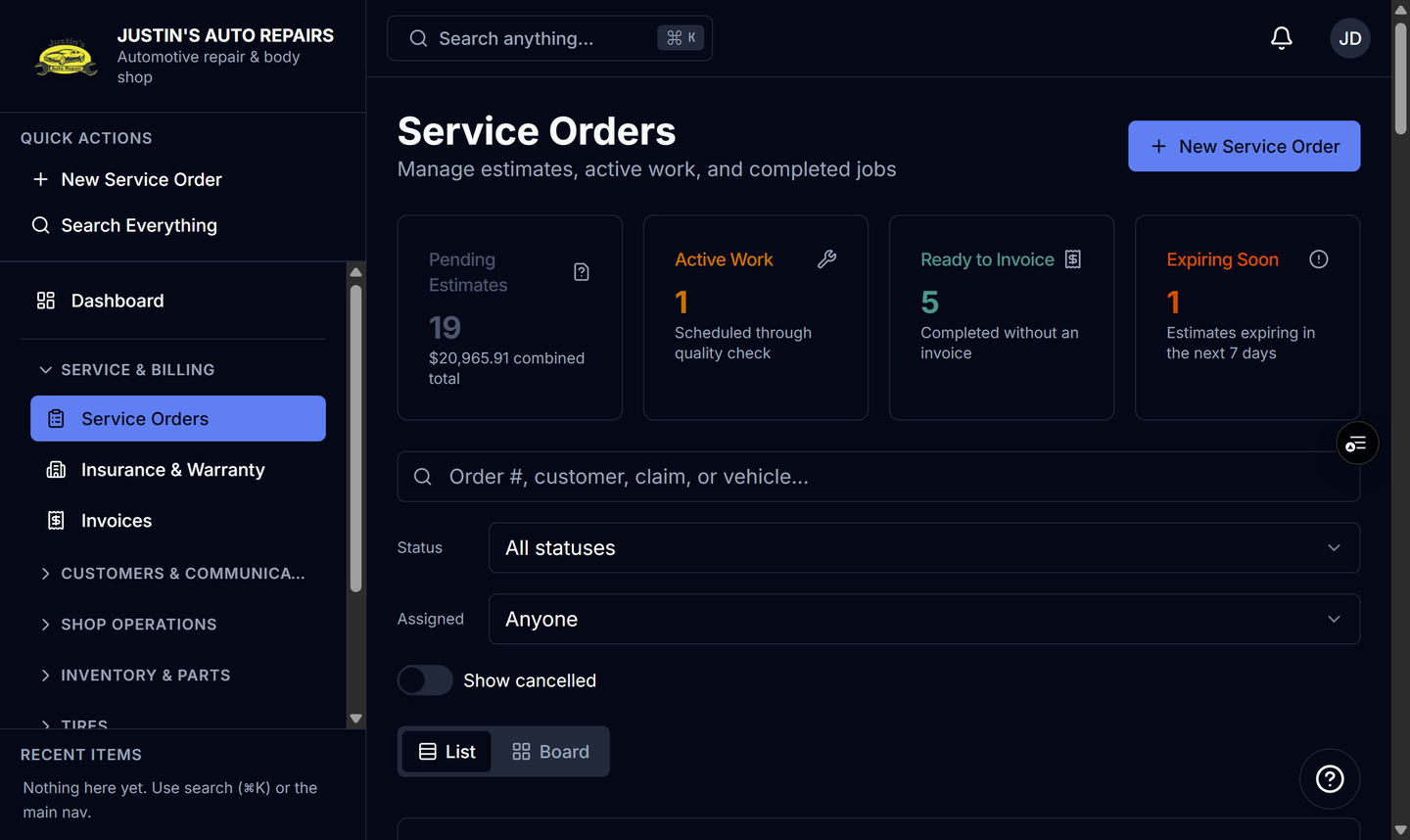
- If you are moving the card on the board instead, drop it on Ready to invoice and choose Completed if asked.
How you know it worked
You are here says Completed. On List, Detail says Ready to invoice. On Board, the card sits in Ready to invoice. Billing then offers Create invoice when your role can invoice.
Common snags
- Choosing a step before Completed, when there is no invoice yet, asks you to confirm Reopen. The customer is not texted again for that move.
- A completed job that needs authorization again stays Completed. Create invoice stays hidden until it is authorized.
- After an invoice exists, you cannot move the job back through the shop statuses.