How to book an appointment
Who this is for
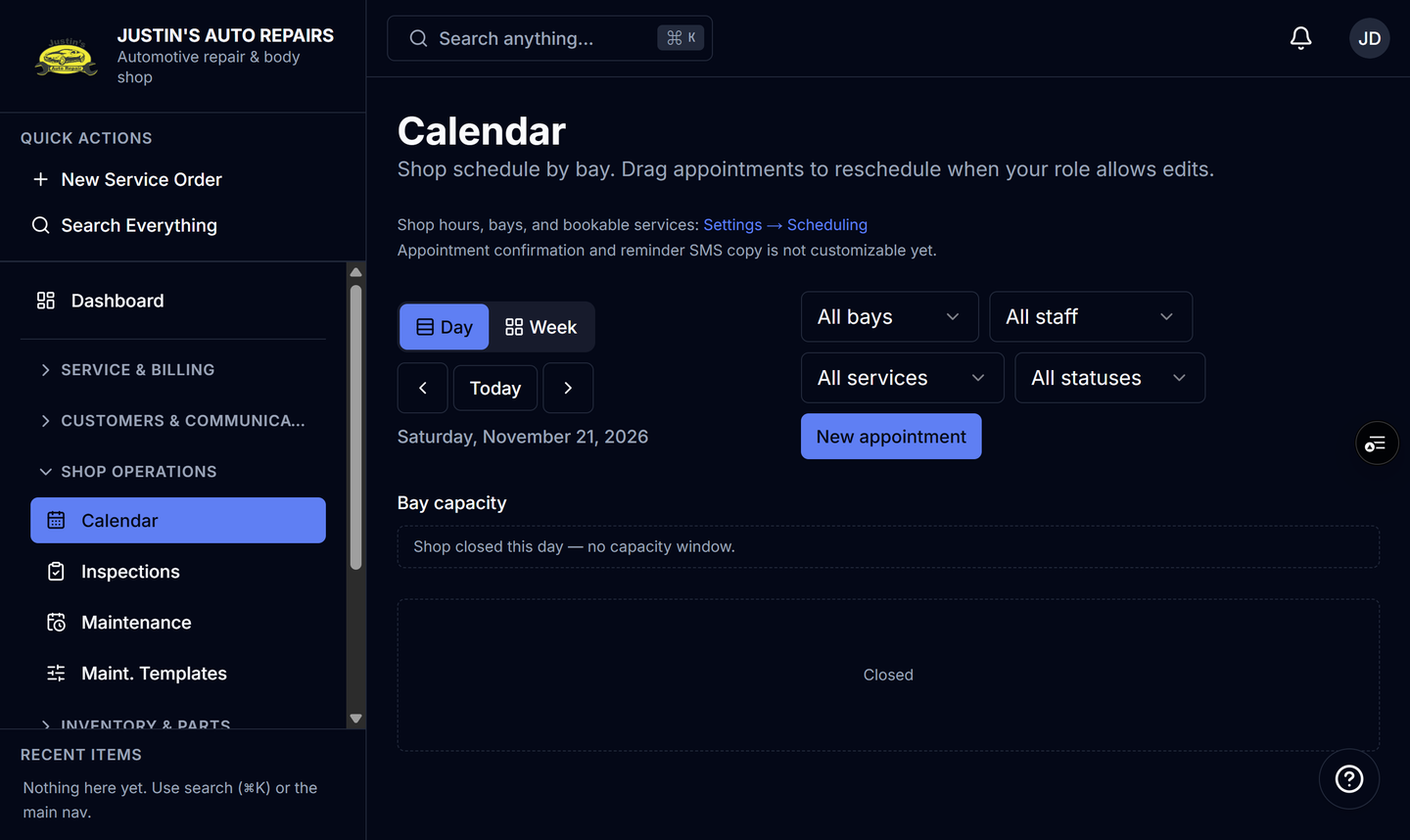
You put a customer on the shop calendar in a free slot.
Before you start
- Shop hours and at least one bookable service exist. See Set shop hours and bays and Add a service type.
- Technicians can see appointments assigned to them. They cannot create one. Accountants do not have Calendar.
Steps
- Open Calendar.
- Choose New appointment.
- Enter the customer name and phone.
- Choose the bookable service. Choose None (walk-in text) only if you are not using a service type.
- Set the date, start, and end inside shop hours.
- Choose a bay, or leave it Unassigned.
- Choose a technician if someone is assigned.
- Set Source to Phone, Online, or Walk-in.
- Choose Save.
How you know it worked
The appointment appears on the calendar as Booked. An online booking made by the customer on the public page also appears, and the shop gets an Online booking notification.
Common snags
- A time outside shop hours, or a bay that is already full, is rejected.
- Drag an appointment to another time only if your role can edit the calendar. Receptionists, managers, and owners can.
- Confirmation texts are sent for online bookings. The wording is not customizable yet.