How to add a service type
Who this is for
You add a bookable service so the calendar and the public booking page offer a named job with a duration.
Before you start
- Create the canned service first, under Settings → Canned Services. Bookable services pick that template instead of retyping the job.
- Scheduling in Settings is the owner's. Managers who open Settings see Canned Services only.
Steps
- Open Settings.
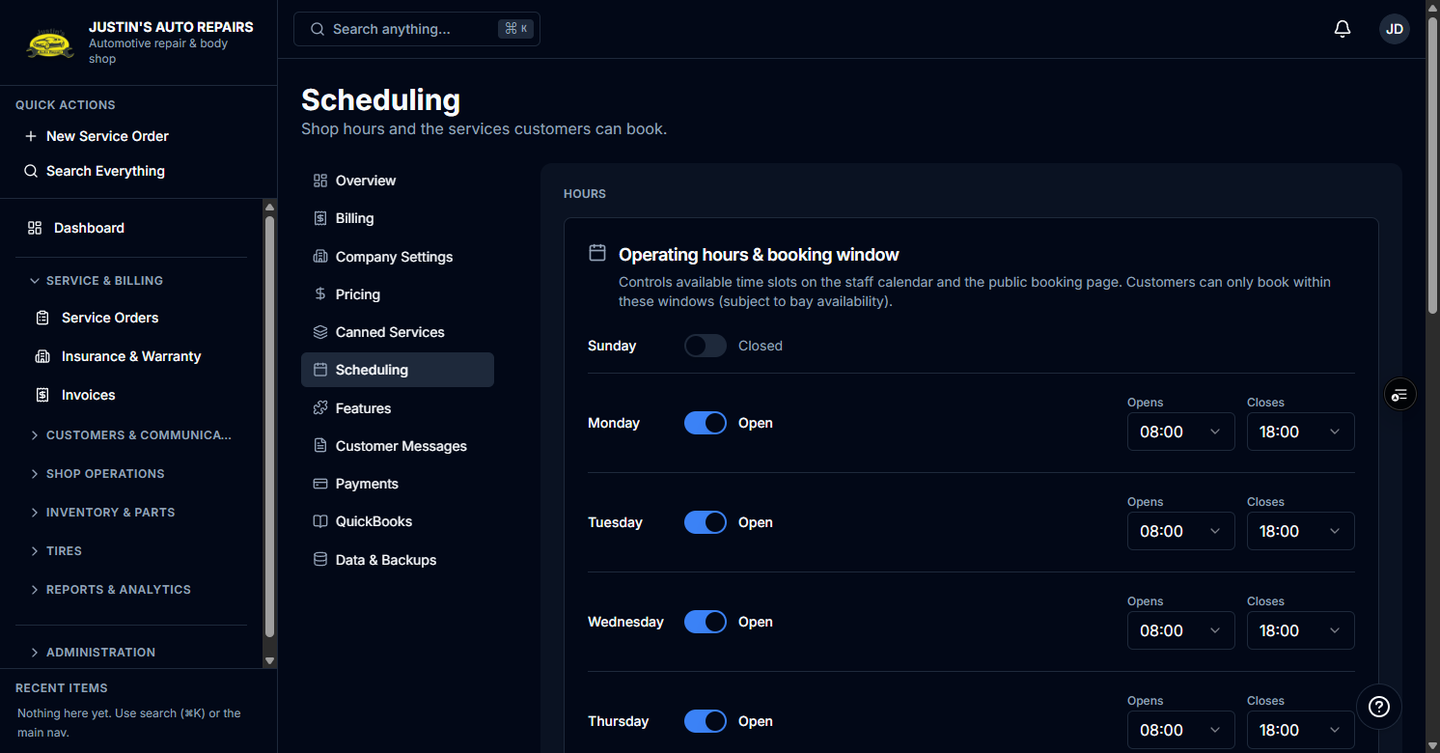
- Choose Scheduling.
- Under Bookable services, choose Add from template.
- Choose the canned service.
- Set the duration in minutes and the calendar color.
- Choose Create.
- Turn on Public booking if customers may book it online.
- Leave Active in shop on if the shop should book it too.
How you know it worked
The service is in the Bookable services table with its duration. It appears when you create an appointment. With Public booking on, it appears on the public booking page.
Common snags
- Add from template stays empty until at least one canned service exists.
- Turning off Active in shop hides it from new bookings. Appointments already on the calendar stay as they are.
- Deactivate removes it from new bookings. It does not delete past appointments.
- Check-in copies the linked template's lines onto the new service order. A service with no template has no lines to copy.