How to share the booking page
Who this is for
You let customers book a time online without calling the shop.
Before you start
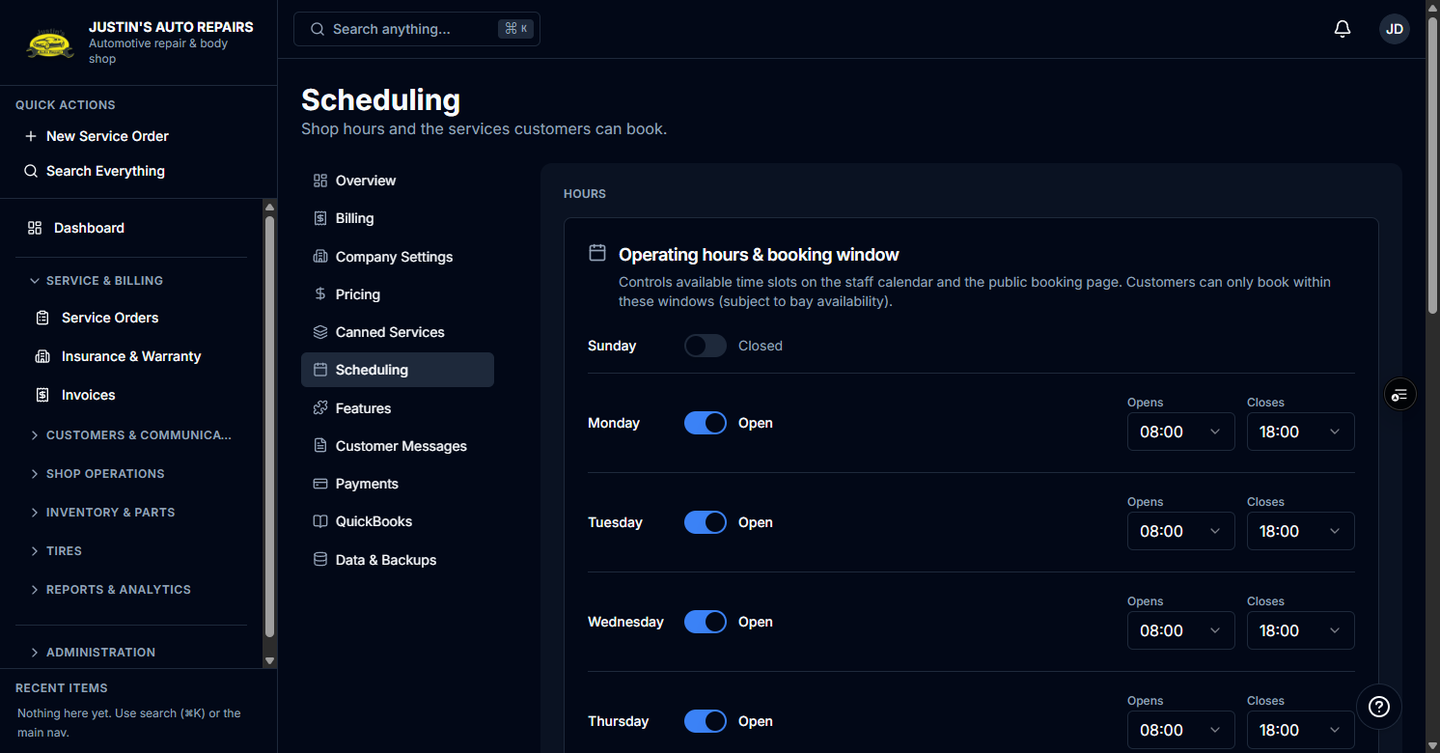
- Scheduling is on, shop hours are saved, and at least one service has Public booking turned on.
- See Set shop hours and bays and Add a service type.
Steps
- Open Settings.
- Choose Scheduling.
- In Bookable services, turn Public booking on for each service customers may book.
- Leave the service Active in shop if staff should book it too.
- Copy your shop address and change the path to /book/ plus your shop slug. The slug is the short name already in your BayOps address.
- Send that page to customers.
How you know it worked
The page lists your shop and the services you marked for public booking. After a customer books, the appointment appears on Calendar with source Online, and the bell shows Online booking.
Common snags
- Scheduling off makes the public page unavailable.
- A service with Public booking off is hidden from customers even if it is active in the shop.
- This settings page does not show a copy-link button. You build the /book/ address from the shop slug.
- Customers can only pick dates inside the booking window, which starts at 14 days unless you change it.