How to check in an appointment
Who this is for
You turn a booked visit into a service order when the customer arrives.
Before you start
- The appointment has a bookable service linked to a service order template if you want lines copied onto the job.
- Receptionists, managers, and owners can check a visit in. Technicians cannot.
Steps
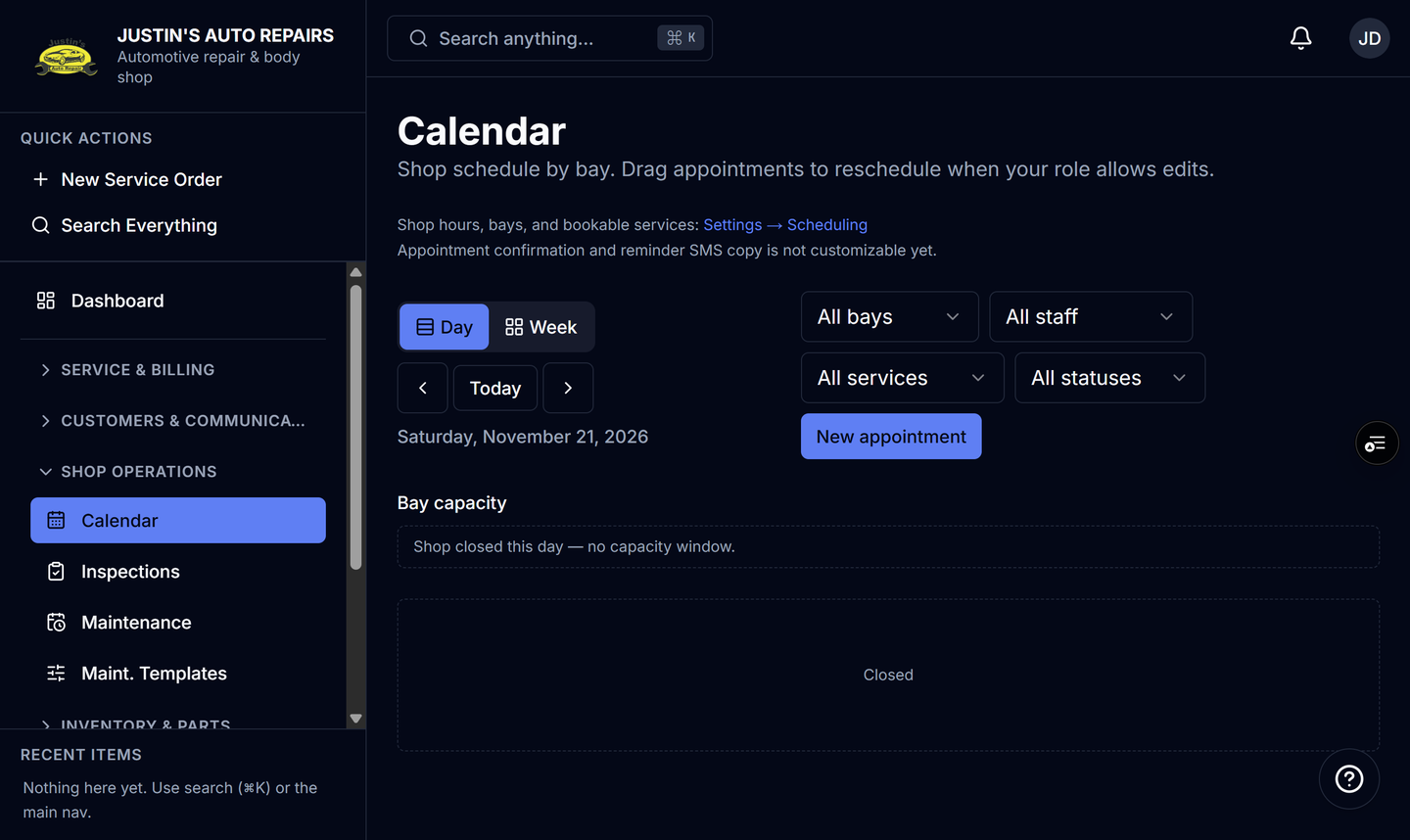
- Open Calendar.
- Open the appointment.
- Confirm the customer, vehicle details, and bookable service.
- Check the visit in so BayOps creates the service order.
- Open Service Orders and find the new estimate.
How you know it worked
Check-in creates or matches the customer and vehicle, creates a service order, copies lines from the linked template when there is one, ties that order to the appointment, and sets the appointment to In progress.
Common snags
- The appointment window's Status list includes In progress. Saving that status does not create a service order.
- This Calendar window does not show a Check in button. If you cannot check the visit in from here, create the service order from Service Orders and leave the appointment on the calendar for the bay time.
- A service type with no linked template creates the order without those preset lines.
- A tracker text can go out after check-in when the customer has SMS consent and the shop allows that message. That is separate from the appointment reminder.