How to set shop hours and bays
Who this is for
You set when the shop can be booked, and you place each appointment on a bay.
Before you start
- Scheduling is a Professional module. Calendar is hidden while it is off.
- Only the owner sees Scheduling in Settings. A manager assigns a bay on the calendar but does not edit these hours.
- The public booking page only offers times inside these hours, and only while a bay is free.
Steps
- Open Settings.
- Choose Scheduling.
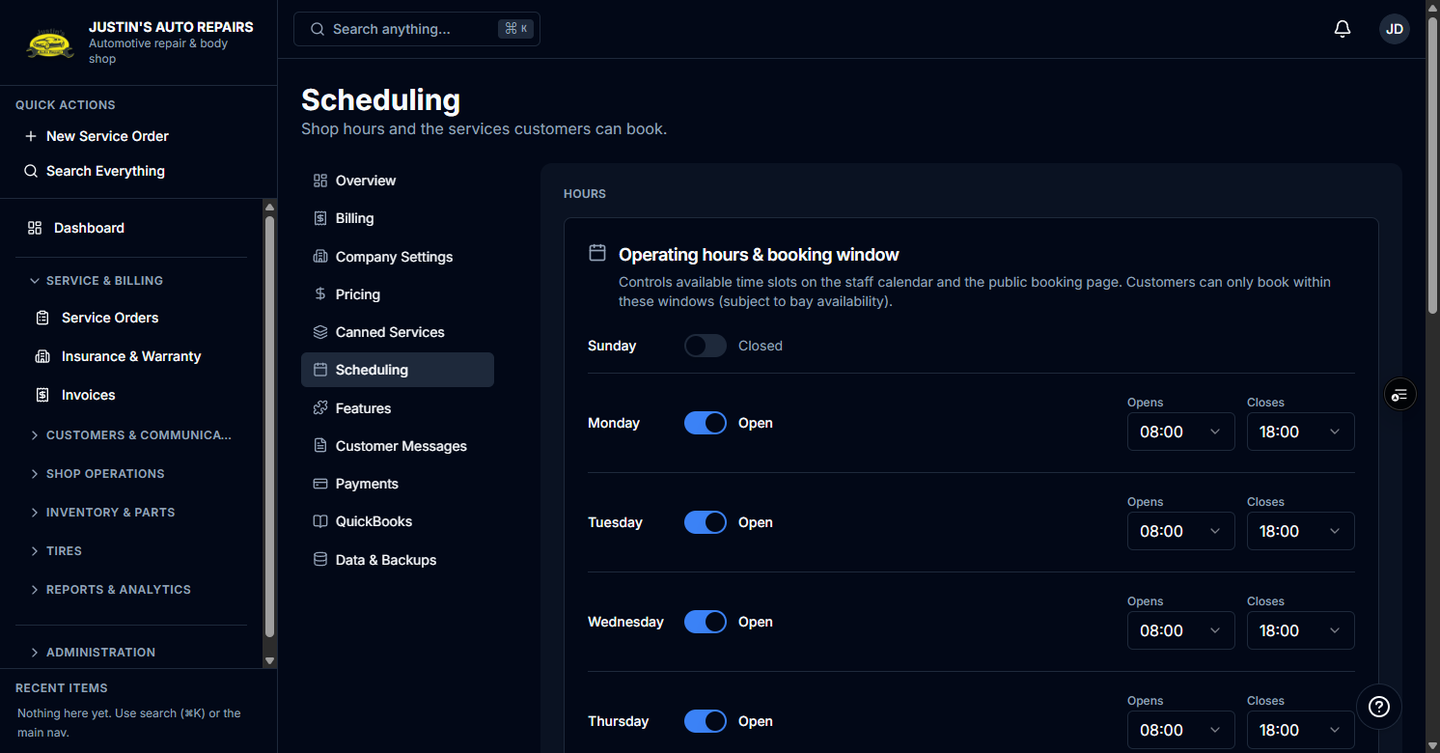
- Under Operating hours & booking window, set each weekday switch to Open or Closed.
- On an open day, set Opens and Closes.
- Set Booking window (days). This is how far ahead a customer may pick a date. The starting value is 14.
- Choose Save scheduling preferences.
- Open Calendar.
- On an appointment, set Bay to the bay doing the work, or leave Unassigned.
How you know it worked
Calendar slots and the public booking page follow the hours you saved. The calendar shows Bay capacity for the bays that exist, and the appointment sits on the bay you chose.
Common snags
- Settings → Scheduling does not include an Add bay control. The Bay list only shows bays the shop already has. If you only see Unassigned, no bay has been created yet.
- Closed days offer no customer slots.
- A bay that is already booked at that time is not a free slot.