How to move or cancel an appointment
Who this is for
You change the time or bay, or you free the slot because the visit will not happen.
Before you start
- You can edit appointments. Technicians can view assigned visits but cannot move or cancel them.
- The new time still has to fit shop hours and bay capacity.
Steps
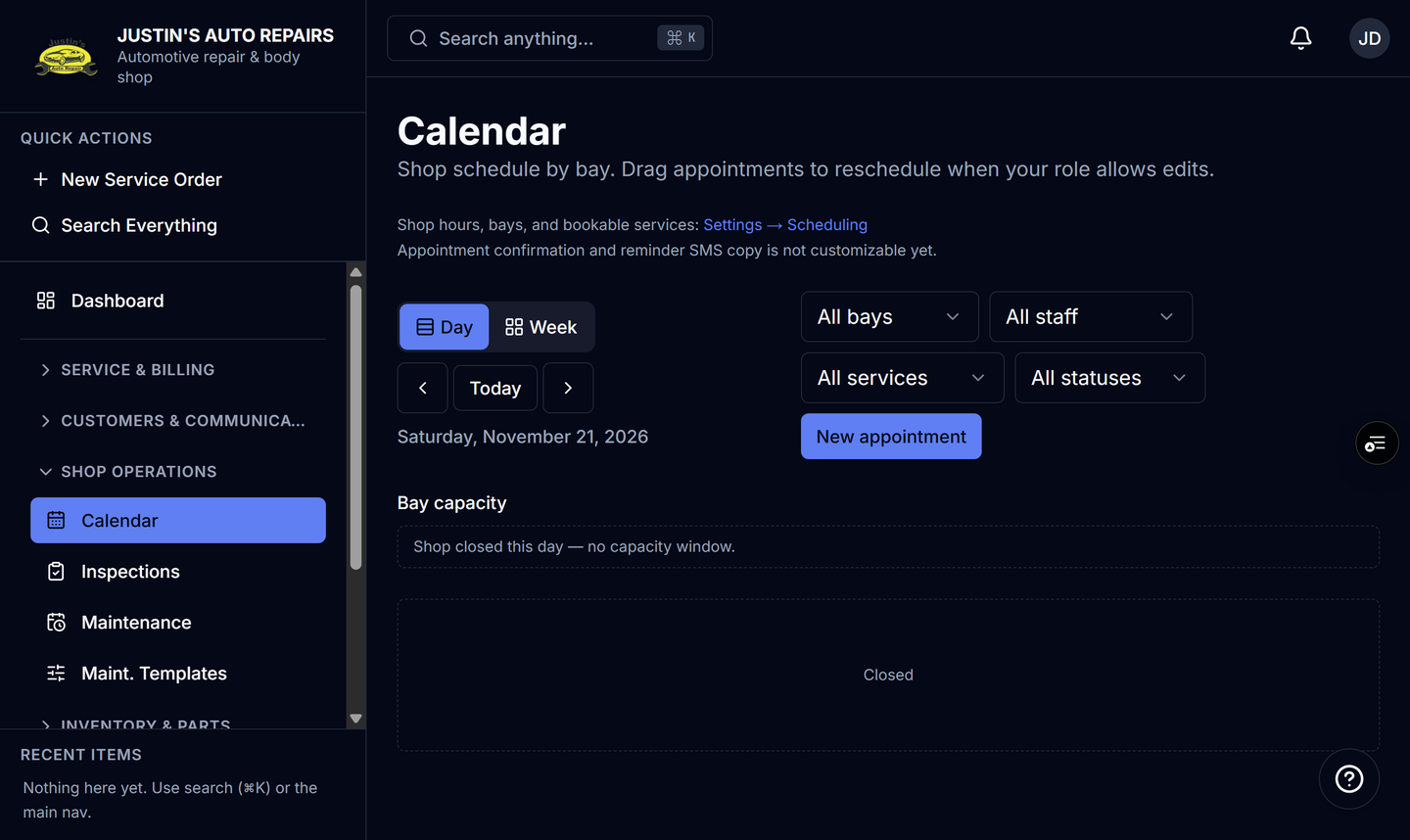
- Open Calendar.
- Open the appointment.
- Change the date, start, end, or bay.
- Choose Save.
- To drop the visit instead, choose Cancel appointment.
- Confirm the cancel.
How you know it worked
A move shows the appointment on the new slot. A cancel shows Cancelled and frees that bay time for another booking. The status filter Cancelled lists cancelled visits.
Common snags
- You can also set Status to Cancelled and save. Cancel appointment is the button that marks it cancelled.
- Dragging on the calendar moves the appointment when your role allows edits. An overlap with another booking on that bay is rejected.
- Cancelling does not delete the history. The row remains as Cancelled.
- Moving a job on the service-order board does not move this appointment, and it does not create a shop notification.