How to edit customer message templates
Who this is for
You change the email or text the shop sends to customers, and you turn individual messages on or off.
Before you start
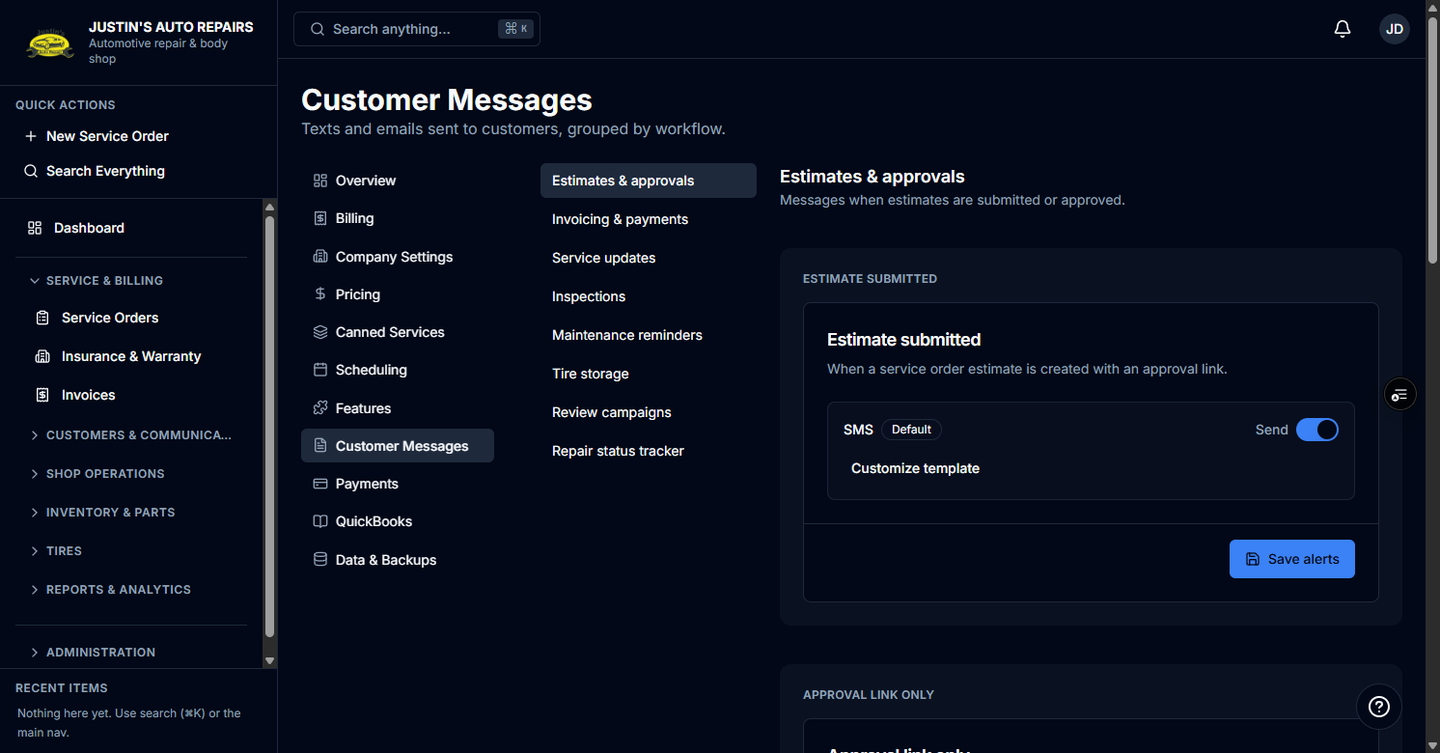
- This is Settings → Customer Messages. Only the owner edits it.
- Messages are grouped by workflow: estimates, invoicing, service updates, inspections, maintenance, tire storage, review campaigns, and the status tracker.
- A message is hidden when its module is off. SMS wording is hidden when the SMS module is off.
Steps
- Open Settings.
- Choose Customer Messages.
- Open the workflow that matches the message.
- Turn Send off if that email or text should stop.
- Choose Customize template on the message you want to rewrite.
- Edit the subject and body. Leave the placeholders the template lists, such as the customer name or the link.
- Choose Save template.
- Choose Save alerts if you changed a send switch.
How you know it worked
The message shows Customized instead of Default. The next send uses your subject and body. A switch you turned off stops that message. The default text is still there if you reset the template.
Common snags
- Fleet digest email and appointment confirmation texts are not in this list. Those screens say the wording is not customizable yet.
- Save template saves the wording. Save alerts saves the on or off switches. Use the one that matches what you changed.
- Review-campaign wording is edited here. Turning the campaign on is under Reviews. See Set up review requests.