How to read shop notifications
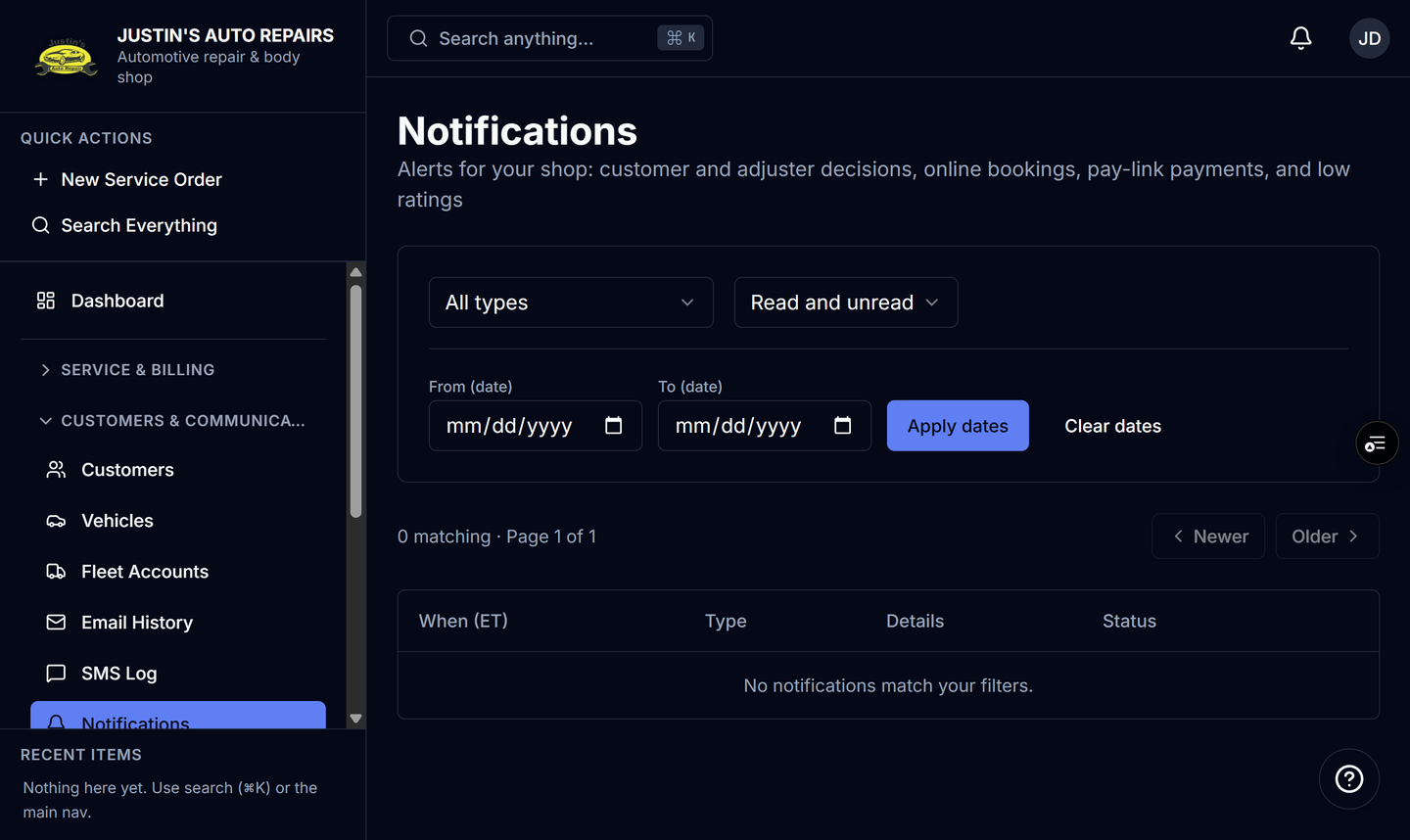
Who this is for
You see what customers did while you were not on that record. Everyone at the shop shares one read state.
Before you start
- The bell is in the top bar. It shows the latest 20. It refreshes about once a minute, and again when you return to the browser tab.
- There is no push notification and no email to staff from this list.
- Platform super admins do not use this shop bell.
Steps
- Open the bell.
- Read the newest alerts. Each row links to a service order, an invoice, a customer, or the calendar.
- Choose View all notifications, or open Notifications in the sidebar.
- Read the full list. It is newest first, 25 at a time.
- Choose Newer or Older to move through older alerts.
How you know it worked
You see alerts only for customer approval or decline, an adjuster decision, an online booking, a Stripe pay-link payment, and a low rating. Opening a row from the bell marks it read for the whole shop.
Common snags
- Recording a cash or card payment at the counter does not create an alert. Neither does sending an estimate, or moving a job on the board.
- The calendar link opens Calendar. It does not open the booked day.
- The first person to clear an alert clears it for everyone. It is not a personal inbox.
- Rows are kept. There is no search box. Use the filters on the notifications page when the bell's 20 are not enough.