How to filter notification history
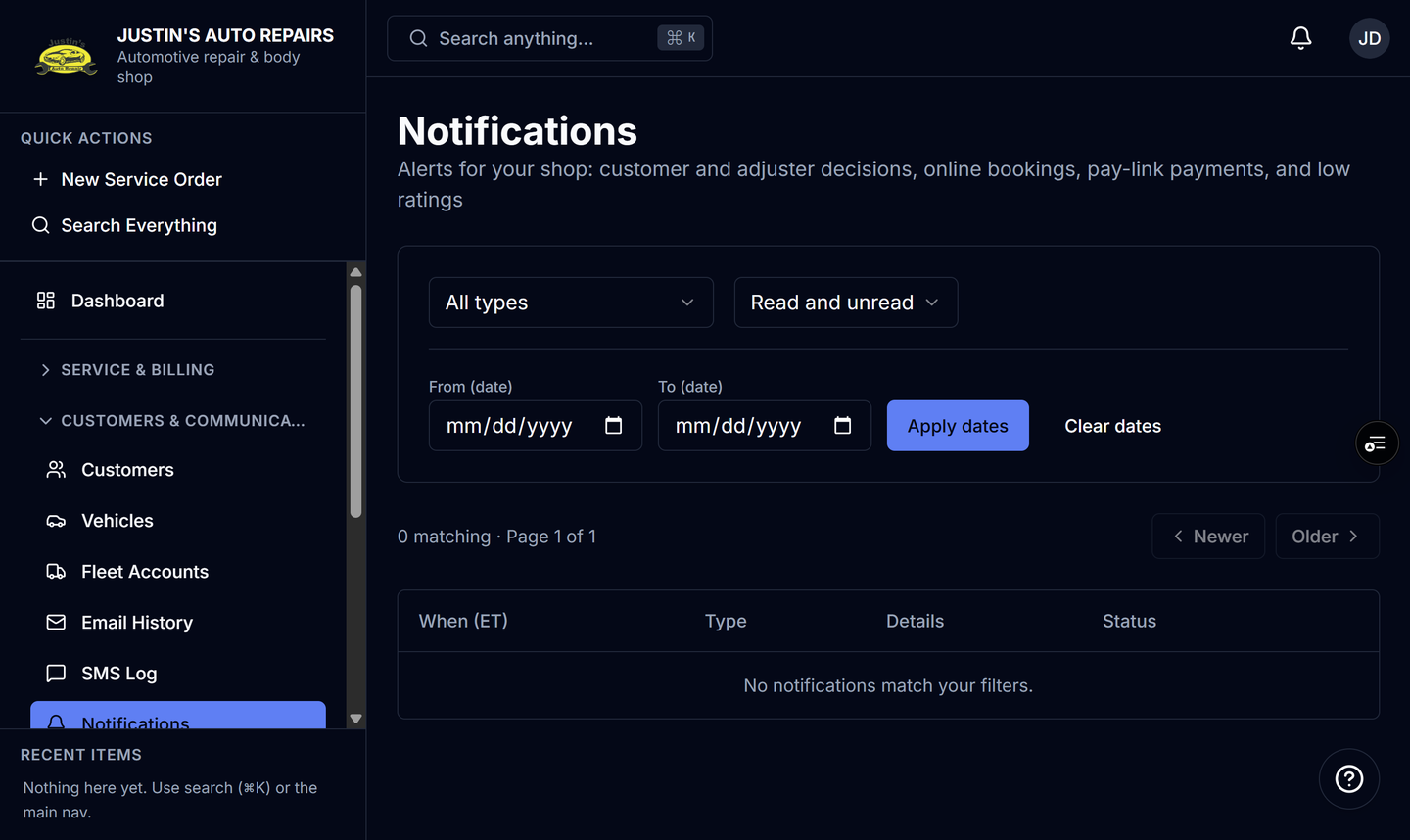
Who this is for
You narrow the shop's alert history when the bell's latest 20 are not the ones you need.
Before you start
- Filters are on the Notifications page, not inside the bell.
- There is no text search. You filter by type, read state, and dates.
Steps
- Open Notifications.
- Set the type. Choose All types, or one of Estimate approved, Estimate declined, Adjuster approved, Adjuster denied, Online booking, Payment received, or Low rating.
- Set read state to Read and unread, Unread only, or Read only.
- Enter a from date and a to date if you want a range.
- Choose Apply dates.
- Choose Older to see the next 25 when the list continues.
How you know it worked
The list shows only rows that match the type, the read state, and the dates. It stays newest first. Changing a filter returns you to the first page of that result.
Common snags
- Dates apply only after Apply dates. Typing the dates is not enough.
- Payment received here is a Stripe pay-link payment. A counter payment never appears, so a date filter cannot find it.
- Read only still includes alerts someone else already cleared, because read state is shop-wide.
- The calendar link from an Online booking row does not open that day.