How to read email history
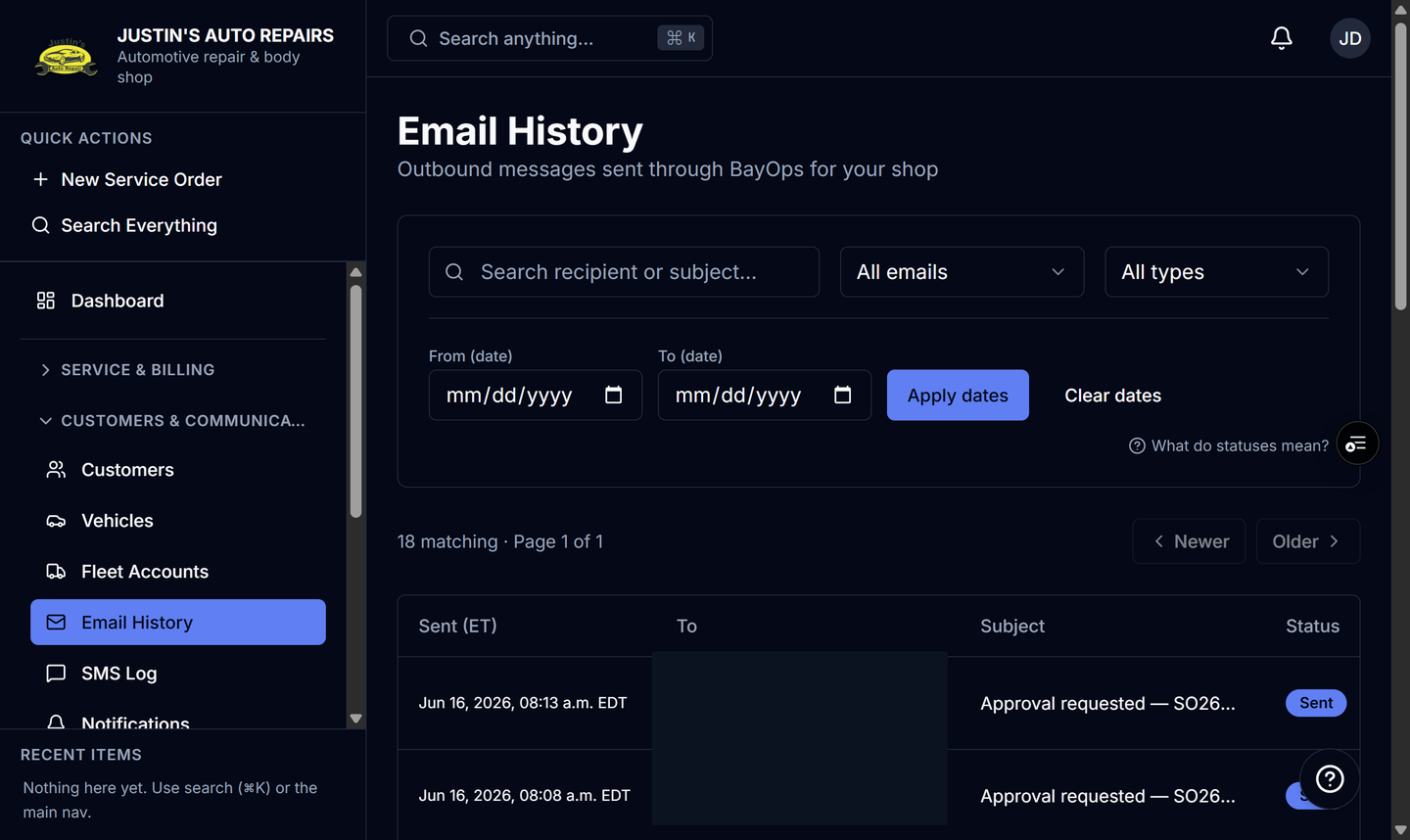
Who this is for
You check whether a customer email left the shop, and you resend an invoice or payment message that failed.
Before you start
- Owners, managers, and receptionists can open Email History. Technicians and accountants cannot.
- The log is customer email sent through BayOps, such as an invoice PDF and a payment notice. Staff sign-in invitations are not listed.
- Attachments are not kept. The log stores the file name only.
Steps
- Open Email History.
- Search by recipient or subject.
- Set status to Sent successfully or Didn't send.
- Set the related type to Invoice or Payment when you want one kind.
- Open a row.
- Read the status badge and the message preview.
- Choose Resend when the message failed and you want it sent again.
How you know it worked
A good send shows Sent. A failure shows Didn't send, with the error on the detail page. Sending… means it is still going out. Resend of an invoice builds the invoice email again and does not change the invoice status. Resend of a payment notice creates a new log row.
Common snags
- Reply-To is the shop email in company settings. The From name is the shop via BayOps.
- A row can fail when email is not configured for the platform. That is not something you fix by editing the customer.
- Resend is for invoice and payment messages stored here. It does not resend every kind of shop email.