How to set up review requests
Who this is for
You turn on the post-service review sequence and point happy customers at your Google review page.
Before you start
- Review campaigns are a Professional module. Reviews is hidden while it is off.
- The sequence still does not run until Enable campaigns is on.
- SMS requests also need the SMS module and the customer's consent. Email needs an email address.
- A customer can be excluded. Send review requests on their profile must stay on, and an unsubscribe cannot be undone by that switch.
Steps
- Open Reviews.
- Choose Campaign settings.
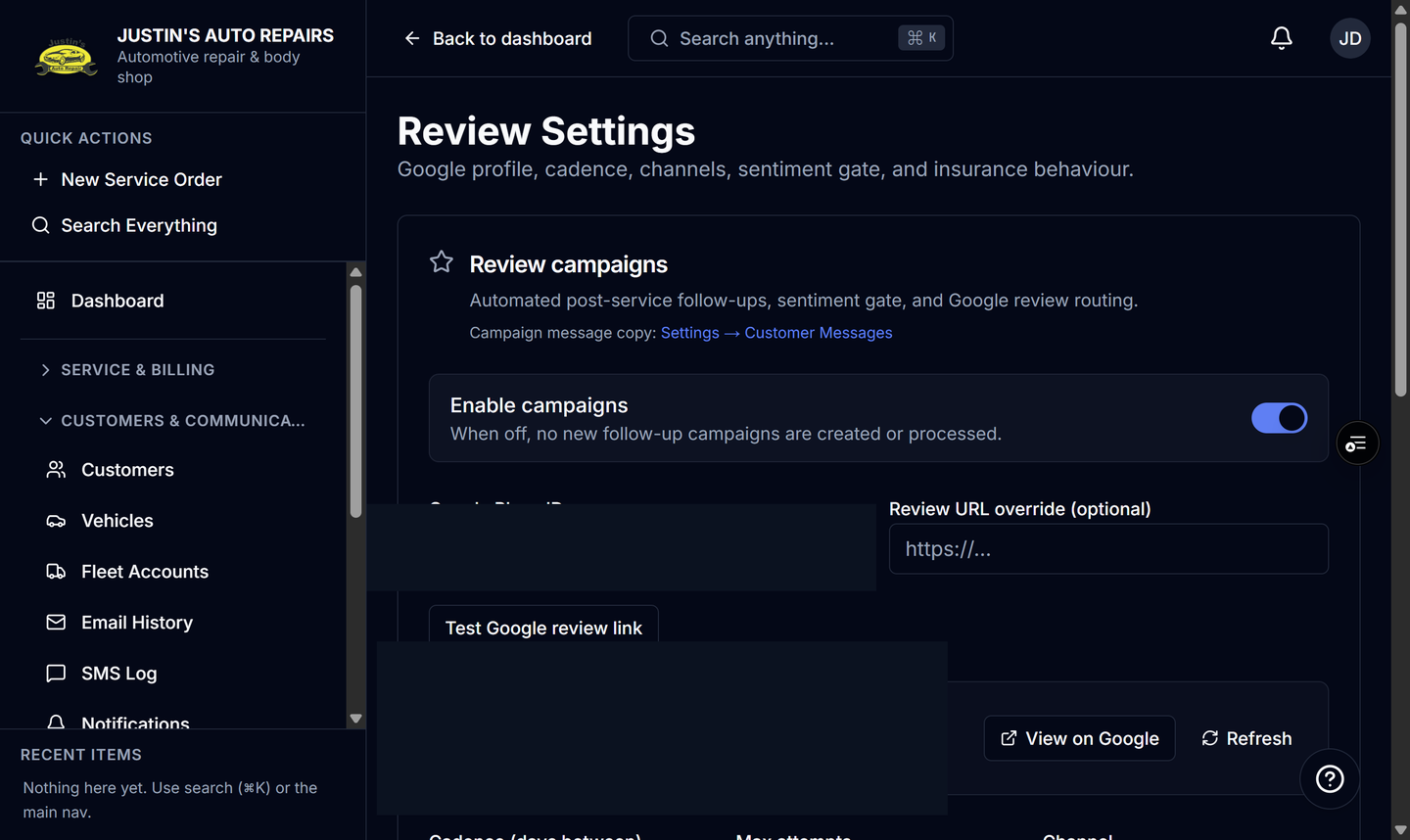
- Turn on Enable campaigns.
- Enter the Google Place ID, or a Review URL override if you use a specific link.
- Choose Test Google review link.
- Set Channel to SMS, Email, or Both.
- Turn on Sentiment gate if low scores should stay private and higher scores should go to Google.
- Set Promote threshold (stars) while the gate is on.
How you know it worked
New follow-ups are created after a delivered job, which is the usual trigger, for customers who are allowed to get them. The Reviews list shows those campaigns. A saved Place ID can show your Google rating on the reviews page. Without a Google key, requests still send. Only the rating widget is skipped.
Common snags
- Enable campaigns off means nothing new is created, even though the module is on.
- Messages wait for the send window, which uses Eastern time. A message due overnight waits until the window opens.
- Cadence (days between) is the follow-up schedule, such as day 1, 3, and 7. It is not the gap between visits. See Set days between review requests.
- Invoice payment does not stop the review sequence.