How to mark notifications read
Who this is for
You clear alerts after someone has seen them, for the whole shop.
Before you start
- Read state is shared. When you mark an alert read, it is read for every staff member at this shop.
- Opening the notifications page does not mark anything read.
Steps
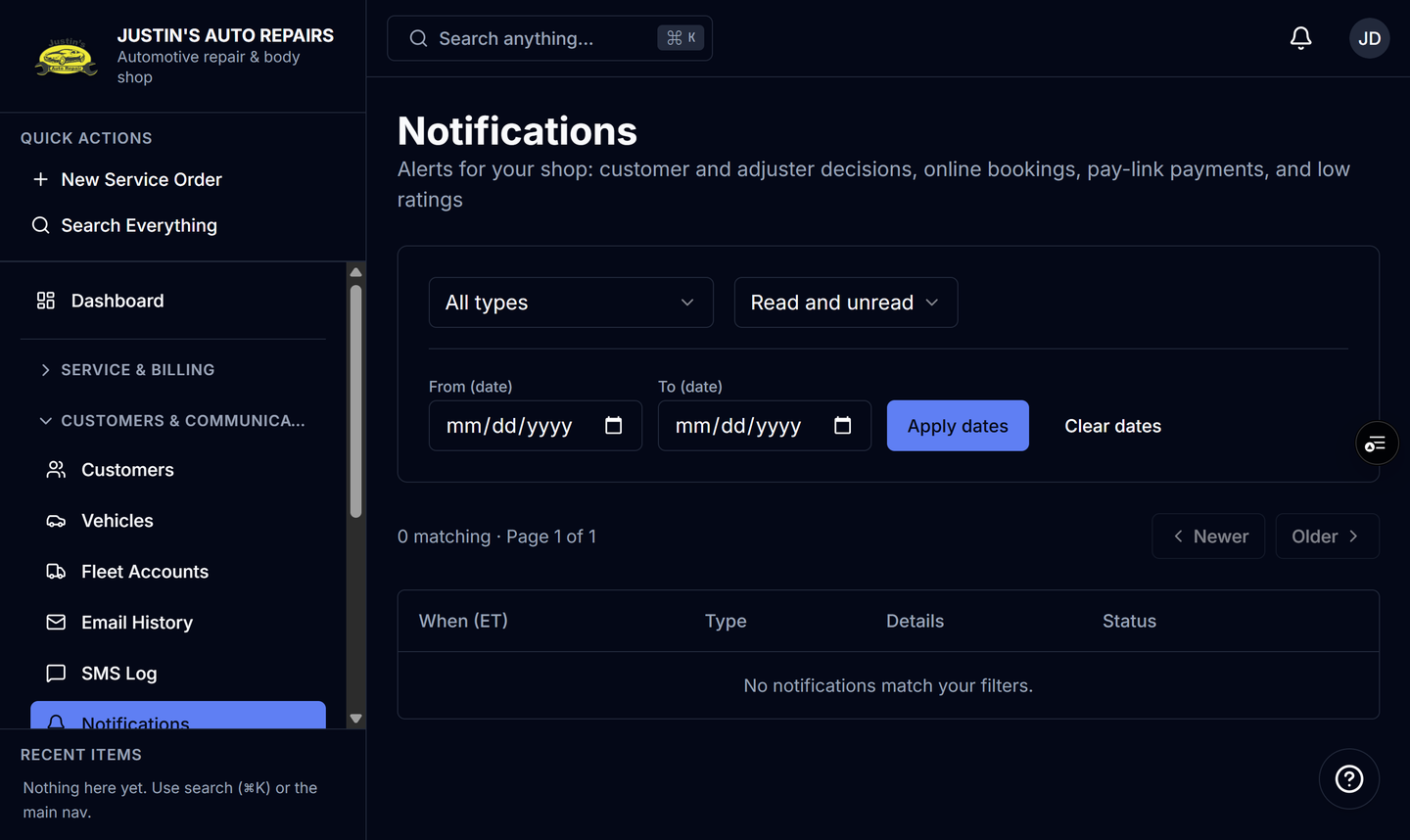
- Open Notifications.
- On the row you have handled, choose Mark read.
- Or open the bell and open that alert. Opening it from the bell marks it read.
- To clear everything still unread, choose Mark all read on the page or in the bell.
How you know it worked
The row shows the time it was cleared. The unread count on Mark all read drops. Other people at the shop see the same read state.
Common snags
- Open on a row in the list goes to the service order, invoice, customer, or calendar and does not change read state. Use Mark read when you only want to clear it.
- Mark read on one row does not clear the others.
- You cannot mark an alert unread again. There is no per-person inbox to restore.