How to create a purchase order
Who this is for
You order parts from one supplier, either from a job, from low stock, or by typing the lines.
Before you start
- Inventory is on. Purchase Orders uses that module.
- A manager or owner creates the purchase order. Receptionists can receive one later.
- The supplier should already exist if you are not coming from a catalog seller. See Add a supplier.
Steps
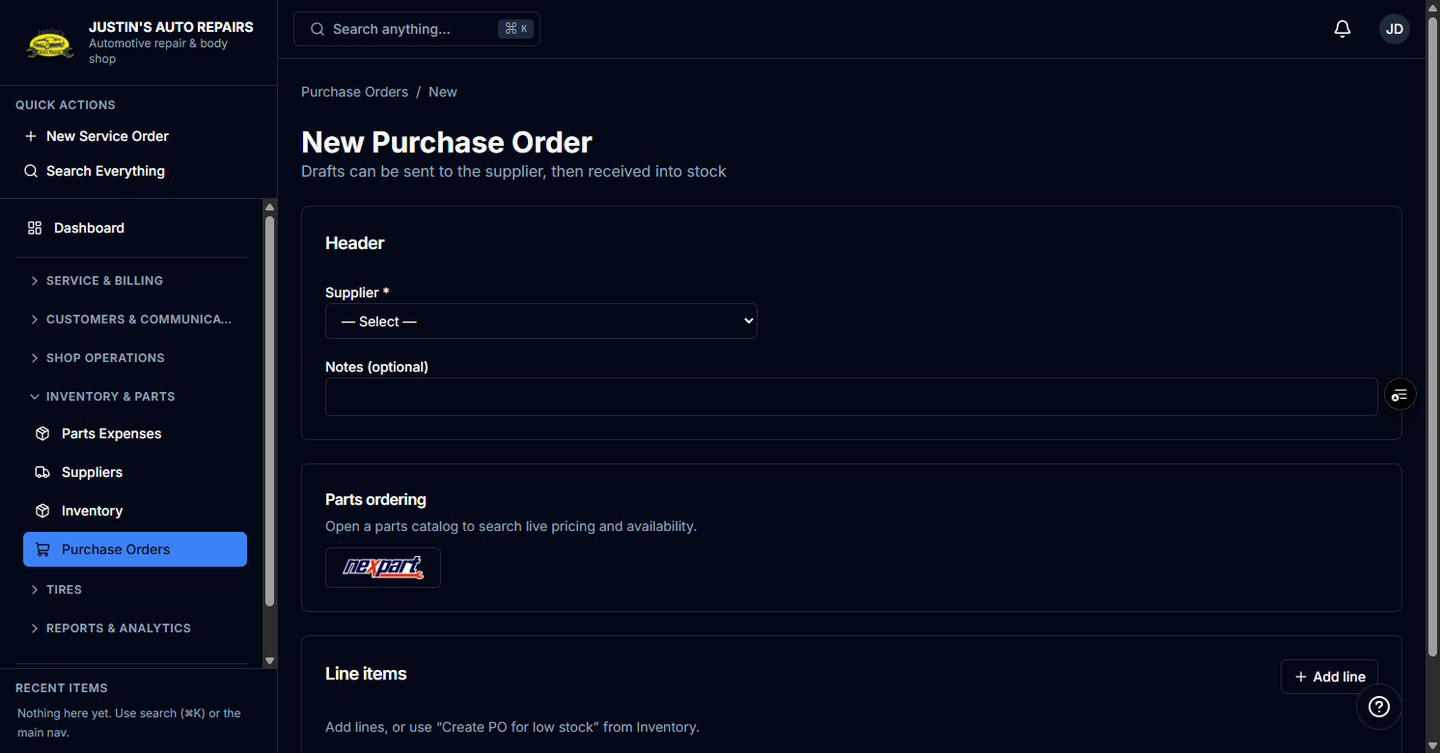
- Open Purchase Orders.
- Choose New.
- Choose the supplier.
- Choose Add line for each part, and enter the part number, quantity, and cost.
- Or start from Inventory with Create PO for low stock, or from a job with New PO and the seller name, so the lines are already filled in.
- Choose Create draft.
How you know it worked
The purchase order is a draft. You can still edit lines. Sending it, or receiving it, comes next. Saving a draft that came from a job asks Update SO-#### too? The box Also update the service order to match starts on.
Common snags
- One purchase order is one supplier. A cart with two sellers becomes two purchase orders.
- Untick the service-order update when you trimmed the order because the part is already on the shelf.
- If the job is invoiced, paid, or cancelled, you can save the purchase order only. The job is not changed.
- Cancelling the purchase order in BayOps does not cancel it at the vendor.