How to set parts markup
Who this is for
You set how the shop turns a part's cost into the price on a service order.
Before you start
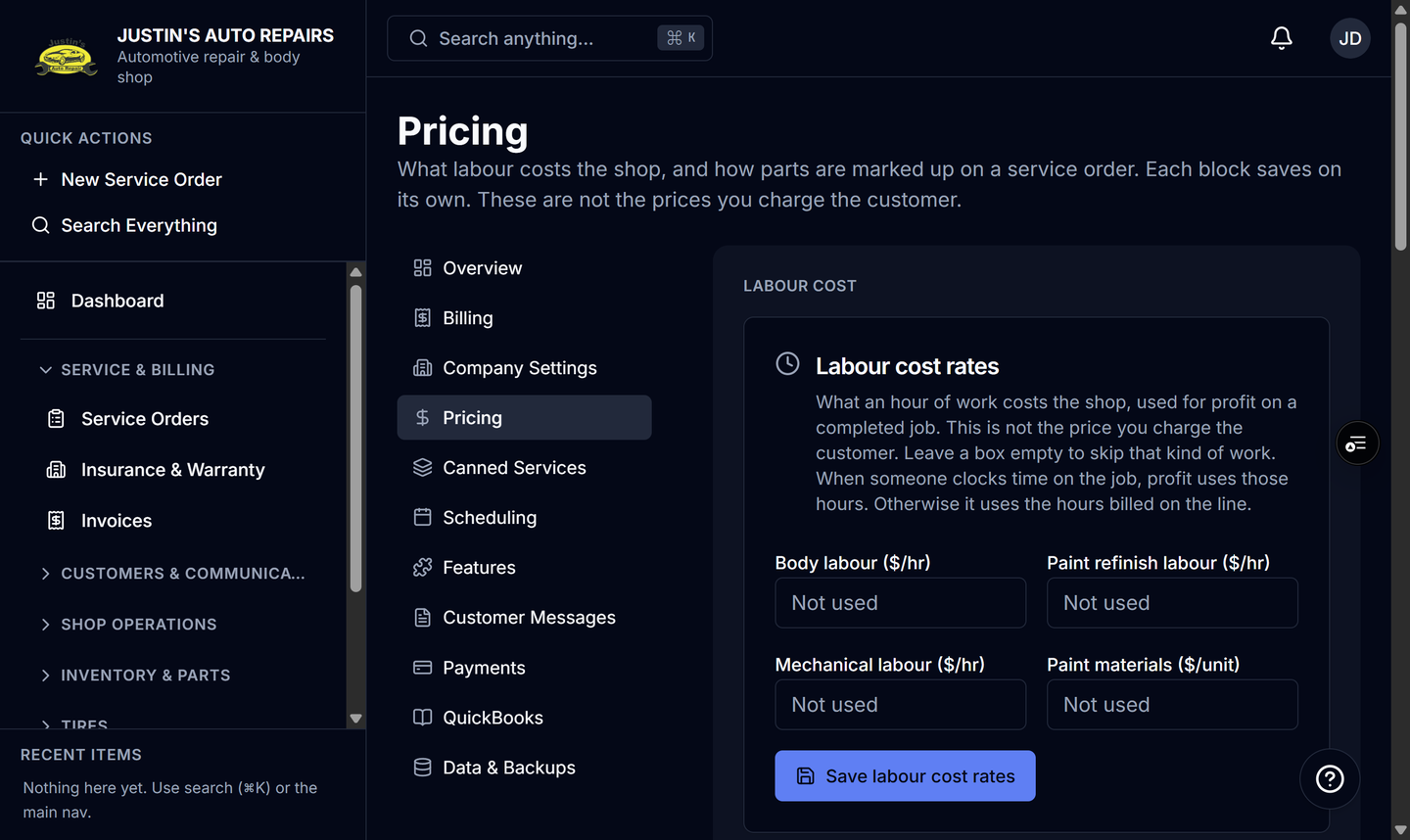
- Only the owner can change this. It is under Settings, in the Pricing section.
- Purchase orders stay at vendor cost. This matrix changes the customer price only.
- A shop that has never saved a matrix is left off, so prices do not change until you turn it on.
Steps
- Open Settings.
- Choose Pricing.
- Turn on Use this pricing.
- Review the cost tiers. Each band is a cost range and a markup percent.
- Set list ceiling, minimum margin, and rounding if you use them.
- Leave Bill core deposits to the customer on if the customer should see a refundable core as its own line.
- Leave Mark up cores off unless a core should be priced above cost.
- Choose Save parts pricing matrix.
How you know it worked
The next catalog part or inventory part you add to a service order gets a sell price from the matrix. You can still type over that price on the line. A core line stays at cost when Mark up cores is off.
Common snags
- Parts you type by hand are not priced by the matrix. You enter that price yourself.
- Bill core deposits off means the customer gets no core line. The core still shows in the line's core amount, between the shop and the vendor.
- Mark up cores is disabled while cores are not billed to the customer.
- New shops start with the matrix on. An older shop stays off until you save it here.