How to record a supplier invoice
Who this is for
You enter a vendor bill for parts, including which jobs those lines belong to, and whether it is paid.
Before you start
- Technicians cannot open Parts Expenses.
- A manager or owner deletes an invoice. Receptionists and accountants can record and edit.
- If the bill arrived with a purchase order, receiving can create this invoice for you. See Receive a purchase order.
Steps
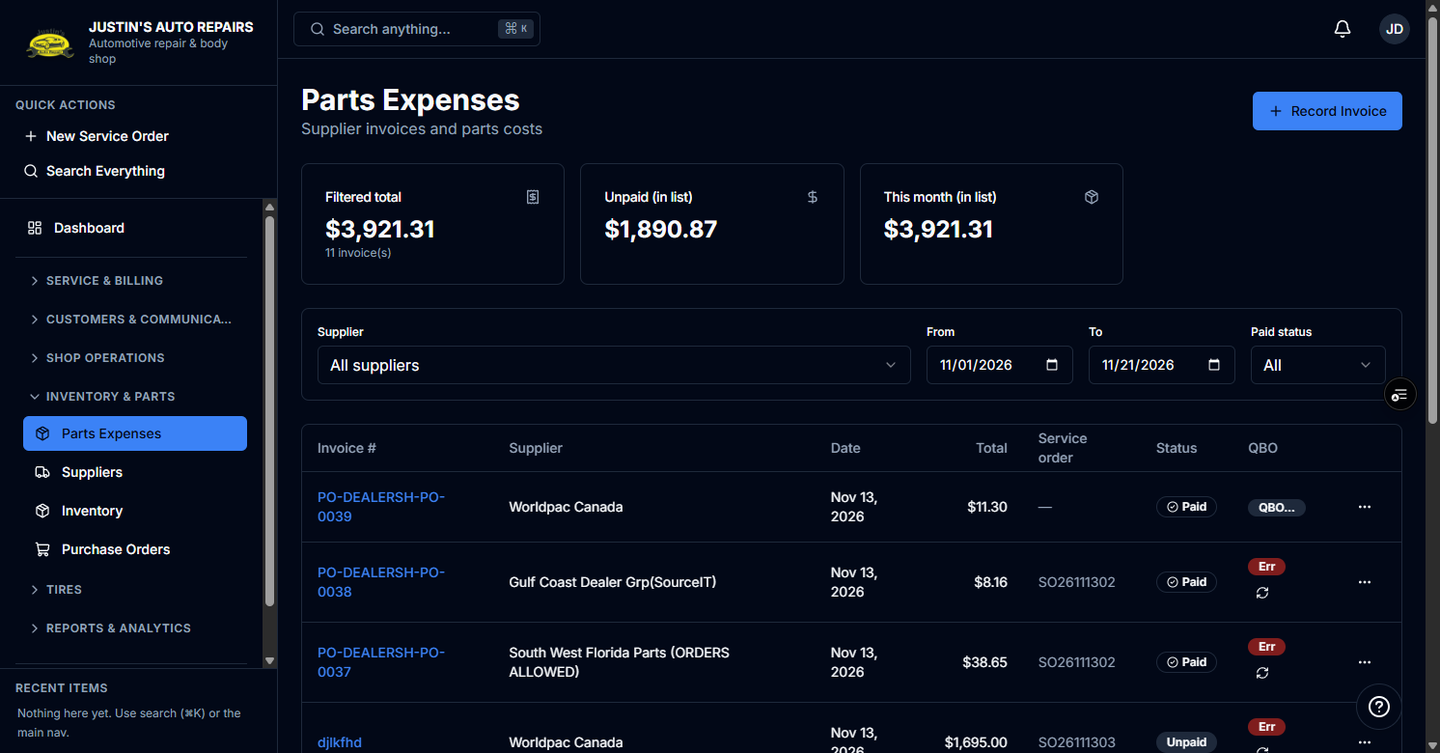
- Open Parts Expenses.
- Choose Record Invoice.
- Enter the supplier, invoice number, date, and amounts.
- Leave tax at the shop rate, or type over it when the vendor's tax differs. Use the rate link to put the calculated tax back.
- Under Jobs on this invoice, search for the service order and add it.
- Check the prefilled parts, tires, sublet, and towing lines. Remove any line this bill does not cover.
- Choose Record invoice.
How you know it worked
The invoice is in the Parts Expenses list. Linked lines show against the invoice subtotal. A line tied to a job updates that job line's cost so the shop's margin uses the vendor's price.
Common snags
- A line already billed on another invoice is skipped and labelled with that invoice number. Reusing it shows a warning.
- One bill can cover several jobs. The list shows the service order plus a count when it does.
- After you type anything, Cancel, Back, and sidebar links ask you to confirm before leaving. Refresh and closing the tab do not ask.
- Mark it paid from the invoice when you have paid the vendor. Recording it does not send a payment.