How to receive a purchase order
Who this is for
You record that ordered parts arrived and, if you want, create the supplier invoice for what you received.
Before you start
- The purchase order is sent, or partly received, and still has quantity open.
- A draft cannot be received. Send it first.
- Each received line needs a unit cost.
Steps
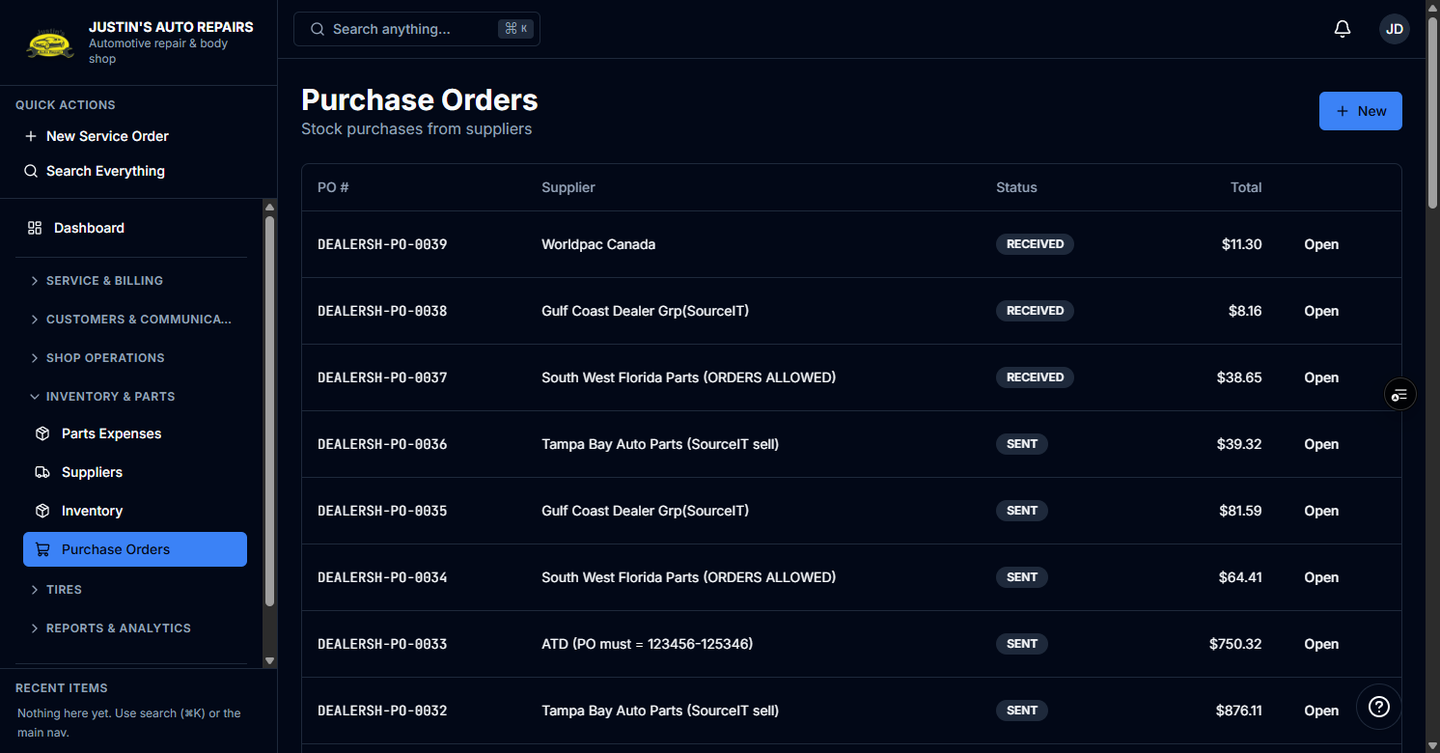
- Open Purchase Orders.
- Open the purchase order.
- Choose Receive.
- Enter how many of each line arrived now. The line starts at the quantity still open.
- Confirm the unit cost on the line.
- Leave Create parts expense (AP) for this receive on if this receipt should become a supplier invoice.
- Choose Confirm receive.
- If several purchase orders for the same job are open, choose Receive all, then Confirm receive.
How you know it worked
The status badge shows PARTIALLY_RECEIVED or RECEIVED, and the Received quantity on each line goes up. Stock on hand increases for parts that track stock. When you created the parts expense, it appears under Parts Expenses.
Common snags
- Receive all stops at the first purchase order that is refused. Earlier ones in that batch stay received.
- A cancelled purchase order releases its parts so they can be ordered again. It does not receive them.
- Invoice / reference (optional) is the supplier invoice number. It is not the vendor order number. It can default to the purchase order number.
- Receiving does not, by itself, mark the customer invoice paid.