How to compare roles
Who this is for
The owner, deciding what each person can do in this shop. Roles are stored in BayOps. Microsoft only proves who signed in. This is the shop user list, not the platform admin site.
Before you start
- You are signed in as the owner. See How to sign in.
- Receptionist, manager, and owner stack: a manager can do front-desk work, and the owner can do that plus settings. Technician and accountant do not inherit that stack.
Steps
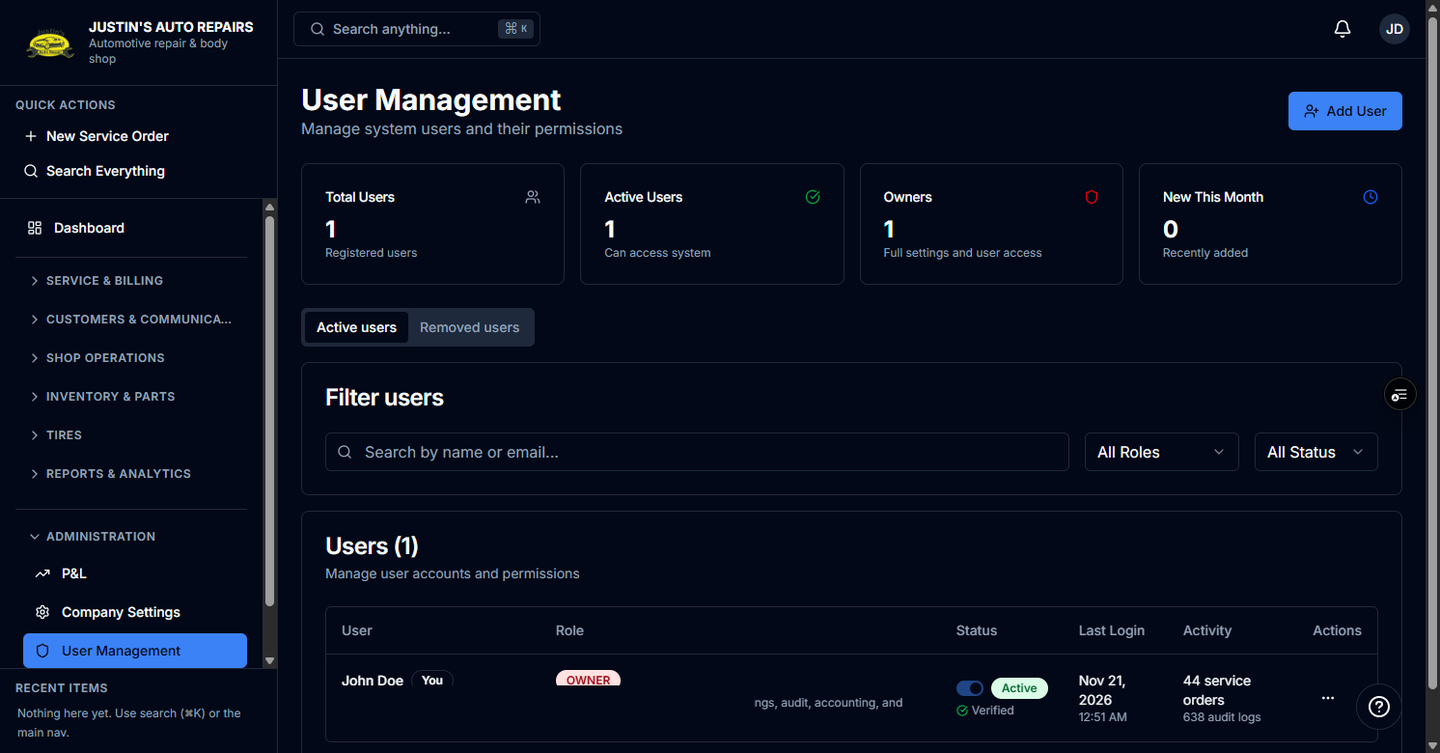
- Open Administration and choose User Management.
- Read the role next to each person.
- Use Owner for the person who needs company settings, users, the audit log, P&L, exports, and BayOps billing.
- Use Manager for shop work plus summary Reports, without company settings or user administration.
- Use Receptionist for customers, vehicles, service orders, and invoices, without summary Reports.
- Use Technician for assigned jobs and inspections. Phone, email, and money stay hidden.
- Use Accountant for invoices, payments, Accounting, parts expenses, and Data Export. They do not add customers or estimates.
How you know it worked
The user list shows the role you expect. After that person signs in again, their sidebar matches How to see why a menu is missing.
Common snags
- A technician still needs Job board turned on before Service Orders appears.
- An accountant does not see Suppliers. Parts Expenses is the supplier-invoice screen.
- Changing a role here does not change their Microsoft password or turn a module on for the shop.