How to sign in
Who this is for
Anyone with a BayOps user. Microsoft Entra External ID checks who you are. Your shop role lives in BayOps, not in Microsoft.
Before you start
- Use the email address on the invitation from your shop.
- If two-factor authentication is on, keep your authenticator app or a backup code nearby. See How to set up two-factor authentication.
Steps
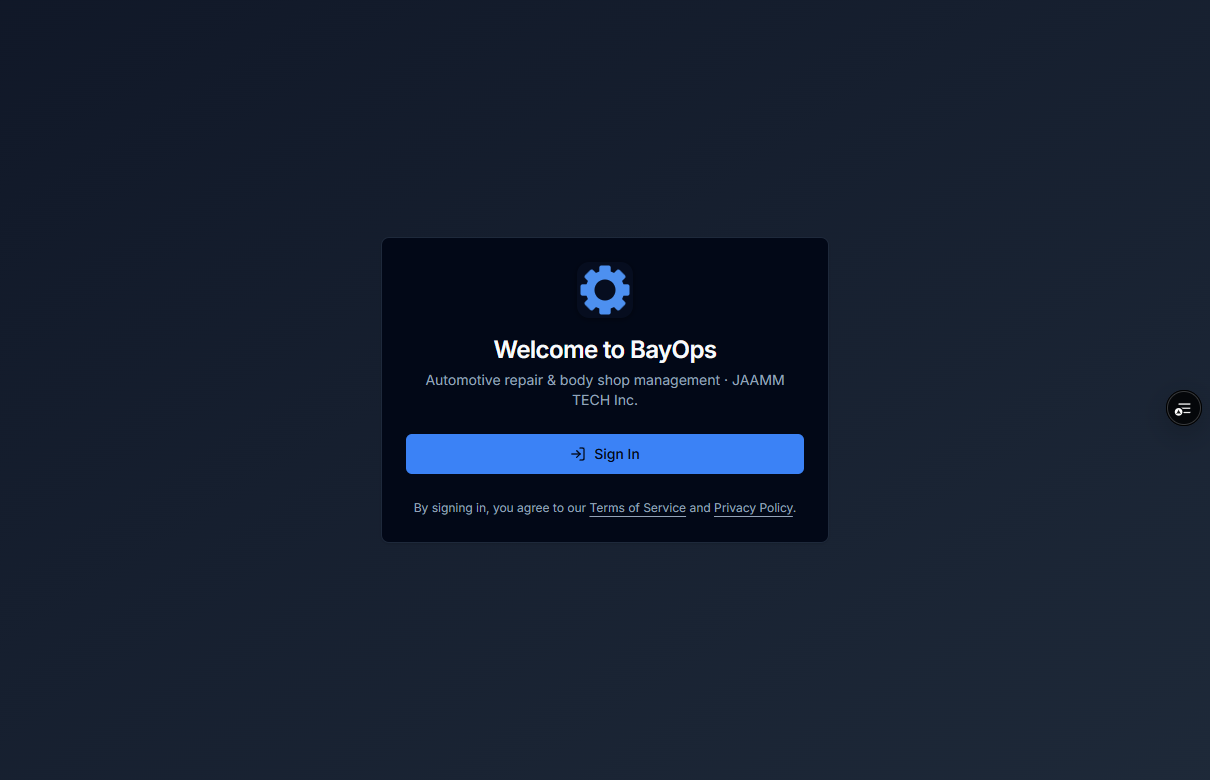
- Open the sign-in page. The title is Welcome to BayOps.
- Choose Sign In.
- Finish sign-in at Microsoft with the invited email. You may see email and password, and Google, Microsoft, or Apple when those options are turned on. A social account must use the same email as the invitation.
- If BayOps asks for two-factor authentication, enter the 6-digit code, or select Use a backup code instead, then choose Continue.
- Wait until the shop opens.
How you know it worked
The shop sidebar is on screen, including Dashboard. When two-factor authentication is on, the account menu shows a 2FA badge.
Common snags
- A sign-in error on the page means Microsoft did not finish. Choose Sign In again, or ask the owner to confirm you exist under User Management and that an invitation was sent.
- If the social email does not match the invitation, sign in with email and password on the invited address.
- Each backup code works once. If the authenticator and the codes are both gone, ask the owner.