How to start as a manager
Who this is for
A manager running the shop day to day. You can do the receptionist’s front-desk work, and you also get summary Reports. You do not get company settings, user administration, the audit log, or P&L.
Before you start
- Sign in with the email the owner invited. See How to sign in.
- Your role badge on Profile should say MANAGER. If it does not, ask the owner.
Steps
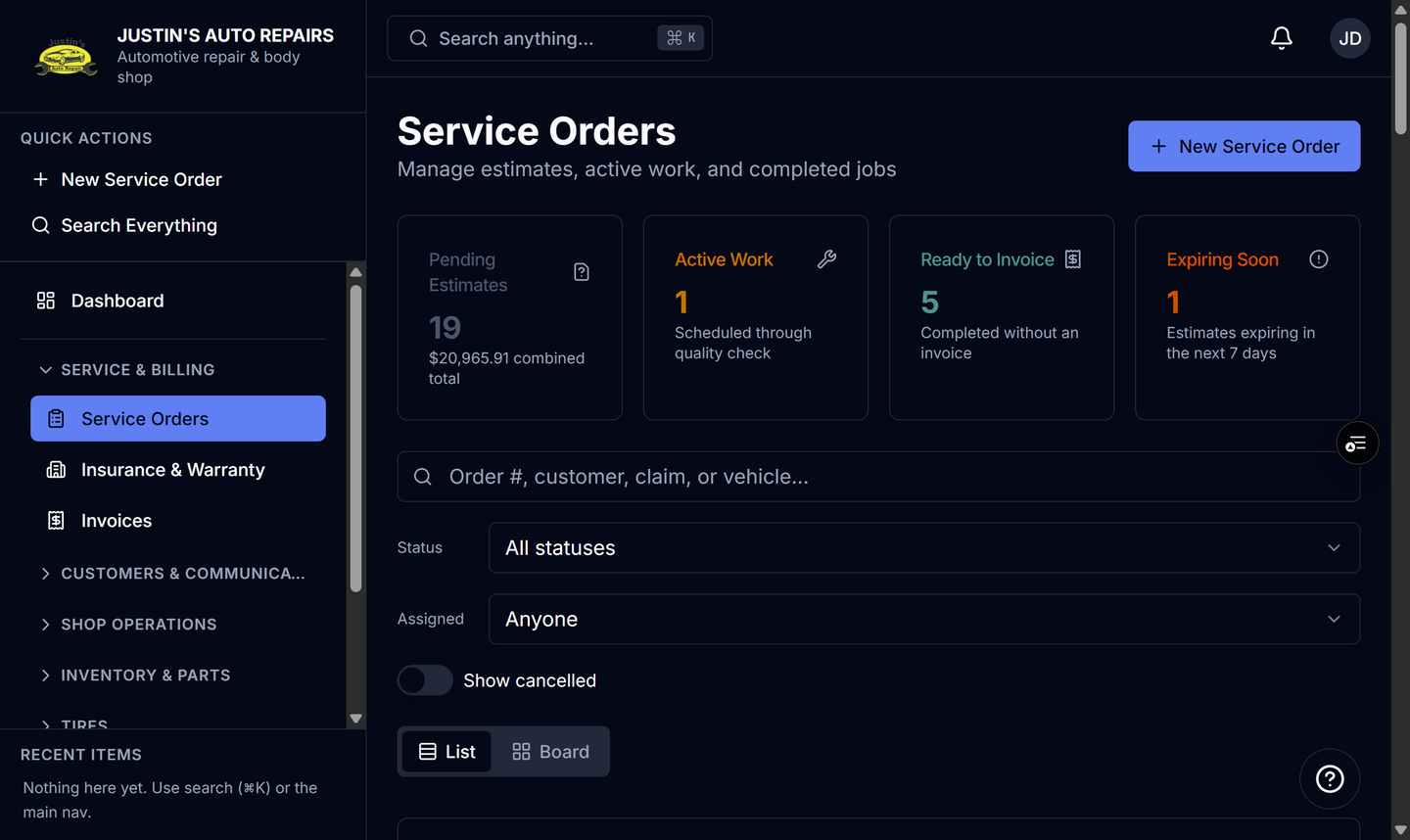
- Open Service & billing and choose Service Orders.
- Start a job from Quick Actions with New Service Order, or open an existing order. See How to create a service order.
- Open Customers when you need the person or the vehicle. See How to add a customer.
- Open Invoices when a completed job is ready to bill. See How to create an invoice.
- Open Reports & Analytics and choose Reports for the summary reports.
How you know it worked
Service Orders is open, and the sidebar shows Customers, Invoices, and Reports. Administration does not show Company Settings, User Management, or P&L.
Common snags
- Accounting and Data Export are not on a manager menu. Those are for the owner and the accountant.
- A missing Calendar, Inspections, or Inventory item means that module is off, not that your role changed. See How to see why a menu is missing.
- You do not see Total Revenue on the dashboard.