How to add a supplement
Who this is for
You add repair lines found after teardown and ask the insurer or warranty provider to approve the extra amount.
Before you start
- The job is Insurance or Warranty. The supplement list is on that service order.
- Draft is internal. Submitted is what you send for a decision.
Steps
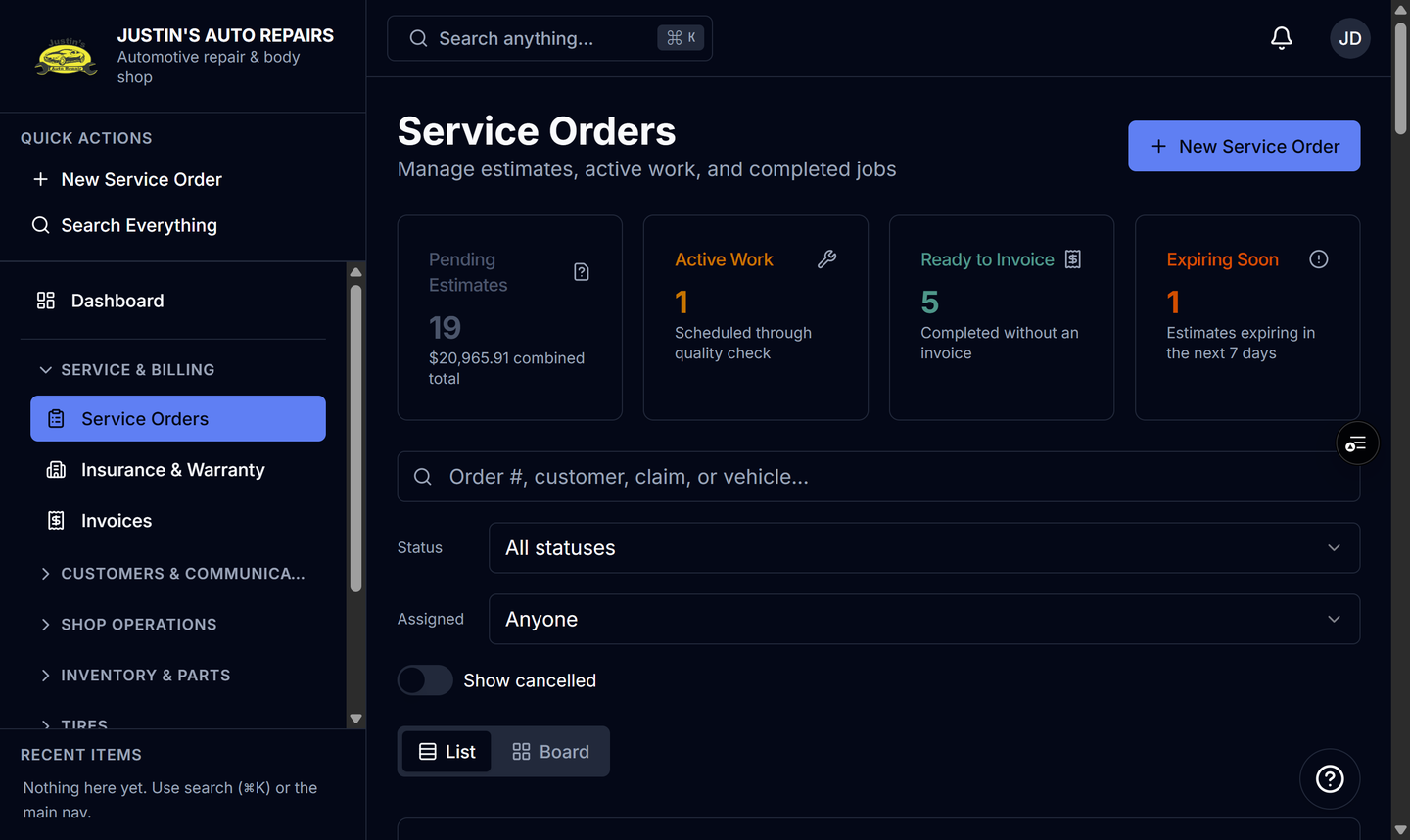
- Open Service Orders and open the job.
- In Supplements, choose New supplement.
- Set Initial status to Draft or Submitted.
- Choose Line.
- Enter the description, quantity, and unit price.
- Choose Save.
- When the supplement is submitted, choose Send to adjuster on that row.
How you know it worked
The row shows Supplement and its number, with status Draft, Submitted, Approved, or Denied. After a response, opening the supplement shows their notes and each line's decision.
Common snags
- You can only pick Draft or Submitted while creating. Approved and Denied appear when you edit later, or when the provider answers the link.
- Tax on the supplement follows the shop's province. You do not type a separate tax treatment for a warranty supplement.
- Sending the original estimate does not send the supplement. Each supplement has its own Send to adjuster.