How to send a provider approval link
Who this is for
You ask the adjuster or warranty contact to approve, deny, or partially approve the dollars on an estimate or a supplement.
Before you start
- The job type is Insurance or Warranty, and a company is selected.
- This is separate from the customer authorization link. Both must be done before the job is ready to start.
- Email is the default. SMS also needs the SMS module and a phone on the contact. Provider texts do not use the customer's SMS consent.
Steps
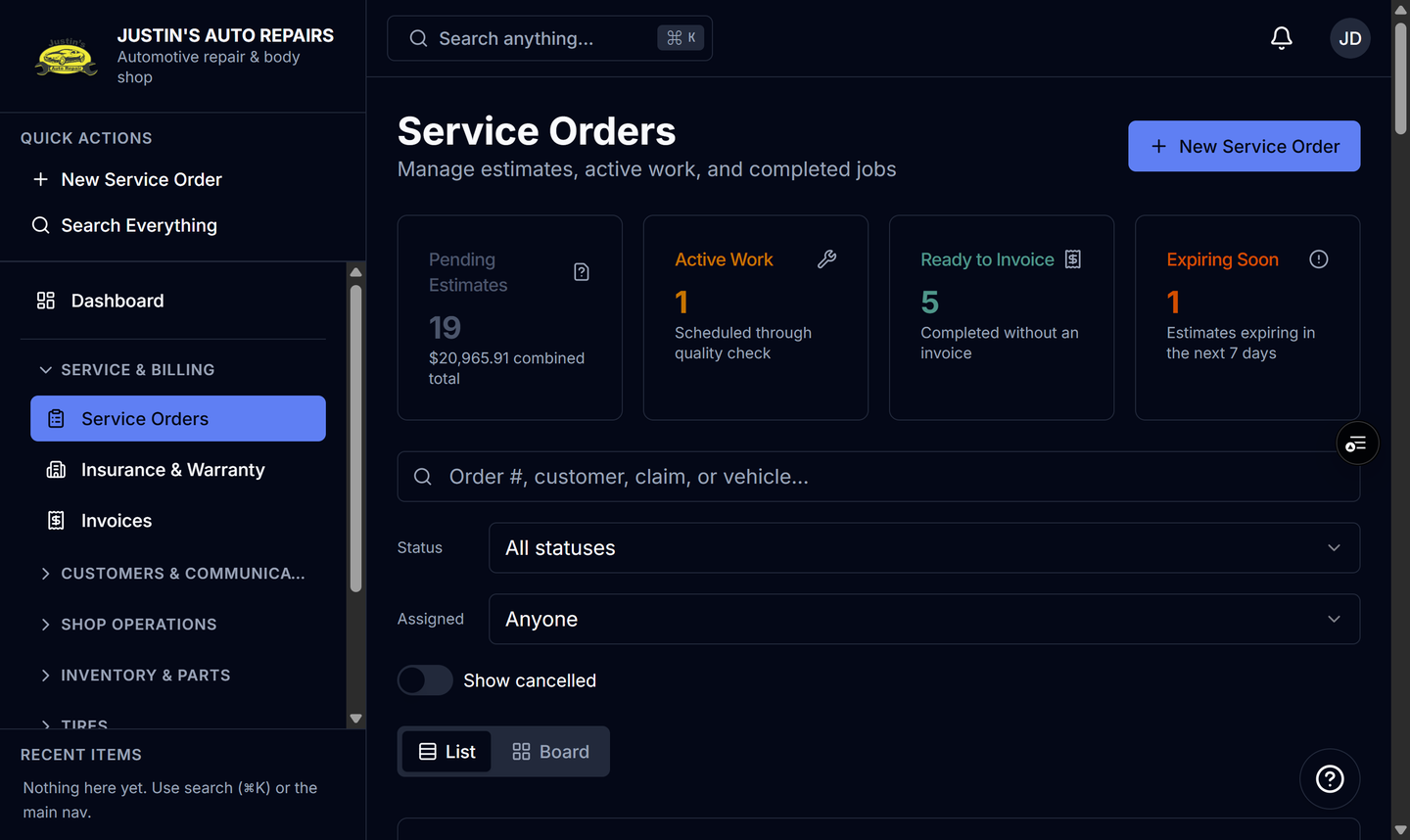
- Open Service Orders and open the insurance or warranty job.
- On the Insurance & adjuster card, or the Warranty claim card, choose Send to adjuster.
- Leave Email on to send the estimate and the link.
- Turn on SMS only if you also want a text.
- Choose Send to adjuster.
- For extra work, open the supplement and choose Send to adjuster on that supplement.
How you know it worked
The send dialog closes after the link is queued. The card stays pending until they answer. A warranty email says Warranty provider, not Insurance.
Common snags
- Send stays unavailable until Email or SMS is on and that channel has an address.
- If the contact has no email and no phone, add them first. See Add an adjuster.
- Provider approval does not change the job's main status by itself.