How to read an approval decision
Who this is for
You check whether the adjuster or warranty provider approved the estimate or a supplement, and what they did to each line.
Before you start
- Someone already sent the link. See Send a provider approval link.
- The shop bell also posts Adjuster approved or Adjuster denied. That alert is shared by the whole shop.
Steps
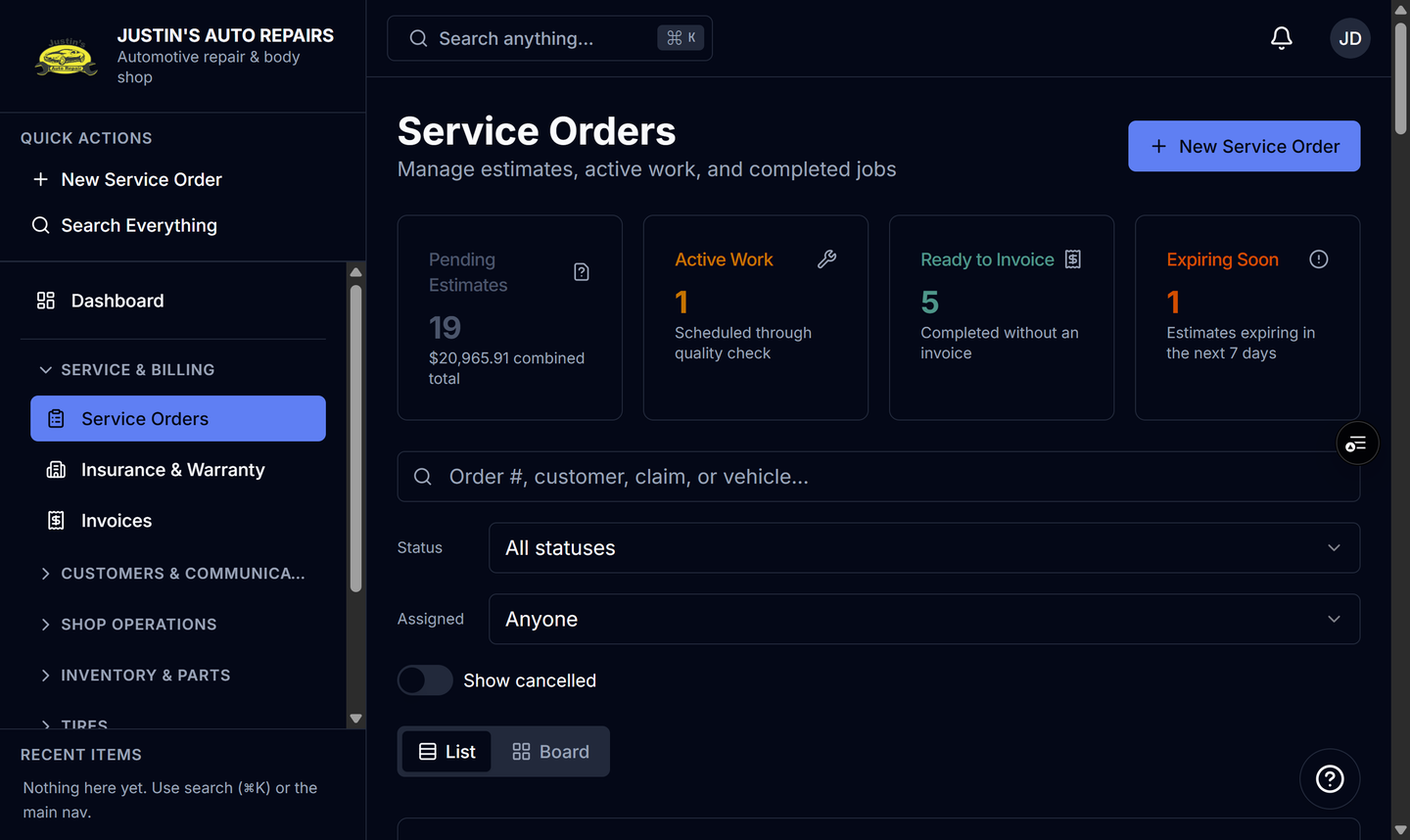
- Open Service Orders and open the job.
- Read the banner under the header. Not ready to start stays up until customer authorization and provider approval are both complete.
- Open the Insurance & adjuster card, or the Warranty claim card.
- Read the status pill: Pending, Complete, or Denied.
- Read who responded, when, their notes, and each line's approve, deny, or partial amount.
- For a supplement, open that supplement after they respond and read the same notes and line decisions.
How you know it worked
Complete on the provider card, plus customer authorization, turns the banner to Ready to start. Denied stays on the card with their notes. The job status itself does not flip just because they approved.
Common snags
- Partial means they approved a dollar amount on that line, which can be less than you asked.
- Supplement photos on their page are general photos. Estimate line photos are tied to the line.
- A cash payment or a move on the job board does not create this alert.