How to sync a supplier bill to QuickBooks
Who this is for
You recorded a parts expense and you want QuickBooks to show it as a Bill. BayOps creates the supplier as a vendor the first time that supplier syncs.
Before you start
- The owner connected QuickBooks, turned on automatic sync, and picked a Parts expense (Bill) account. See Connect QuickBooks.
- The expense has a supplier. Without a supplier, BayOps skips the bill and does not mark it as an error.
Steps
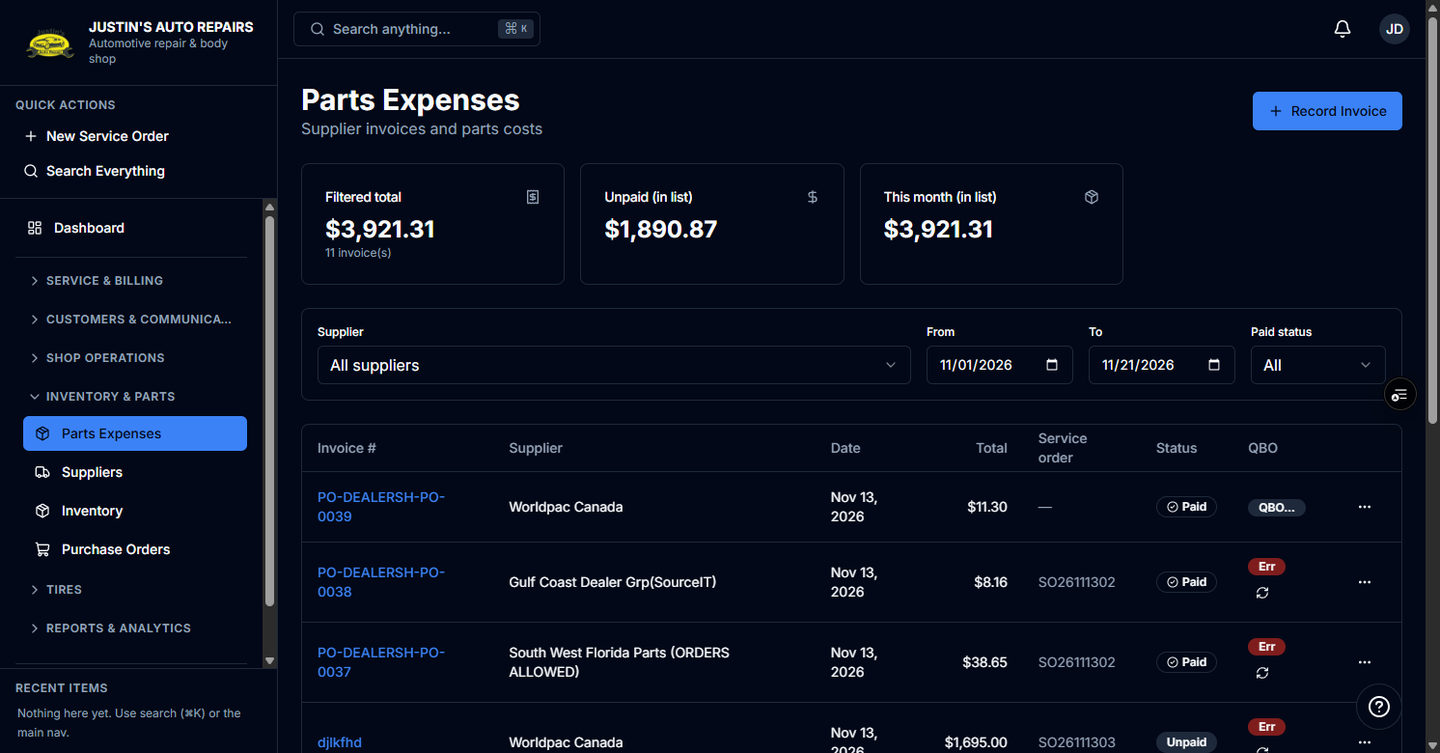
- Open Parts expenses.
- Open the expense, or find its row in the list.
- Read the QuickBooks bill badge.
- If the badge is an error, choose Retry.
- Ask the owner to choose Sync all unsynced parts expenses under Settings → QuickBooks when many older bills never went across.
How you know it worked
The badge says the expense synced to QuickBooks as a Bill. Open in QuickBooks appears when QuickBooks returned a bill id.
Common snags
- The error tells you to pick an account. The owner selects Parts expense (Bill) account in Settings → QuickBooks, then you retry.
- The badge never appears and there is no error. The expense has no supplier, so the sync was skipped.
- Paying the bill in QuickBooks is separate. BayOps does not push bill payments or accounts-payable aging in this release.