How to connect QuickBooks
Who this is for
You are the owner sending invoices, payments, and supplier bills from BayOps into QuickBooks Online so you do not enter them twice.
Before you start
- The QuickBooks module is on. It is part of Enterprise. If QuickBooks is missing under Settings, contact BayOps support.
- You can sign in to the QuickBooks company you want BayOps to write to.
Steps
- Open Settings.
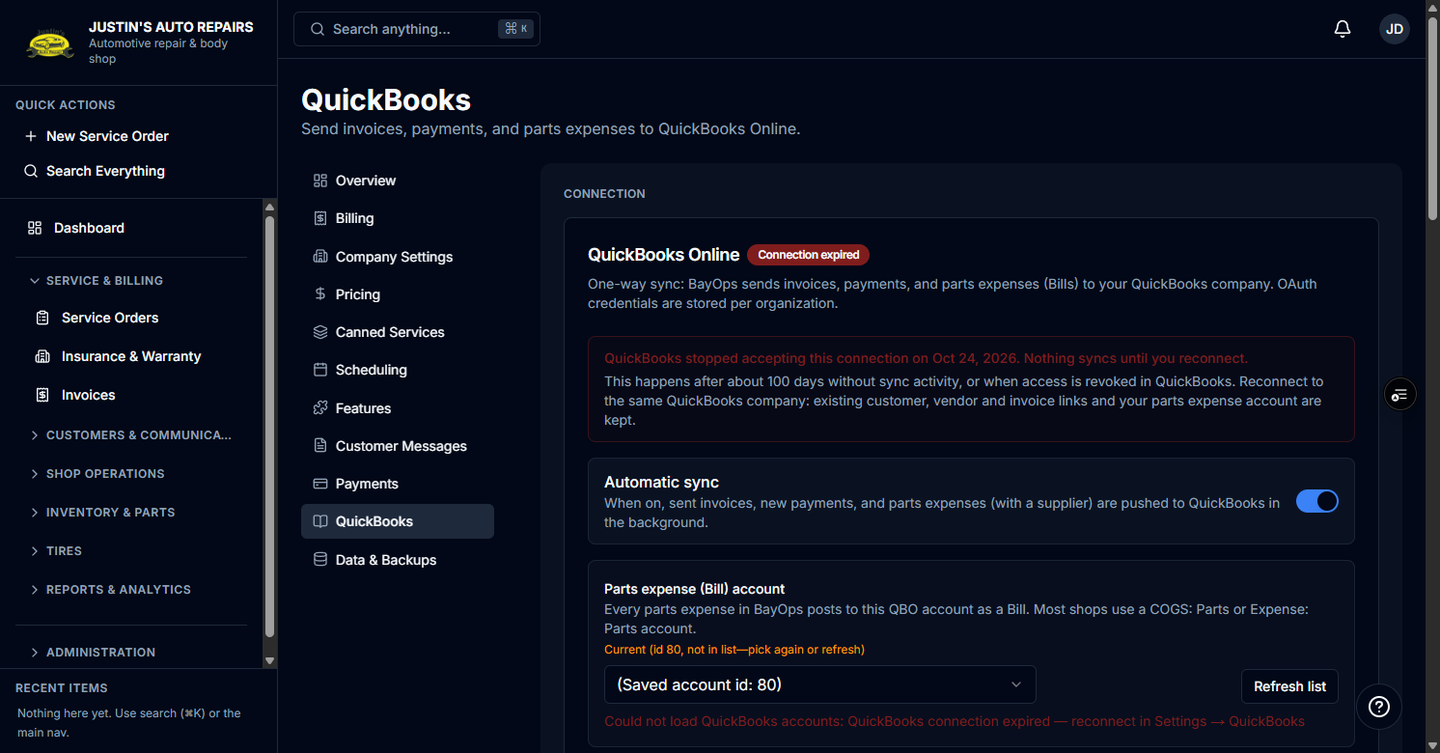
- Choose QuickBooks.
- Choose Connect QuickBooks.
- Sign in at Intuit and approve access for this shop.
- After you return, turn Automatic sync on.
- Under Parts expense (Bill) account, choose an Expense or Cost of Goods Sold account, such as COGS: Parts.
How you know it worked
The page shows the connection time, and a toast says the QuickBooks connection was updated. Sync history lists later attempts.
Common snags
- Authorization failed. Choose Connect QuickBooks again. If the button says Reconnect QuickBooks, the saved sign-in was refused.
- Supplier bills fail until a parts expense account is selected. Invoices can still sync when automatic sync is on.
- Shop supply and environmental fees sit inside the BayOps subtotal and are not separate QuickBooks lines, so invoice totals can differ slightly.