How to sync an invoice to QuickBooks
Who this is for
You sent an invoice and you want it in QuickBooks Online. With automatic sync on, BayOps pushes the invoice after it is sent, and again when a sent, paid, partially paid, or overdue invoice changes.
Before you start
- The owner has connected QuickBooks and turned on automatic sync. See Connect QuickBooks.
- The invoice is no longer a draft. Drafts are not pushed. Refunds are not sent as QuickBooks payments.
Steps
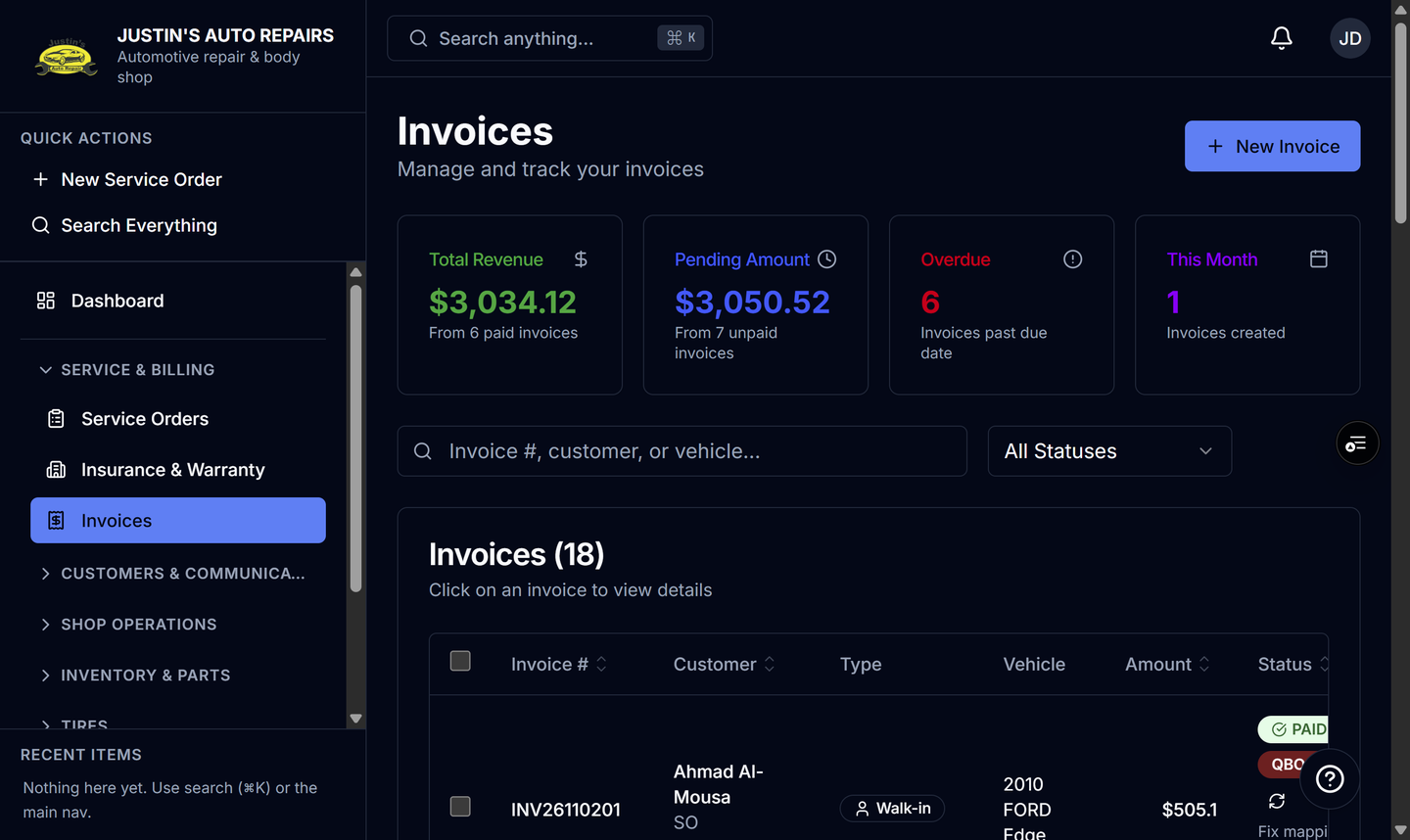
- Open Invoices.
- Open the invoice.
- Read the QuickBooks badge on the invoice.
- If the badge is an error, choose Retry QuickBooks sync.
- Wait until the badge says the invoice is synced.
How you know it worked
The badge reads synced to QuickBooks, and a success toast says the sync retry completed. A new send can sync on its own without Retry.
Common snags
- There is no QuickBooks badge. The QuickBooks module is off, or you are looking at a draft.
- Retry fails and the badge stays on error. Open the error text, then ask the owner to check Sync history under Settings → QuickBooks. A missing customer match usually clears on retry after the name is accepted in QuickBooks.
- The QuickBooks total is a little lower or higher. Shop supply and environmental fees are inside the BayOps subtotal and are not their own QuickBooks lines.