How to apply for a shop
Who this is for
Someone opening a shop in BayOps. You do not have a sign-in yet. The email you enter becomes the owner login if the shop is approved. Nothing is approved automatically.
Before you start
- Use an email you can open. You will confirm it before review starts.
- Tax number, labour rates, hours, and integrations are not on this form. You add those after you can sign in.
- Book a demo is a separate request. This form is the application.
Steps
- Choose Apply now on the home page, the marketing menu, a pricing card, or the demo page.
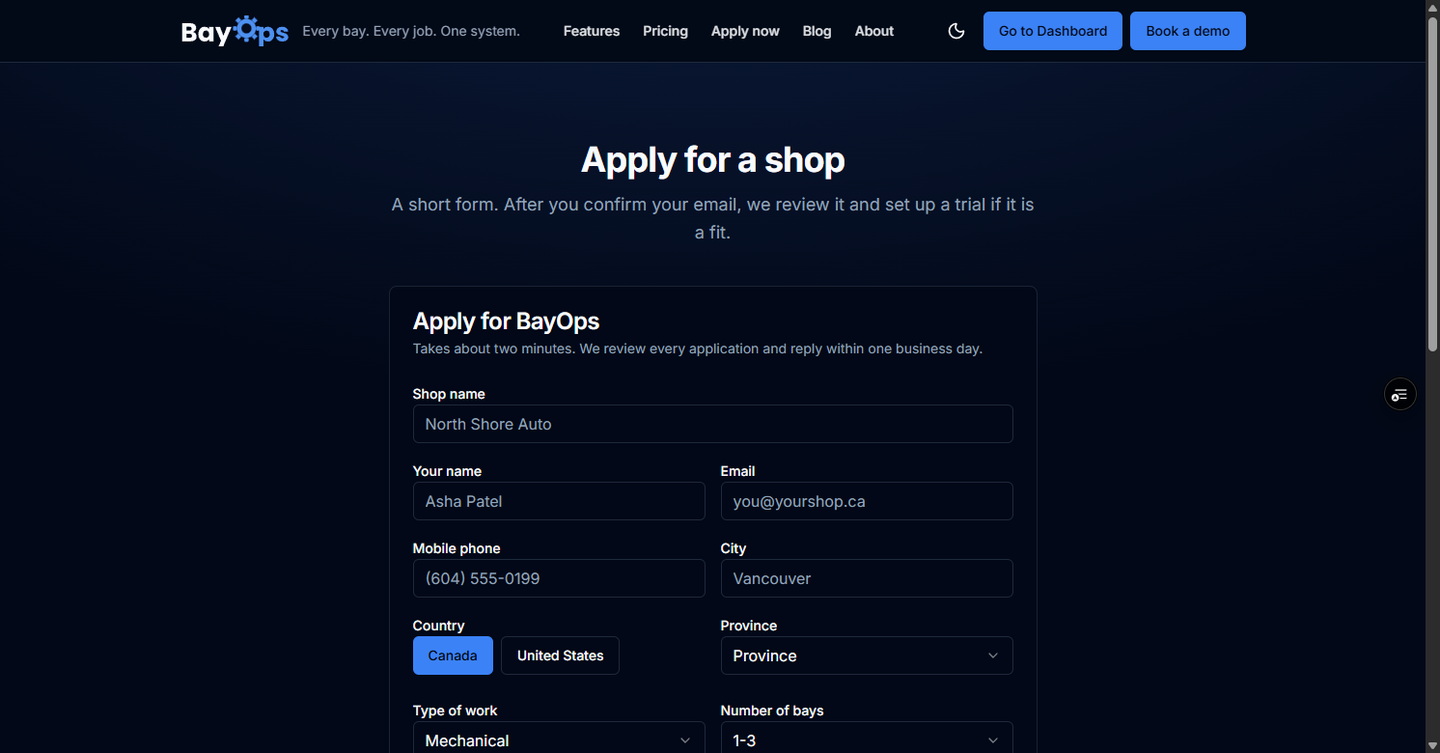
- Enter shop name, your name, email, mobile phone, city, Canada or United States, and province or state.
- Choose Type of work (Mechanical, Collision, Tires, or Mixed) and Number of bays (1-3, 4-8, 9-15, or 16+). Current software and Anything else we should know? are optional.
- Check the box that BayOps may email you about this application and that this email becomes the owner login if the shop is approved.
- Choose Submit application, then open the email Confirm your BayOps application and choose Confirm email.
How you know it worked
The form says Check your email to confirm. After you confirm, the status page shows Pending review and says a person will reply within one business day. If the shop is set up, a later email includes a sign-in link.
Common snags
- The confirmation link lasts seven days. An older link says it has expired and to request a new one.
- The status link stops working after the shop is ready, or if the application is turned down. Use the latest email. A turned-down application includes the reason.
- If the page says Needs info, follow How to update your application.