How to update your profile
Who this is for
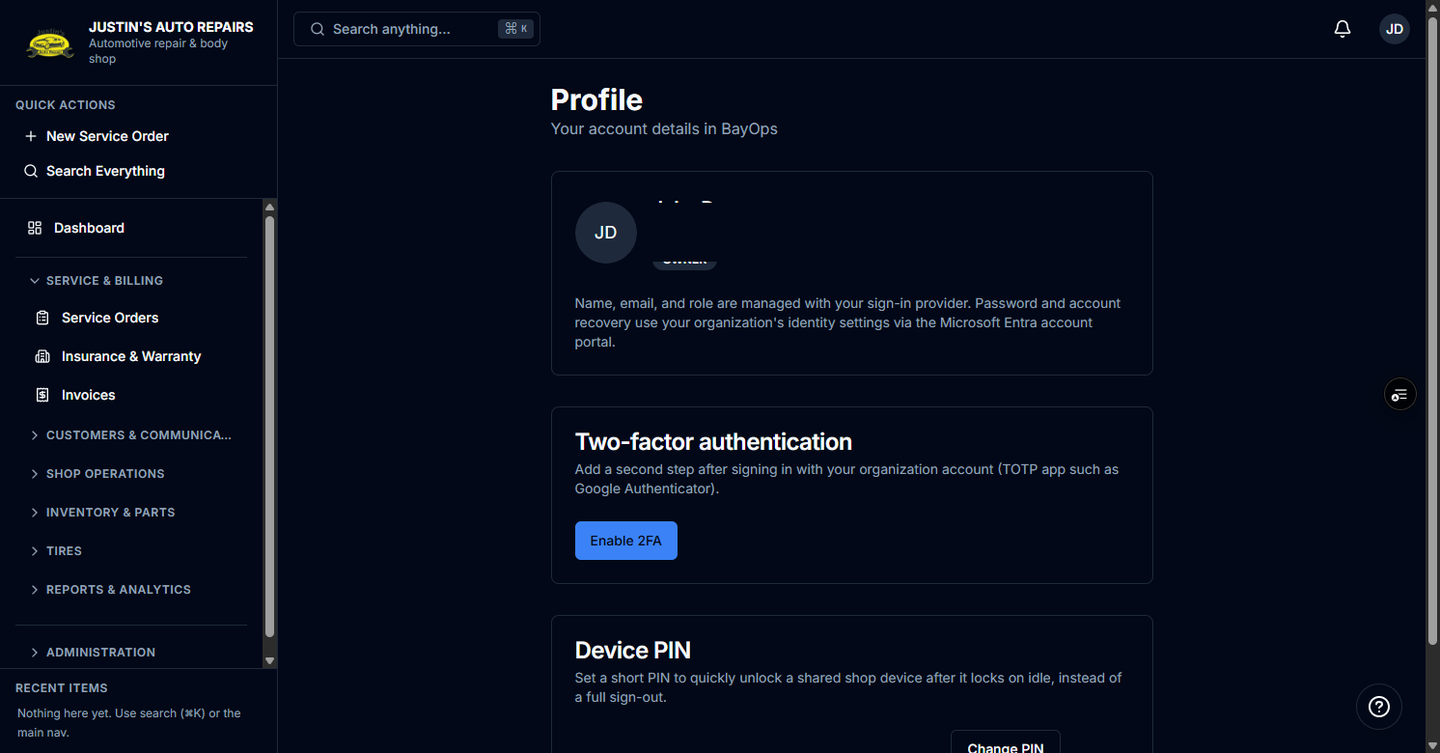
Anyone checking the account BayOps has for them. Name, email, and role are not edited on this page. You change sign-in security here.
Before you start
- You are signed in. See How to sign in.
- A role change is done by the owner under User Management, not from Profile.
Steps
- Open the account menu and choose Profile.
- Read your name, email, and role badge.
- Leave name and email as they are. The page says those, and your password, follow your Microsoft sign-in. Use the Microsoft Entra account portal for password and account recovery.
- Choose Enable 2FA on Two-factor authentication if you want a code after sign-in. See How to set up two-factor authentication.
- Set a Device PIN if this browser is a shared shop device. See How to lock a shared device.
How you know it worked
Profile shows the same name and email you use at Microsoft, and the role your owner assigned. After you enable them, 2FA is on and the device PIN card says the PIN is active.
Common snags
- There is no save button for your name or email. A wrong email means the owner has the wrong invitation address.
- Theme (Light, Dark, or System) is on the account menu, not on Profile.
- Disable 2FA and Remove PIN both ask you to prove the current code or PIN first.