How to handle a session timeout
Who this is for
Anyone who stepped away from BayOps. After 30 minutes with no mouse, keyboard, scroll, or touch, BayOps locks the screen if you have a device PIN, or signs you out if you do not.
Before you start
- A warning appears about five minutes before that idle limit.
- A PIN does not extend the session. You still sign in again when the BayOps session or the Microsoft session ends (the BayOps sign-in lasts up to seven days).
Steps
- If you see Session expiring soon, choose Stay signed in to keep working, or Sign out now to leave.
- If you ignore it and you have a device PIN, wait for Screen locked, enter the PIN, and choose Unlock. See How to lock a shared device.
- If you have no PIN, wait until BayOps signs you out through Microsoft.
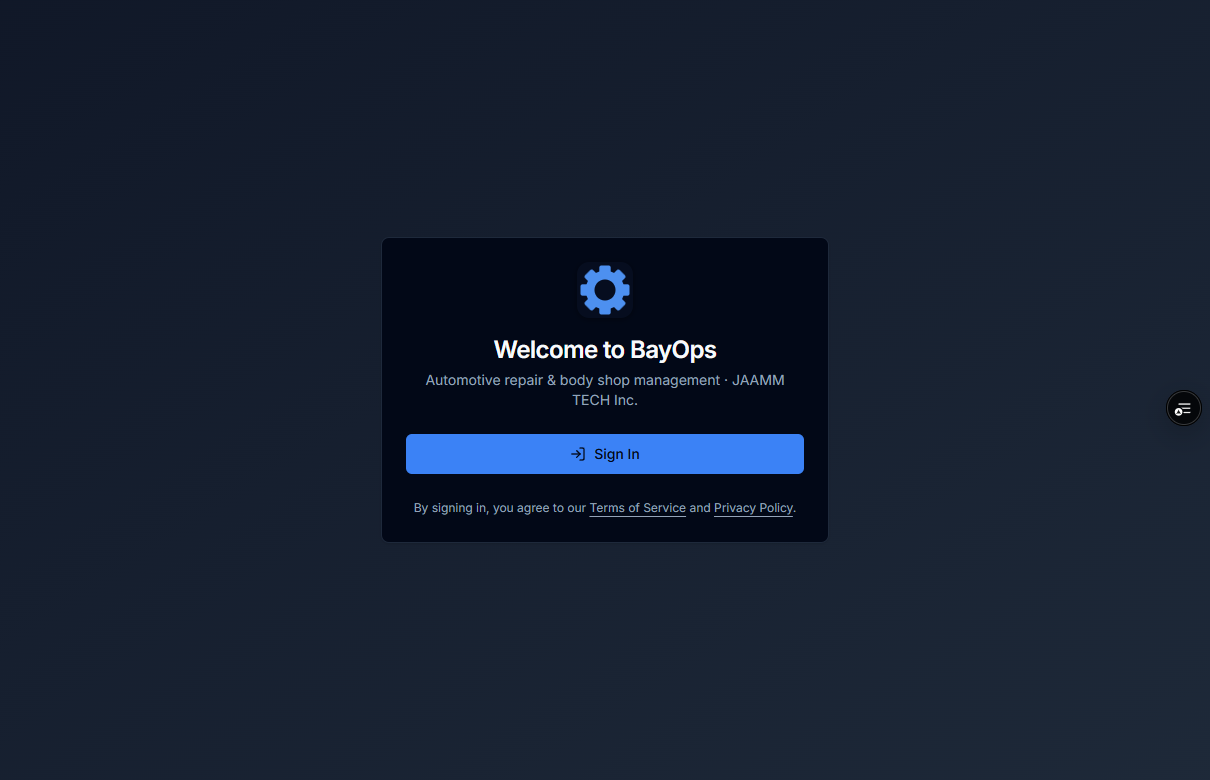
- On Welcome to BayOps, choose Sign In and finish Microsoft sign-in again.
- If two-factor authentication is on, enter the code and choose Continue.
How you know it worked
Stay signed in or Unlock puts you back on the shop page. A full timeout returns you to Sign In, and a successful sign-in opens the shop again.
Common snags
- Moving the pointer or typing also clears the warning and restarts the idle timer.
- Five wrong PINs signs you out. You will see Too many attempts, then the sign-in page.
- Sign out now on the warning ends the session immediately. It does not wait for the rest of the five minutes.