How to read the dashboard
Who this is for
Anyone opening the shop home page. Owners also see revenue here, hidden until they choose to show it. Other roles do not get the revenue card.
Before you start
- You are signed in. See How to sign in.
- The book icon beside the bell opens these guides in a new tab. The same link is in Help, the round button at the bottom-right.
- Revenue on this page is a display cover for people walking past the counter. It is not a separate permission.
Steps
- Choose Dashboard in the sidebar.
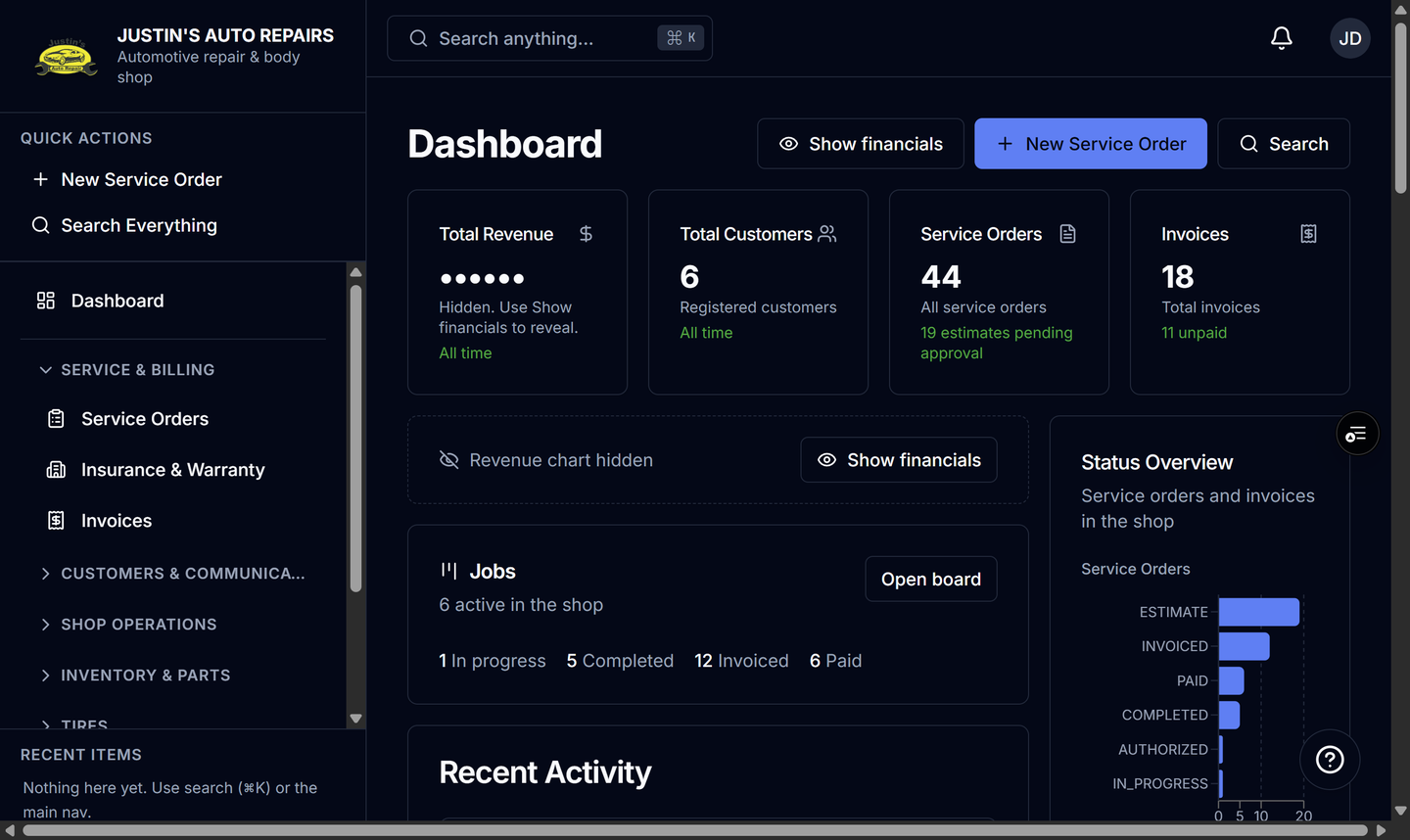
- Read Total Customers, Service Orders, and Invoices. Service Orders notes how many estimates are pending approval.
- Read Status Overview for service-order and invoice counts.
- If you are the owner, read Total Revenue. It shows dots until you choose Show financials in the header.
- With financials showing, read Revenue (30 days) and Revenue Mix (90 days), then choose Hide financials when you are done at the counter.
How you know it worked
The count cards show numbers. An empty shop says there are no service orders or invoices yet. After Show financials, Total Revenue shows recorded payments, with a small line when payment history exists, and the chart titles are visible. Hide financials masks them again.
Common snags
- Showing financials lasts only until you load the page again. The next visit starts hidden.
- Managers, receptionists, technicians, and accountants do not see Total Revenue, Show financials, or those revenue charts.
- A card you cannot open is limited by your role. See How to see why a menu is missing.