How to lock a shared device
Who this is for
Anyone who shares a front-desk computer or a shop tablet and wants to pause the screen without a full Microsoft sign-in.
Before you start
- You are signed in. See How to sign in.
- The PIN is yours. It does not switch to another person, and it does not lengthen the session past its normal limit.
Steps
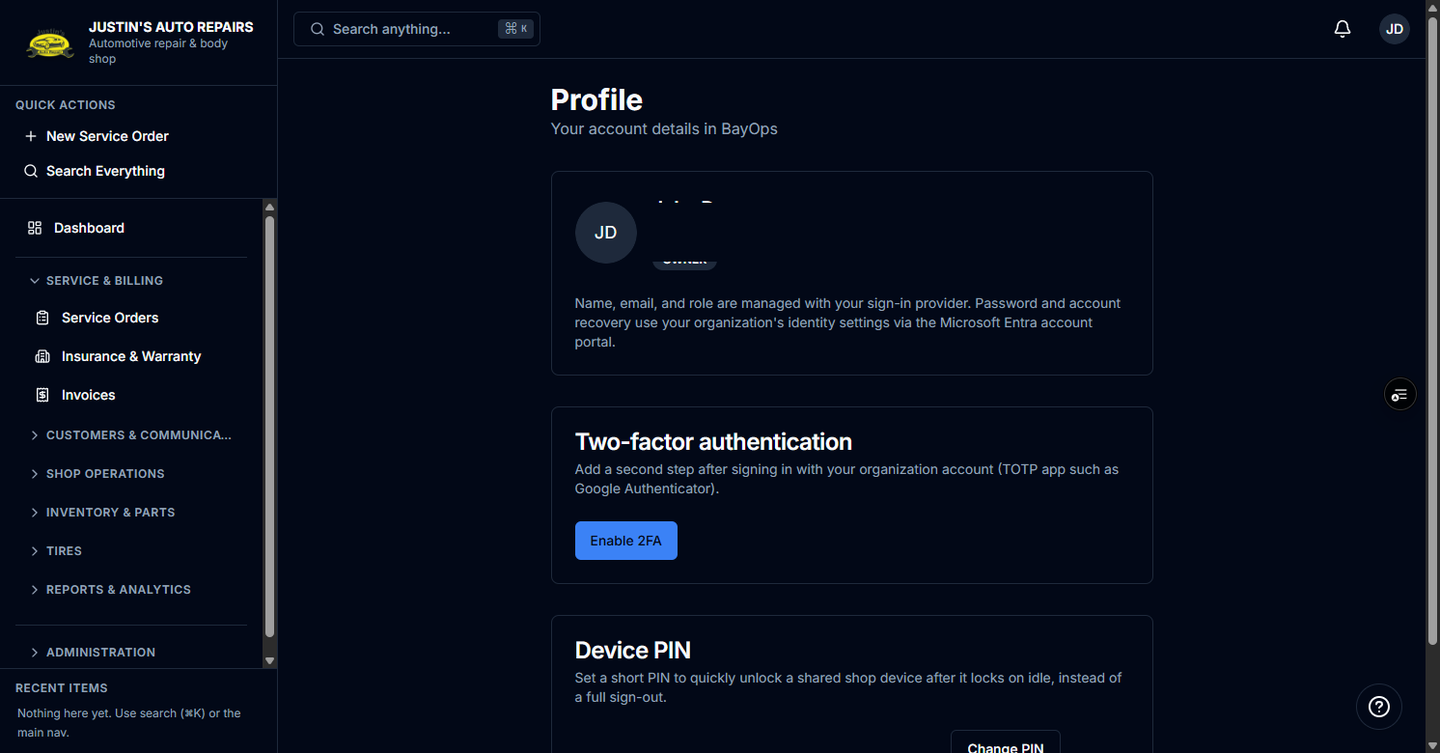
- Open the account menu and choose Profile.
- On the Device PIN card, enter a PIN of 4 to 6 digits, enter it again under Confirm PIN, and choose Set PIN.
- Open the account menu and choose Lock screen.
- On Screen locked, enter the PIN and choose Unlock.
- To change or remove the PIN later, use Change PIN or Remove PIN on the same card and enter the current PIN.
How you know it worked
The card says a device PIN is active. After Unlock, you are back in the same shop without the Microsoft sign-in page. A success message says Unlocked.
Common snags
- Five wrong PINs in a row signs you out. The message is Too many attempts.
- Without a PIN, idle time signs you out instead of locking. A banner may say Tired of logging back in? Set up a Device PIN. You can dismiss it.
- The PIN does not replace sign-out. Choose Sign out on the lock screen when you need to leave the account.