How to set up two-factor authentication
Who this is for
Anyone who wants a second check after Microsoft sign-in. It is optional and applies only to your user.
Before you start
- You are signed in. See How to sign in.
- Install an authenticator app that can scan a QR code, such as Google Authenticator.
- This does not replace any extra sign-in rule your organization already set in Microsoft.
Steps
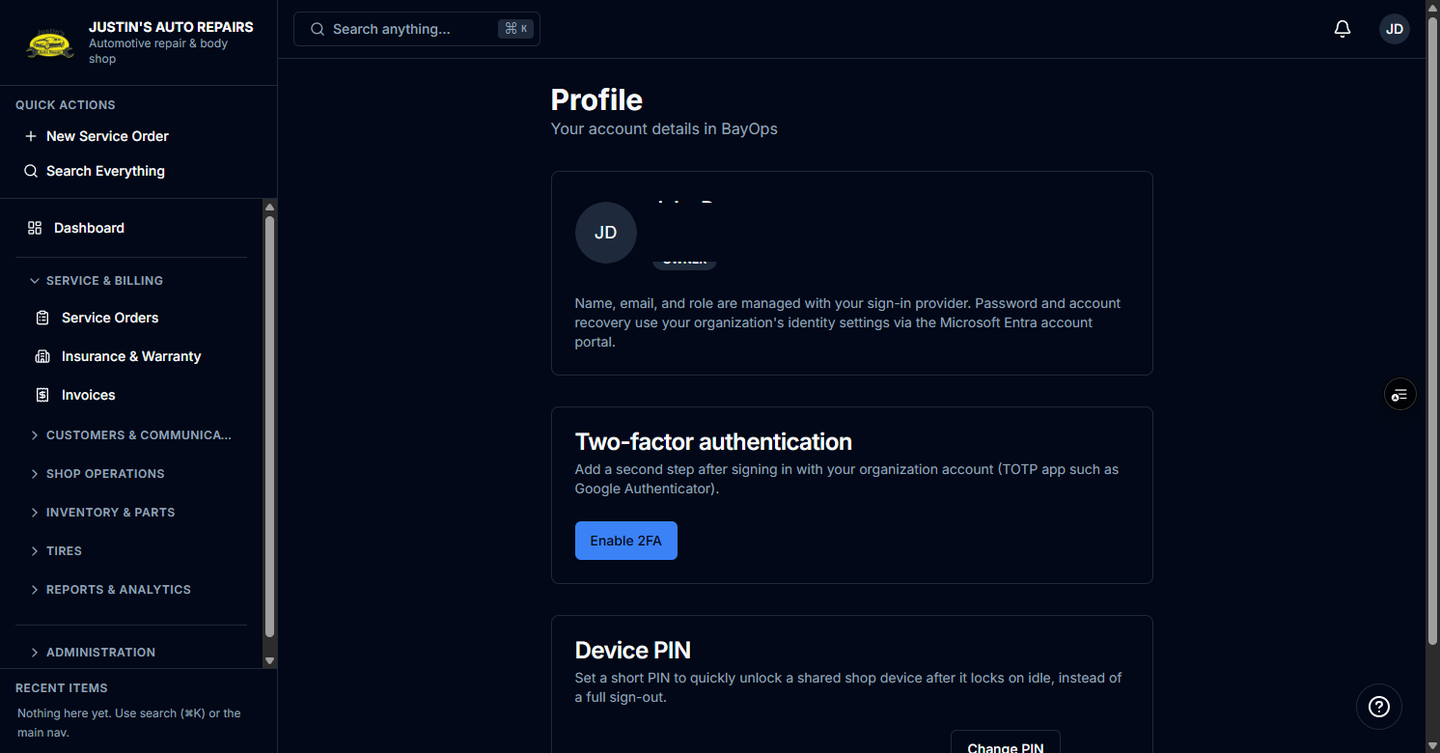
- Open the account menu and choose Profile.
- On the Two-factor authentication card, choose Enable 2FA.
- Scan the QR code with your authenticator app.
- Enter the 6-digit code and choose Confirm & enable.
- In Save your backup codes, copy the codes and store them somewhere safe. Close the dialog only after they are saved.
How you know it worked
The card says 2FA is on, and the next sign-in stops on Two-factor authentication until you choose Continue with a valid code. The account menu shows a 2FA badge.
Common snags
- The backup codes appear once. Each code works a single time, then it is used up.
- Disable 2FA asks for a current 6-digit code from the app. It then turns two-factor authentication off and clears the codes.
- If you lose the app and the codes, ask the owner. BayOps cannot show the codes again.