How to sign out
Who this is for
Anyone leaving a shared computer or ending a BayOps session. Sign-out also ends the Microsoft sign-in for this app.
Before you start
- You are signed in to a shop.
- A device PIN does not replace sign-out. Lock screen keeps the session. See How to lock a shared device.
Steps
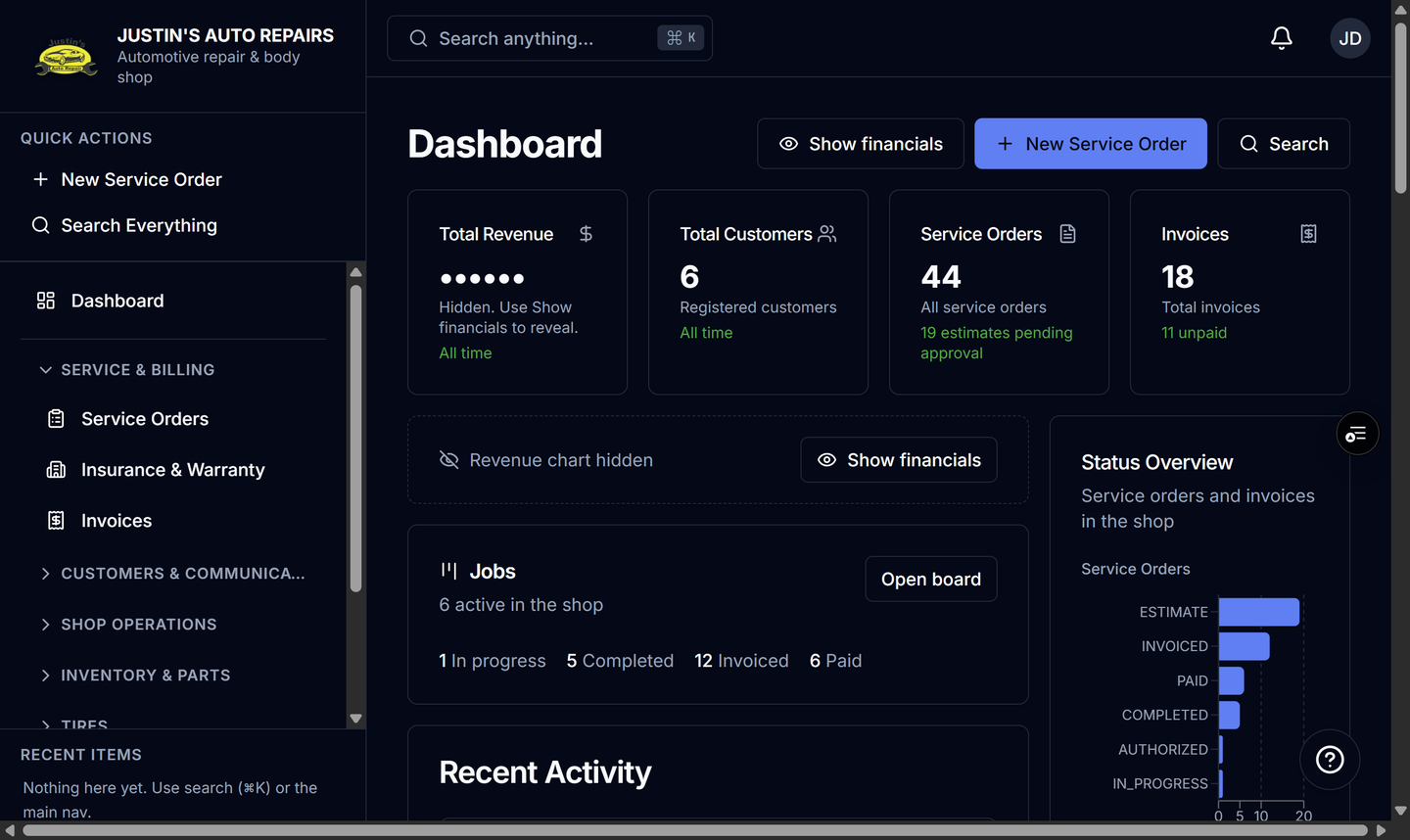
- Open Dashboard, or stay on the shop page you are using.
- Open the account menu in the top bar.
- Choose Sign out.
- Finish the Microsoft sign-out page if it appears.
How you know it worked
You return to the BayOps sign-in page, Welcome to BayOps, with the Sign In button.
Common snags
- Lock screen is a different command. It appears in the account menu only after you set a device PIN, and it does not sign you out.
- On the lock screen itself, Sign out is the control that ends the session.
- If Microsoft shows Pick an account, that account is no longer signed in to BayOps until you choose Sign In again.