How to cancel a service order
Who this is for
Staff stopping a job that should not continue. Choose Cancelled only when the status card offers that status. A paid job cannot be cancelled.
Before you start
- Open the service order. See How to view service orders.
- Reactivate (Cancelled back to Estimate) is for owner, manager, and receptionist. It is a header button, not a status-card step.
Steps
- Open the service order.
- On the status card, read You are here.
- Choose Cancelled if that button is shown.
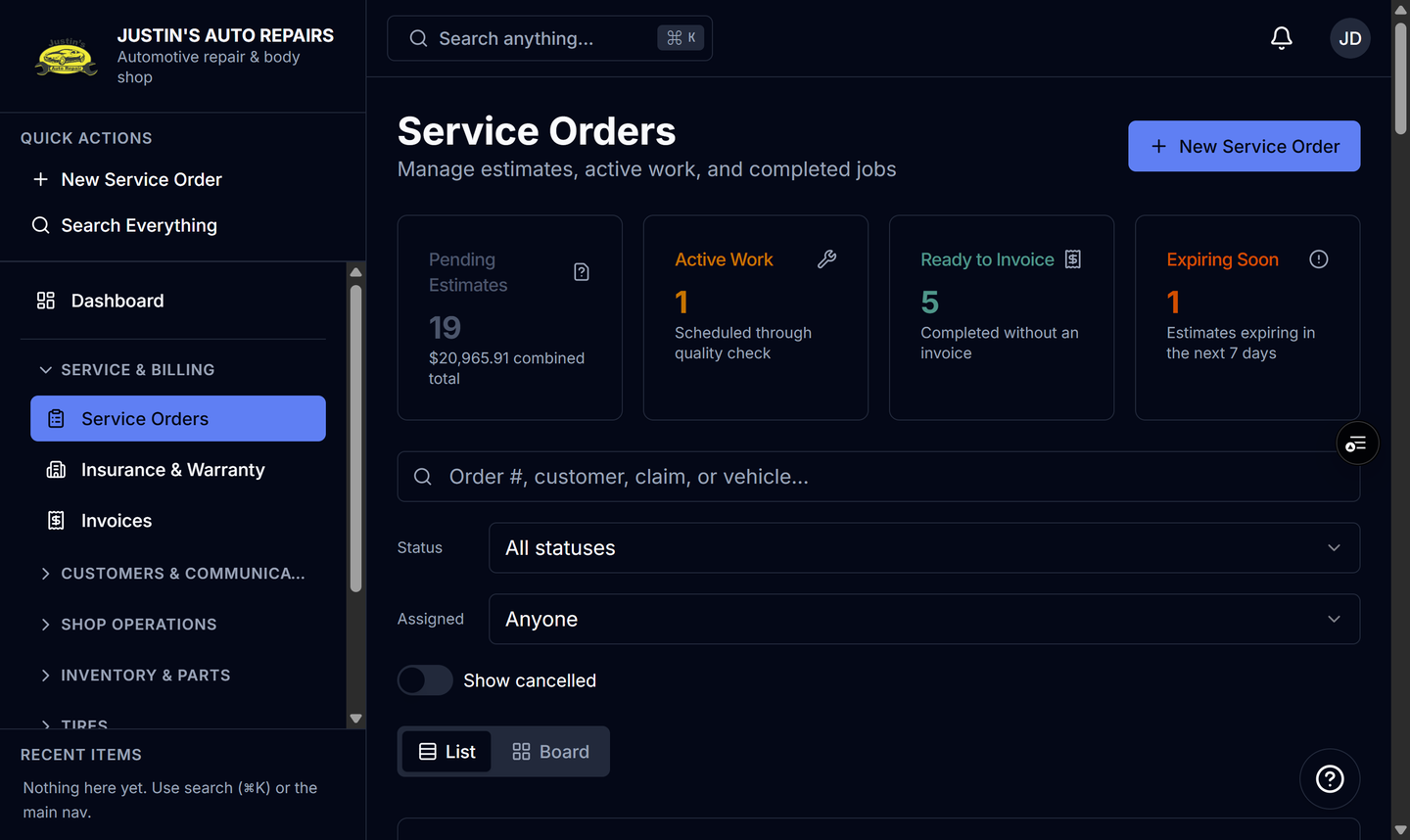
- Turn on Show cancelled on Service Orders when you need to find the job again.
- If you are owner, manager, or receptionist and the cancel was a mistake, choose Reactivate.
How you know it worked
You are here says Cancelled. The order disappears from the normal list and board until Show cancelled is on. Reactivate returns it to Estimate.
Common snags
- A paid job cannot be cancelled.
- After the order is invoiced, status changes are blocked. If Cancelled is still on the card, the change does not stick. Leave the invoice as it is.
- Danger zone on this page is Delete service order. That is not the same as setting the status to Cancelled, and it is hidden once an invoice exists.